How to Manually Update PostgreSQL
PostgreSQL 9.6 or newer is required for the latest versions of PokerTracker 4.
Introduction
This guide is intended for users who need to manually upgrade to a different major version of PostgreSQL.
This only applies when upgrading between major versions like 9.6 to 12, or 12 to 16, for example. Minor version updates like 9.6.x to 9.6.y do not need to follow this process as that does not require a database update.
Overview
The upgrade process consists of the following steps, which are detailed below.
- Backup your databases (using the old PostgreSQL service)
- Uninstall the old PostgreSQL service
- Install the new PostgreSQL version
- Restore your databases (using the new PostgreSQL service)
Please note that if you have large databases this will take a considerable amount of time, so please schedule it when you have time to complete the process.
How to Check What PostgreSQL Version PT4 Is Using
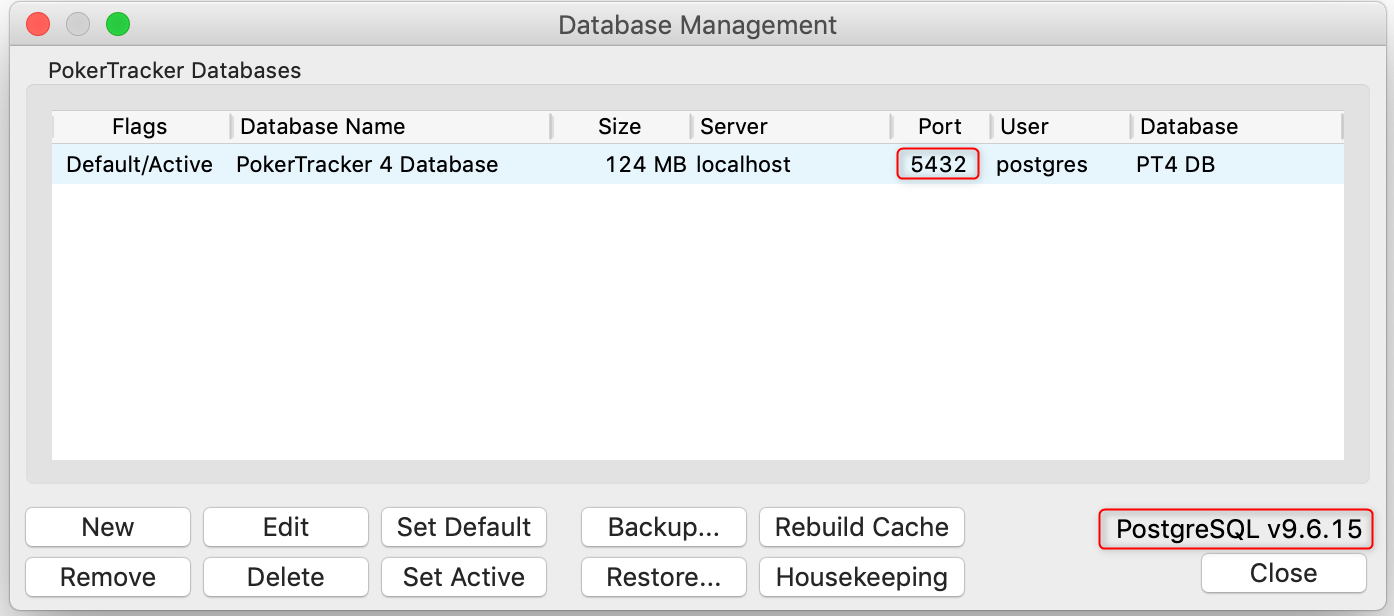
The easiest way to check which PostgreSQL version PokerTracker 4 is using is by going to Database > Database Management in the PT4 menu.
In the Database Management window the current PostgreSQL version is shown in the bottom right corner. This is the version you will later uninstall, after making a backup.
You can also see the port number being used in the list of databases. Make a note of this. You will use the same port number when installing the new PostgreSQL version.
If you are not able to run PT4 then you can check the PostgreSQL version as described here for macOS.
Backup Your Databases Using the Old PostgreSQL Service
The first step is to make a backup of all of your PokerTracker 4 databases.
This can be done within PT4 by going to File > Backup in the menu.
For more information about the Backup and Restore processes please see this guide.
In this case we need to back up all of the databases, but no other files. (We recommend performing regular backups including the Optional Files, but that is not required here and can add some time to the process.)
To do this:
- Remove all the checkmarks in the Optional Files section.
- Make sure that Backup Databases is checked.
- Turn on the checkmarks next to all databases on the left.
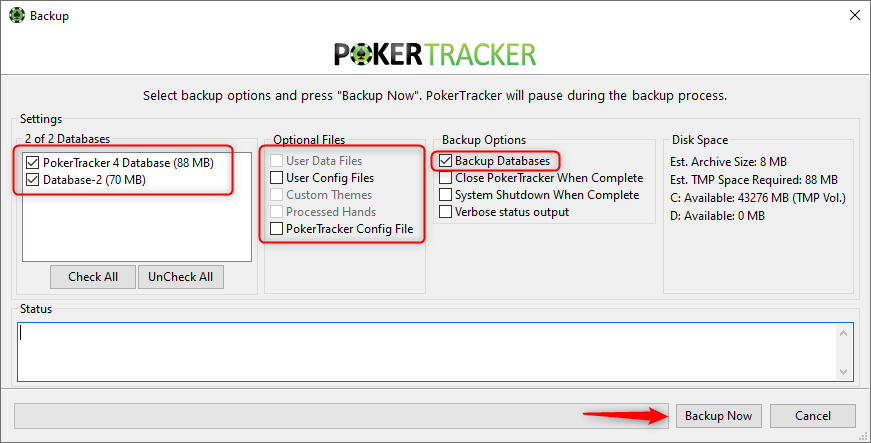
Ensure that the backup completes successfully before proceeding.
Uninstall the Old PostgreSQL Version
Once you have a backup of your PT4 databases you can uninstall the old PostgreSQL version.
- Windows
- macOS
To uninstall the old PostgreSQL service on Windows, navigate to Apps & features in Control Panel.
Click the Start button in Windows and type 'remove', and select Add or remove programs to access Apps & features.
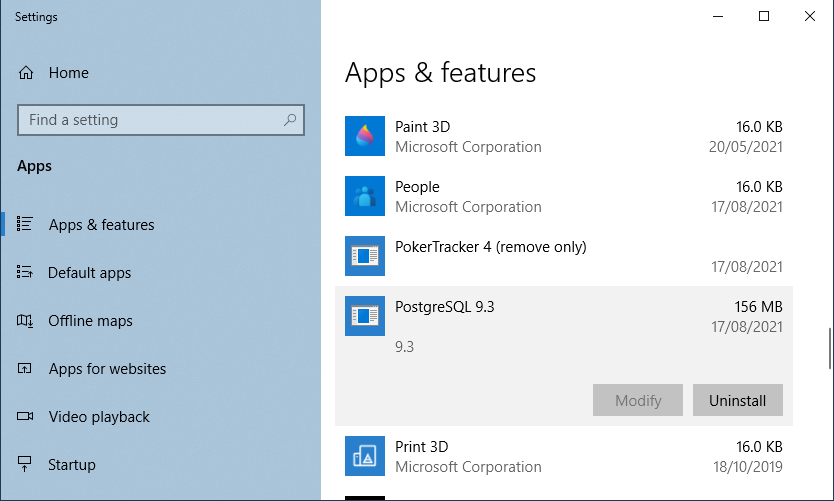
Find PostgreSQL 9.3 (or whatever version you currently have installed) in the list and click to select it. Click on Uninstall and follow the prompts to complete the uninstall process.
To uninstall the old PostgreSQL service on macOS follow these directions.
- Open a Finder window and select Go > Go to Folder from the menu.
- Navigate to
/Library/PostgreSQL/9.3, where 9.3 is your current PostgreSQL version number. - Open the uninstall-postgresql app, and enter your macOS administrator password if required.
- Follow the prompts to uninstall PostgreSQL.
Old PostgreSQL Data Folder
The PostgreSQL data directory will not be removed by the uninstall process.
We suggest that you do not delete this folder until you have everything set up and working in the new PostgreSQL service, as this will allow you to recover your old databases if you encounter any problems along the way.
See Deleting the Data Folder for the Old PostgreSQL Version below for information on how to delete the data folder, or how to use it if you need to recover your old PostgreSQL version.
Install the New PostgreSQL Version
PokerTracker 4 supports PostgreSQL up to version 18.
Please visit this page to download the 64-bit PostgreSQL 18.x installer for your computer.
Once the installer has downloaded, run it.
You can click 'Next' through most of the steps, but:
- On the Select Components page de-select 'Stack Builder'.
- On the Password page enter 'dbpass' as the password.
- On the Port page the port number should default to the same port number shown in your PT4 Database Management window that you noted earlier, and you should edit it to match if it does not. This is most likely 5432.
Restore Your Databases to the New PostgreSQL Service
Once the new PostgreSQL version is installed run PokerTracker 4 again.
When PT4 starts up it will not be able to connect to your databases, and the following window will be shown.
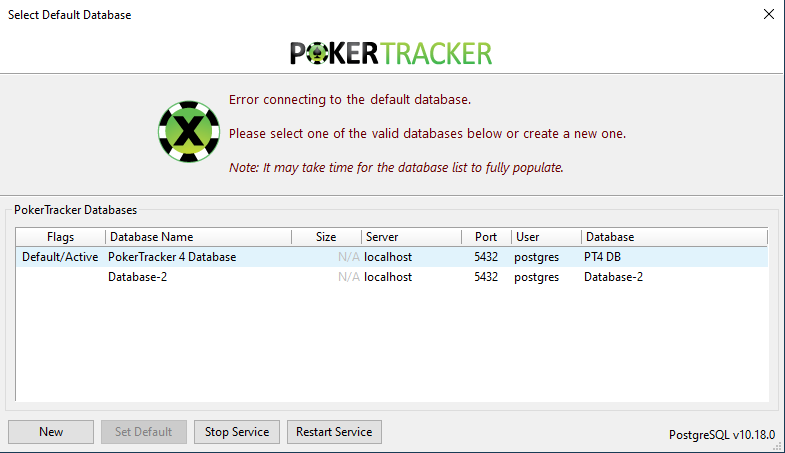
Click New to create a temporary database. The name doesn't matter, as you can delete this database again after your own databases have been restored — just click Create. Once the new database is created PT4 will start up.
To restore your databases follow these steps:
-
Go to File > Restore
-
Select the backup file you made earlier, and click Open
If your backup includes any Optional Files disable those options. You only need to restore the databases here.
-
Click Restore Now
-
Wait for the process to complete and then close the Restore window
-
Open Database > Database Management
-
Select your main database and click Set Active, and Set Default
-
Select the temporary database and click Delete
If you made a separate backup for each database, you may repeat steps 1 to 4 to restore the remaining databases at any time.
Re-Import Instead of Restore (Optional)
The normal method is to restore your backed up database, as described above. As an alternative, you can re-import your original hand histories into a new database instead.
Consider re-importing if:
- You want the most accurate data. Re-importing can correct hands that were affected by import issues when they were originally imported.
- You have a large database and want to use PT4 sooner. A restore must be done as a single operation, which can take a considerable amount of time for large databases. Re-importing takes longer overall, but can be split into smaller sections so you can use PT4 again between imports.
Re-importing does not preserve manual changes. If you have manual notes in your database, or you manually edited any tournament results, restore the backup instead — re-importing will not retain those changes.
Deleting the Data Folder for the Old PostgreSQL Version
When you uninstall the old PostgreSQL service the data folder is not deleted automatically. Do not delete it until you have fully restored your databases in the new PostgreSQL service and confirmed that everything is working correctly.
If something goes wrong during the upgrade and you cannot access your databases in the new PostgreSQL service, download and re-install the old PostgreSQL version you were originally using from this page. This should let PT4 access your old databases again. Contact support if you need help.
Once you have confirmed that your databases are working correctly in the new PostgreSQL service, you may wish to delete the old data folder to free up disk space. It is located at:
- Windows
- macOS
C:\Program Files\PostgreSQL\9.3\data
/Library/PostgreSQL/9.3/data
Here "9.3" is the version number of the old PostgreSQL service, and may differ depending on the version you were upgrading from.
Only delete the data folder from your old PostgreSQL service. If there are any other files or folders alongside it, that PostgreSQL version is still installed — do not delete anything.