How to Submit a Bug Report
Overview
In the event that you have an issue with PokerTracker 4 you are encouraged to submit a Support Ticket.
This allows the PokerTracker 4 support team to learn about your issue, and to provide a resolution.
To make it easier for you to review all answers for your support requests, we suggest that you log into your PokerTracker.com account prior to submitting a Support Ticket.
If PokerTracker 4 crashes, please submit your crash report when you restart. If this happens regularly please also open a support ticket and mention that you have sent crash reports. Click here for more information on crash reports
Before Submitting a Bug Report
If you have a problem with PokerTracker 4 there are a few things to check:
- Update to the latest version of PT4 to see if your issue has already been fixed. PT4 Download Page
- Search the PokerTracker forums as often your problem will already have been addressed and you may find a solution there. Use the Search function at the top right of the forum.
- Look through the other Guides, Tutorials and Frequently Asked Questions documents on this website. In particular the Import Troubleshooting and HUD Troubleshooting guides will help with a good number of problems.
If you don't find a solution post your question in the appropriate forum - ALL PokerTracker 4 issues should be posted in the PokerTracker 4 section, including HUD issues.
If you have a specific problem, or if you have been asked to by support, you should report it using the PokerTracker Support system.
Submitting a Support Ticket
When you create a support ticket please give as much detailed information about your issue as possible.
Make sure you specify your operating system and the exact version number of PokerTracker 4 that you are using - you can see this in the title bar of PokerTracker 4.

What information and attachments you should include in the ticket depends on exactly what the problem is, but please explain clearly what the problem is and what steps you take to reproduce it (if you see it consistently) or what you were doing just before you experienced the problem.
Include as much detail about the problem as possible, including the time, hand numbers or table names, or exactly what report you are using, etc.
Files to Attach
Attach files to your ticket to illustrate the problem. Which files to attach depends on the issue:
- A Support Bundle — in most cases. This packages all of the relevant PokerTracker 4 log files into a single zip and is the easiest, most complete way to send logs.
- Hand history files — if your problem involves importing hands.
- A screenshot — when the issue is easier to show than describe.
- PostgreSQL log files — for problems related to PostgreSQL.
If PokerTracker 4 will not start and you cannot create a Support Bundle, access the log files manually instead.
There is a per-file size limit on attachments that accepts most files. Zip/compress very large files, or any group of several files, before attaching them.
See Attaching Files to a Support Ticket for how to upload files to the ticket.
Managing Support Tickets
Once you submit your ticket you will receive an email confirmation. From there you can either follow the link back to your ticket on the PokerTracker website or reply directly to the email.
You can also find any of your existing tickets at any time by signing in to the PokerTracker Support website.
To update a ticket, open it on the website and reply the same way you did when you created it. (This is the recommended way to update your ticket.)
A few guidelines for keeping tickets organized:
- Stay in the same ticket for the same issue. To add information or follow up on an existing problem, keep using the original ticket rather than opening a new one.
- Open a separate ticket for a different problem. It is much easier for everyone to track a single issue per ticket.
- Link your forum post if applicable. If you were asked to open a ticket after posting in the forum, include a link to your forum message in the ticket.
Example — HUD Problem
If you are having problems with the HUD, enable logging and restart PokerTracker 4 before you reproduce the issue.
Then work through these steps:
- Play a short session (around 20 to 30 hands) at a single table, using as few tables and hands as you need to show the problem.
- When the problem occurs, take a screenshot that includes the full table window or your full screen.
- Before you restart PT4, create the Support Bundle.
- Attach the Support Bundle, the hand history file for the session, and the screenshot to your support ticket.
When you describe the problem, be as specific as possible — it isn't always obvious from a screenshot alone. Be sure to:
- Explain exactly what is wrong.
- Tell us your player name and identify any other players affected by the issue.
- Note the time you saw the problem, and the table(s) it occurred at if you had multiple tables open.
The following details are also helpful for HUD problems:
- Whether the problem affects every HUD Profile or only a specific one.
- Whether you use a preferred seat or auto center.
- Whether the problem affects multiple poker sites.
PokerTracker 4 Log Files
Be sure to enable logging before you reproduce the problem.
Reproduce your problem in as simple a way as possible so that the log files do not contain more information than necessary.
Enable Logging
To generate the log files you must enable logging.
There are two ways you can enable logging, listed below: (Please note that enabling logging can affect computer performance, but the effect should be negligible)
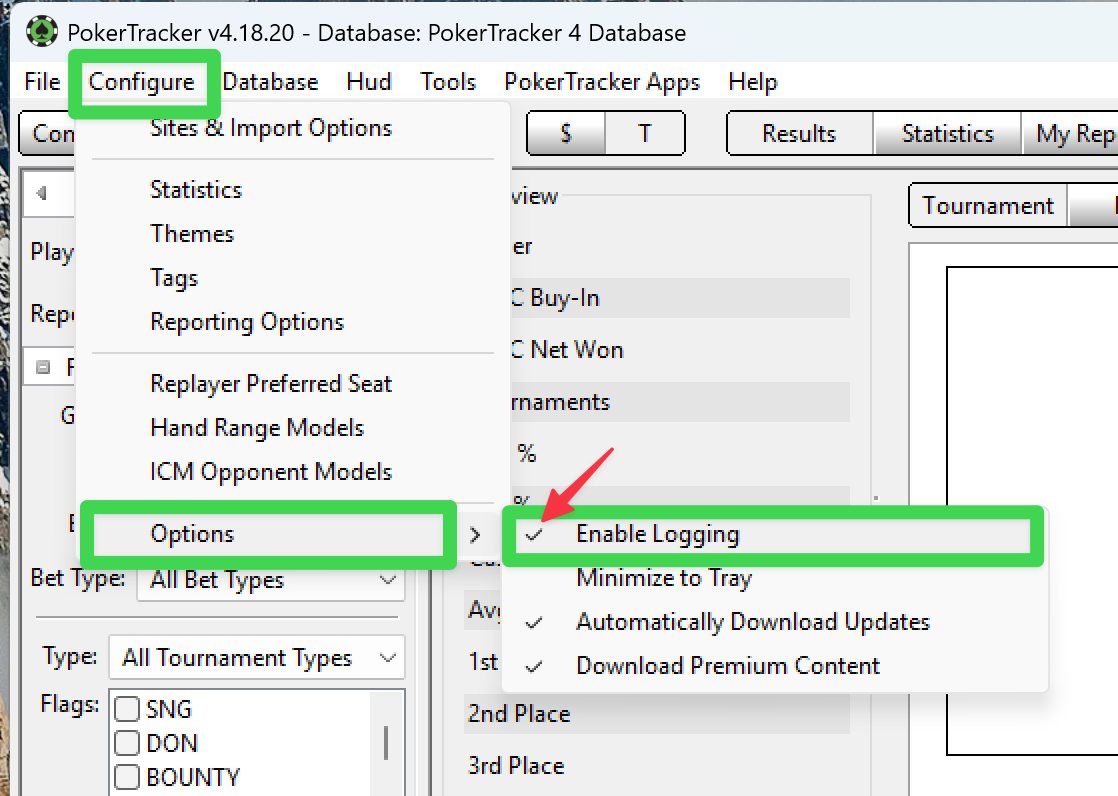
- In PokerTracker 4 go to Configure > Options > Enable Logging - make sure there is a check next to the option. This method will work in both the Windows and macOS versions of PokerTracker 4. Restart PokerTracker 4 for logging to start.
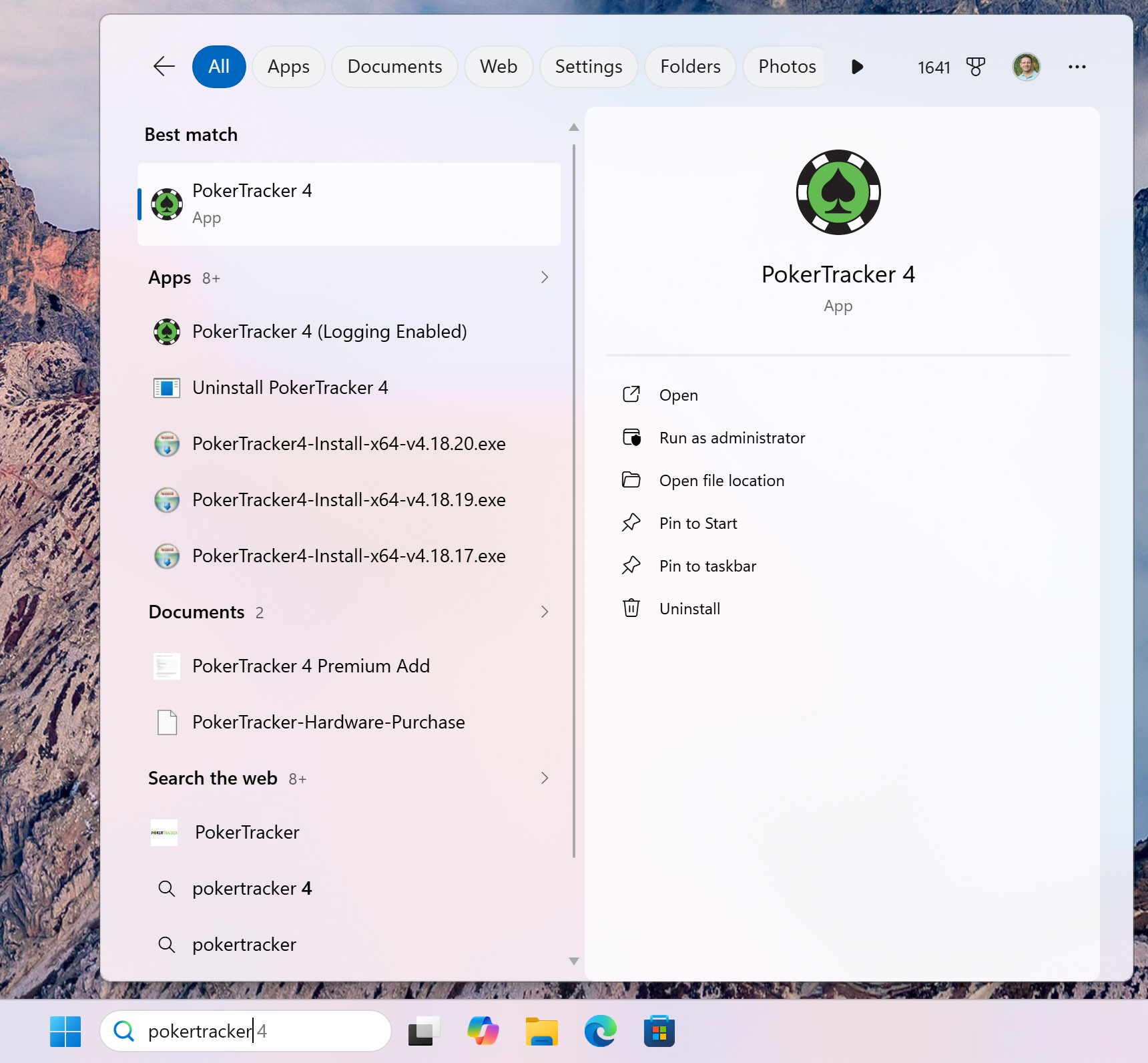
- You can temporarily start PokerTracker 4 with logging enabled. This will not enable logging for future use - it only applies each time you start PT4 using this option.
- Windows
- macOS
Use the PokerTracker 4 (Logging Enabled) option in the Windows Start Menu. Click or tap the Start button or press the Windows key on your keyboard and start typing 'pokertracker' to search.
Hold down the Option key on your Mac keyboard when you start PokerTracker 4 to temporarily enable logging.
Create Support Bundle
The easiest way to access the PokerTracker 4 log files is to create a Support Bundle, which contains all of the relevant log files.
To create a Support Bundle after the problem occurs please use the PokerTracker 4 menu File > Create Support Bundle.
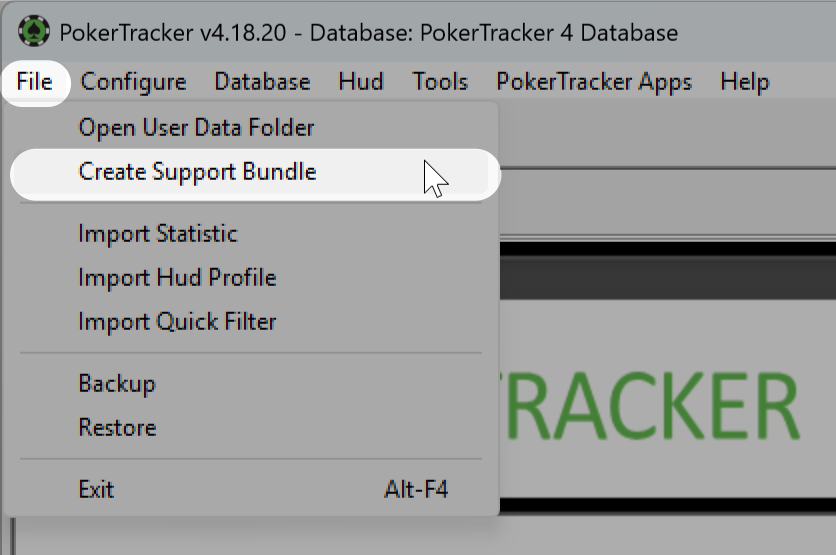
This will create a zip file and open the folder you have chosen to save it to.
You can attach the Support Bundle directly to a support ticket. If you have an existing ticket please attach your Support Bundle to the same ticket, along with any relevant information about what happened during this specific run of PT4.
Accessing Log Files Manually
If you are unable to use the Create Support Bundle option from the menu (if PT4 is not responding, for example) then you can access the log files directly.
- Windows
- macOS
Open File Explorer and enter the following in the address bar:
%localappdata%\PokerTracker 4\Logs
Open Finder and from the menu choose Go > Go to Folder, and enter the following:
~/Library/Application Support/PokerTracker 4/Logs
The log files from your current session are in the folder called "Logs" within PokerTracker 4's 'User Data Folder'. PokerTracker 4 also keeps logs from the last 7 days, and those logs are stored in the "Logs\Archive" folder. You can access the User Data Folder using the PokerTracker 4 menu File > Open User Data Folder.
Hand History Files
If your problem involves hand import errors or you are submitting a ticket for a HUD problem and have played a short session you should attach the hand history file(s) to the ticket.
You can normally find your hand history files in the hand history folder for the site, but after you click 'Stop Getting Hands' they will be moved to the 'Processed' folder.
To access the default Processed folder location use the PokerTracker 4 menu File > Open User Data Folder, or navigate there directly. The default location is:
- Windows
- macOS
%localappdata%\PokerTracker 4\Processed
~/Library/Application Support/PokerTracker 4/Processed
For more information on the 'Move Processed Files To' option and to see where the files are moved to see the Tutorial: Automated Hand History Importing.
When you have found the relevant hand history file(s) you can attach them directly to the ticket, or if there are multiple files then zip/compress them and attach the zip to the ticket.
Taking a Screenshot
A screenshot will help to explain the problem to our support staff.
To create a screenshot:
- Windows
- macOS
The easiest way to capture a screenshot on Windows 11 is the Snipping Tool:
- Press Windows logo key + Shift + S. The screen will dim and a small capture toolbar will appear at the top.
- Choose the capture type you want — rectangular, freehand, window, or full-screen — then select the area you want to capture.
- A thumbnail of the screenshot appears in the lower-right corner. Click it to open the Snipping Tool, where you can crop the image or add highlighting and arrows to point out the problem.
- Click the Save icon (or press Ctrl + S), give the file a name, and make sure it is saved as a .png file. Note where you save it so you can find it again to attach it to your ticket.
You can also press Windows logo key + Print Screen to save a screenshot of the whole screen straight to your Pictures > Screenshots folder, or press Alt + Print Screen to copy just the active window to the clipboard so you can paste it into another application.
- Make sure the window you want an image of is active (click on it) then press
CMD-SHIFT-4. A cross-hair cursor will appear, you can now click and drag to select the area you wish to capture. When you release the mouse button, the screenshot will be saved as a .PNG file on your desktop. - Note the name of the .PNG file you just saved on your desktop so that you can find it again to attach the file to your ticket.
Please do not include your image files in Word documents or anything else - just attach the plain image file, or zipped image files.
PostgreSQL Log Files
If you have a problem related to PostgreSQL, such as problems starting or connecting to the service, creating databases, etc., then you should also attach a few log files from around the appropriate time from the PostgreSQL logs folder:
- Windows
- macOS
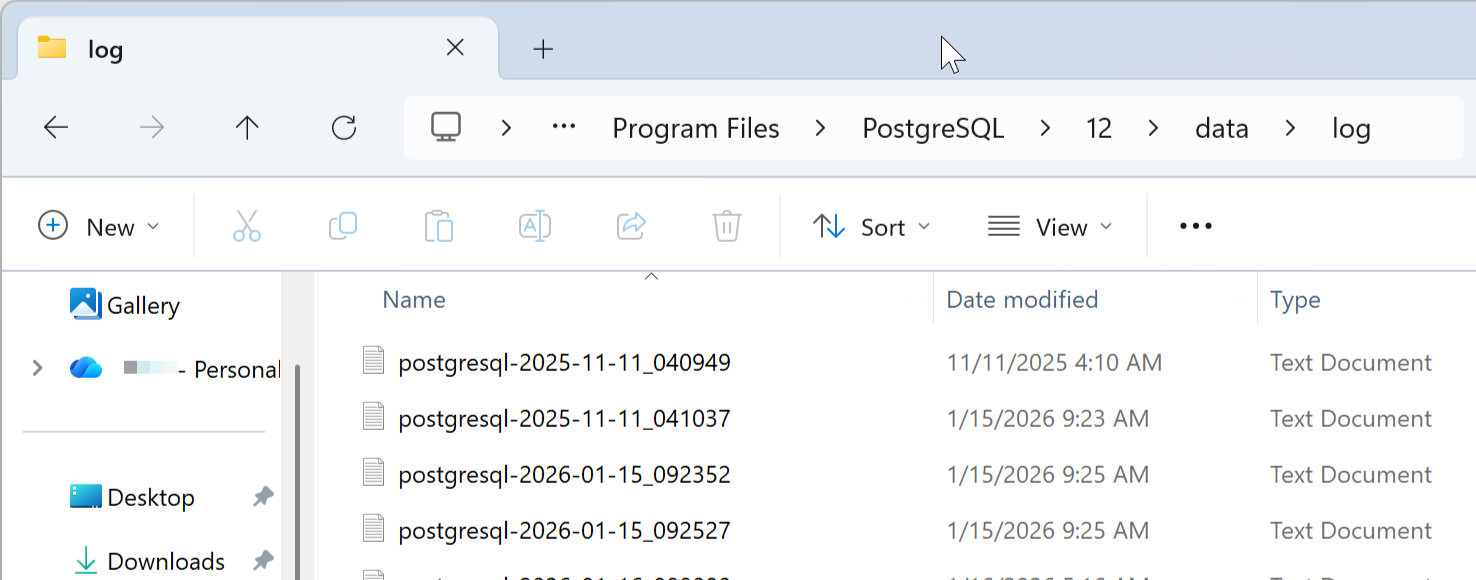
The PostgreSQL logs in the Windows operating system are located at: C:\Program Files\PostgreSQL\[VERSION]\data\log
([VERSION] refers to the version of PostgreSQL installed on your computer)
The PostgreSQL logs on macOS are located at: /Library/PostgreSQL/[VERSION]/data/log/
([VERSION] refers to the version of PostgreSQL installed on your computer)
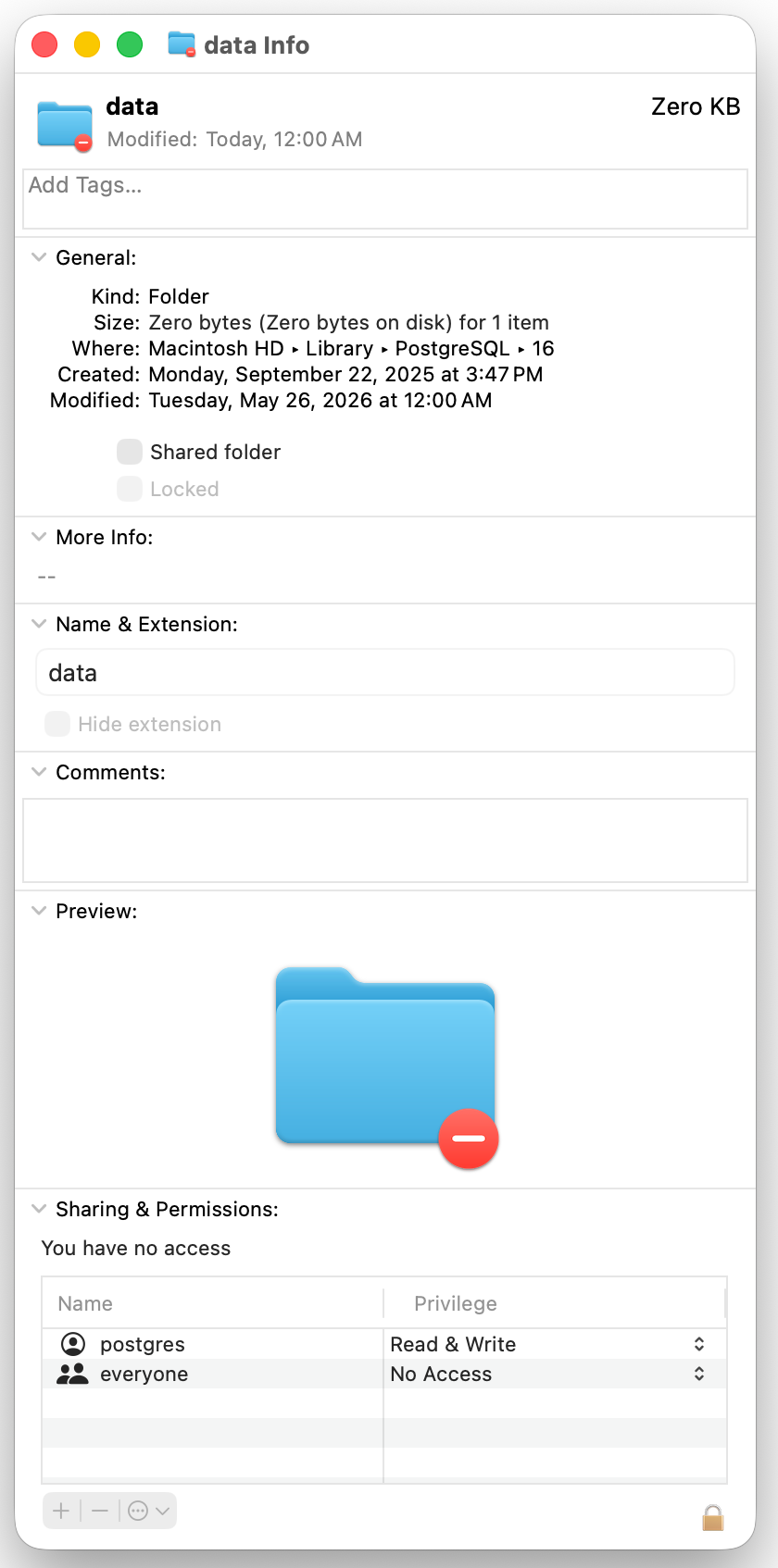
This folder's permissions are set to only allow access to the 'postgres' user. To access these files you need to temporarily give Read permission to 'everyone'.
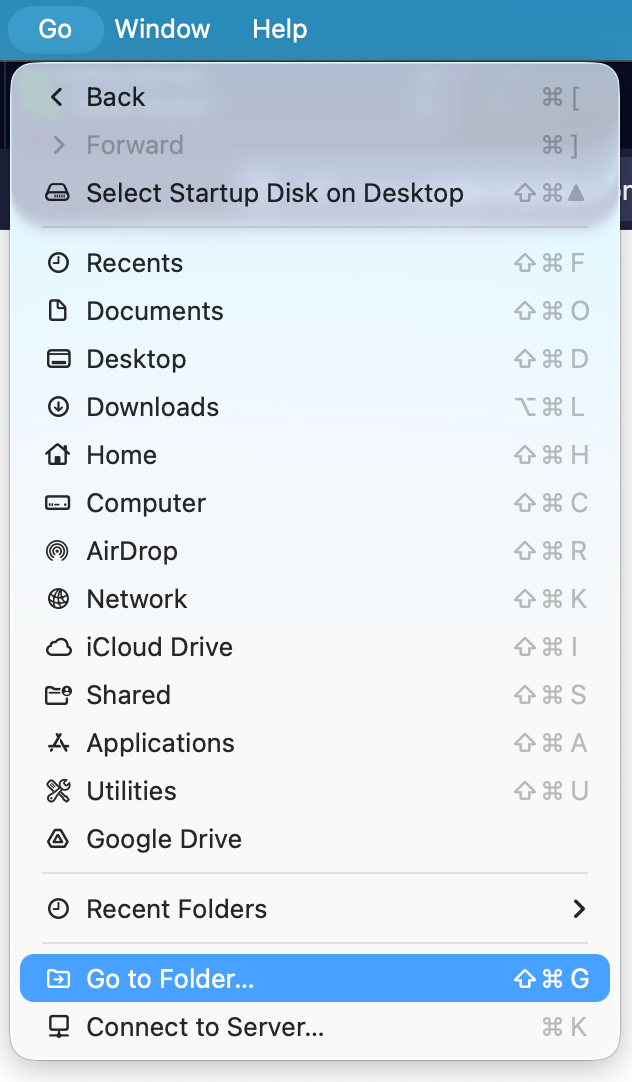
- From the macOS Finder menu click Go> Go To Folder (
SHIFT-CMD-G)
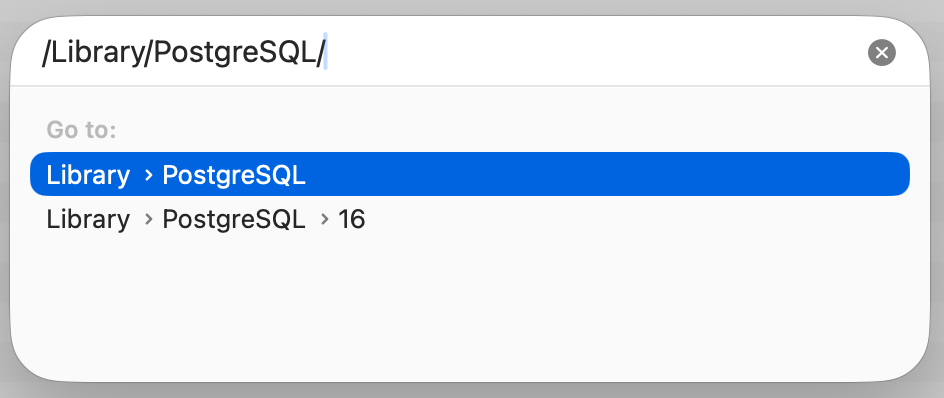
- Type /Library/PostgreSQL/ and hit
RETURNkey
-
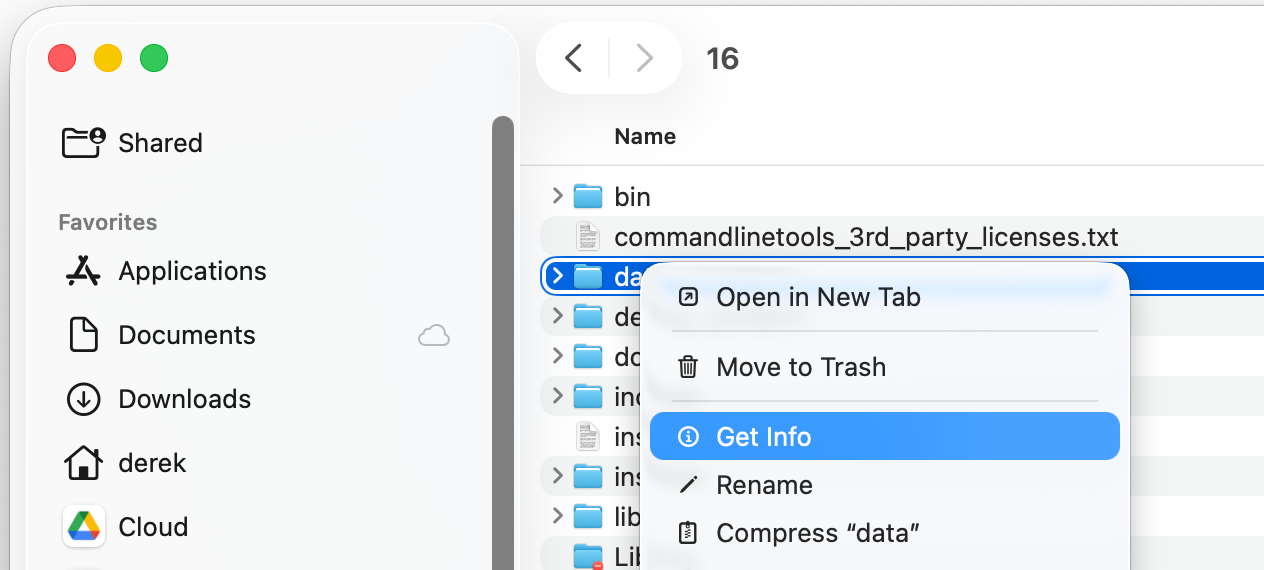
Double Click the folder that matches your PostgreSQL version number. The example below shows PostgreSQL 16 installed.
-
Right-click the Data folder, and select Get Info.
- Click the lock icon on the bottom right hand side of the data Info window, and enter in your macOS User Password, this is necessary to allow you to make changes to this folder's permissions. Under Sharing and Permissions change the everyone group's Privilege permissions from No Access to Read only. Leave the data Info window open until we are done collecting the Postgres log files, we will need to revert the permissions to No Access in the final step.
- Open the Data folder, then double click the
logfolder to open it.
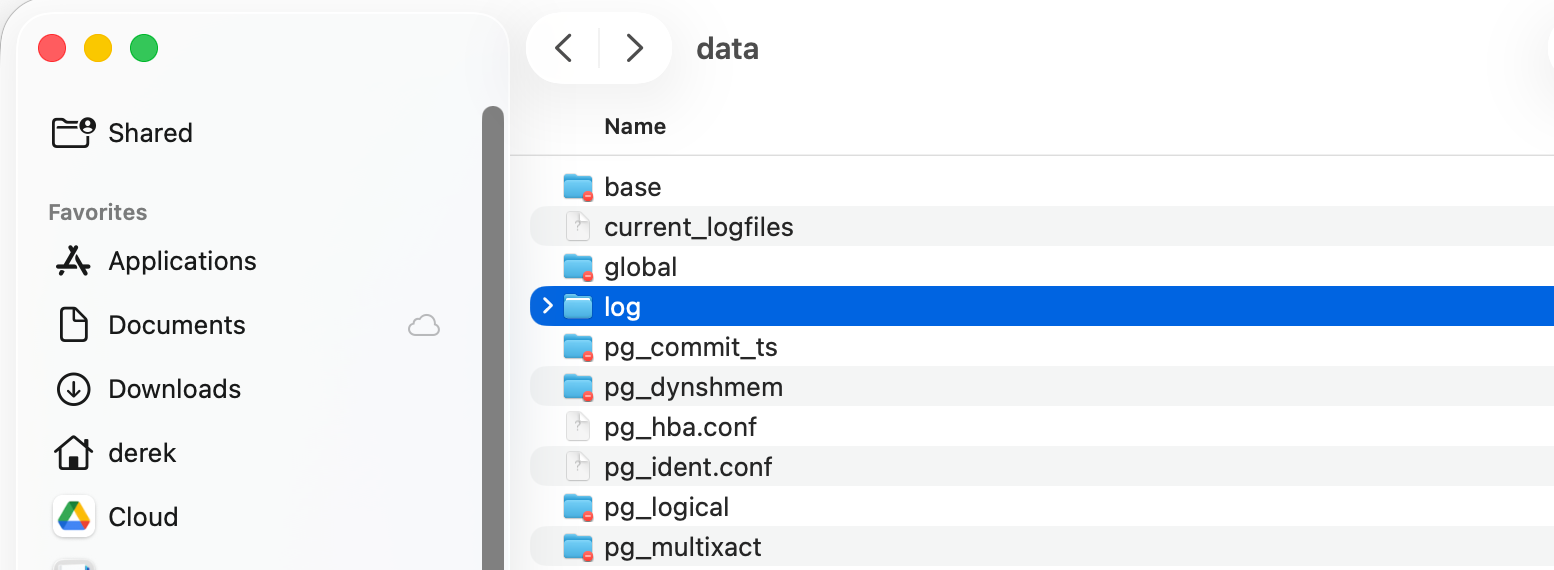
- Change to the list view in the Finder, then sort by Date Modified. Copy the log files which represent the date of the problem to your desktop by selecting the files, click CMD-C to copy the files, then click on your desktop and click CMD-V to paste the files to your desktop (you may need to enter your macOS user password once again)
- Return back to the data info folder, Under Sharing and Permissions change the everyone group's Privilege permissions from Read only back to No Access. You can now safely close the data Info window.
Once you change permissions for the PostgreSQL data folder and have retrieved the files you need to submit to PokerTracker Support, then you must change the permissions back to their original state in order to be able to use PostgreSQL. The database server will not run until these permissions have been returned to their original state, PostgreSQL is required to access the PokerTracker 4 database.
Please zip/compress the PostgreSQL log files before attaching them to your Support Ticket.
Compressing Files
Before attaching files to a support ticket it is useful to compress (or 'zip') them. There is a per-file size limit on ticket attachments which is large enough to accept the majority of files, so compressing is especially important if your files are very large or there are a lot of them.
- Windows
- macOS
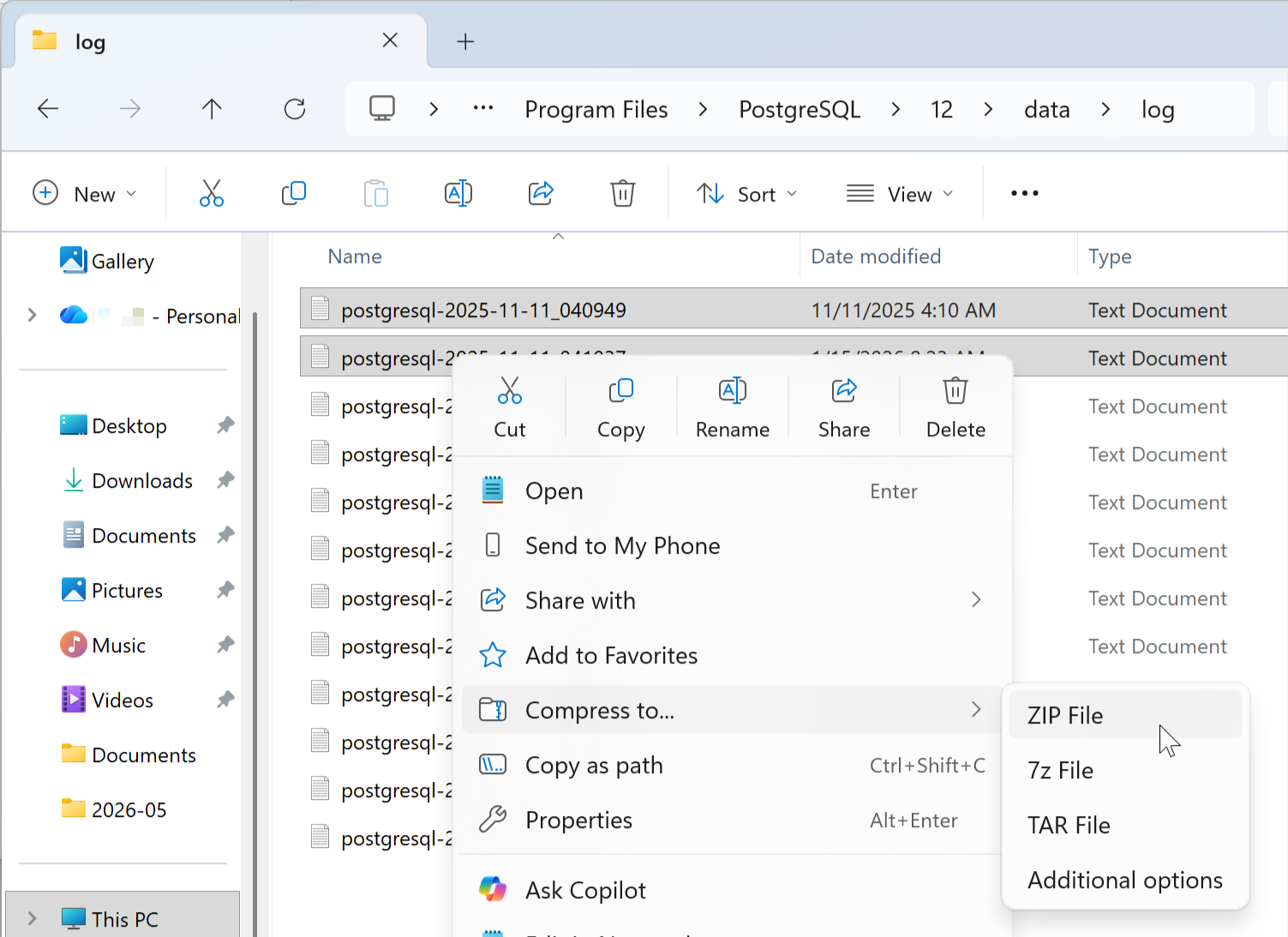
On Windows you can do this without any third party software. Select the files that you want to compress by left-click-dragging or control-clicking each in turn. When you have selected the files right click and choose Send to Compressed Folder. This will create a new .zip file in the same folder. Make a note of where this zip file is so that you can find it to attach to your ticket.
If you have a very large file to compress you will probably find that a 3rd party application like Winzip will give better compression.
Windows: Send to Compressed (Zipped) folder
Select the files you want to compress and right-click (or secondary click) them and choose Compress.
macOS: Compress 2 Items
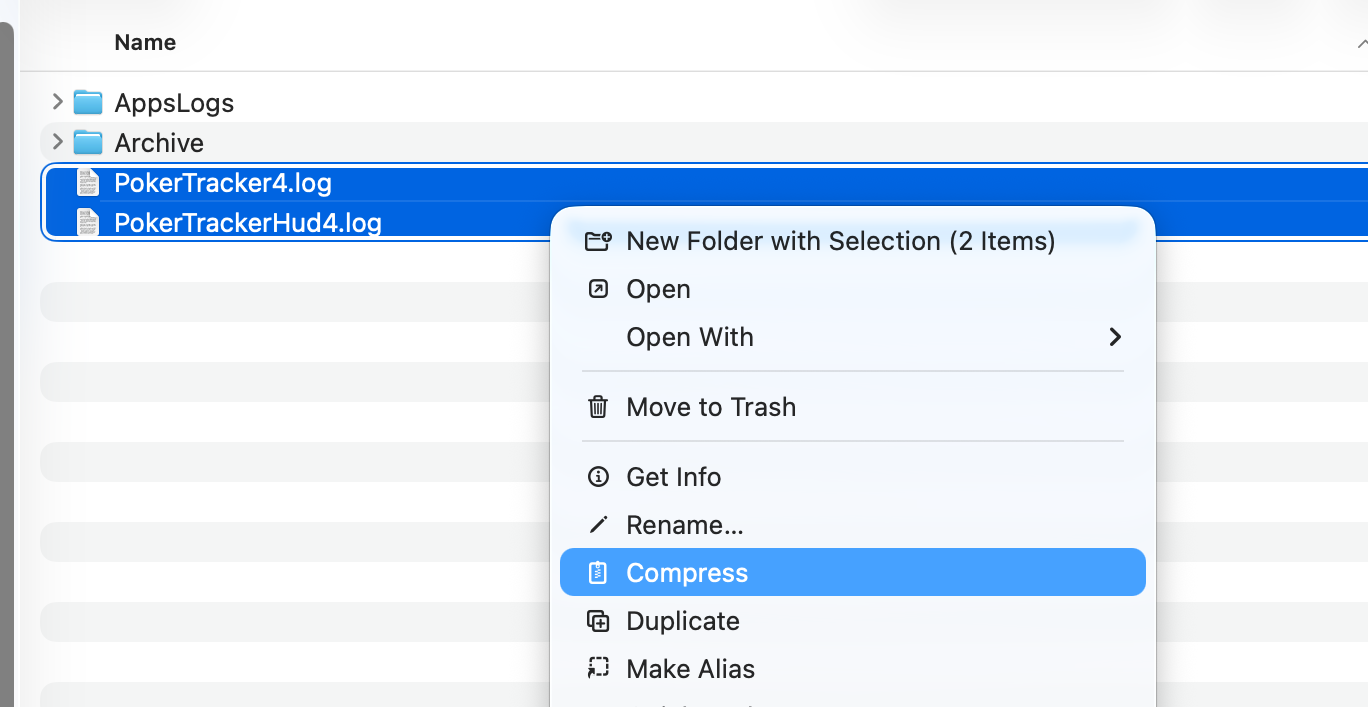
If you want to add more files to the .zip after it has been created you can drag and drop other files onto it and they will be added - this is useful if, for instance, you create a zip file of the two main PokerTracker 4 log files and then want to add a hand history file or a screenshot from another folder.
Attaching Files to a Support Ticket
Often it is helpful to attach files to a support ticket, whether these be PokerTracker 4 log files, PostgreSQL log files, hand histories or screenshots, or anything else that you need to share to help our support team find a solution to your problem.
There is a per-file size limit on ticket attachments. It is large enough to accept the majority of files, but very large files should be zip/compressed first.
Most files that you need to attach to a ticket should not be that large, but if you need to attach a large file or multiple files the best way is to zip/compress them first and then attach the single zip file.
To attach files for upload with your ticket you can use this field which is below the text entry field on the ticket page.

You can either:
- Drag files directly from Windows Explorer, or Finder on macOS, and drop them in the box in your browser;
- Click the box and then in the window that opens select the files you want to attach, then click Open;
If any of the files you tried to add cannot be uploaded (for example because they are an unsupported file type or exceed the attachment size limit) you will be shown an error message like this:

The files which can be uploaded will be shown, with the option to remove them from your ticket again by clicking the Delete button.
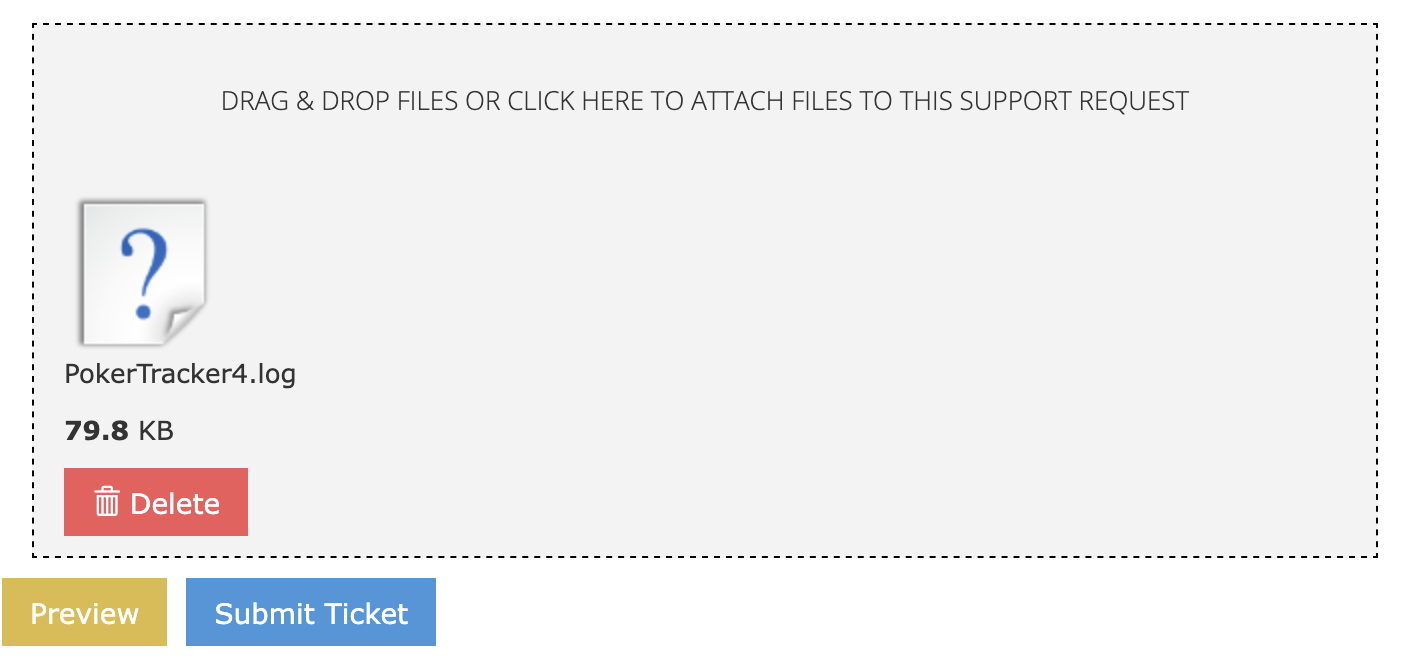
You can add multiple files at once, or you can add further files again afterwards in the same way.
There is a limit of 10 files in a single message so if you need to attach more files than that please zip/compress them first, then attach the single compressed file.
If you want to attach another file repeat the above steps, but otherwise finish off your message and re-read it to make sure it explains your issue before clicking Submit Ticket.
Crash Reports
If you experienced a crash the PokerTracker 4 application should display the Crash Reporter the next time you launch it.
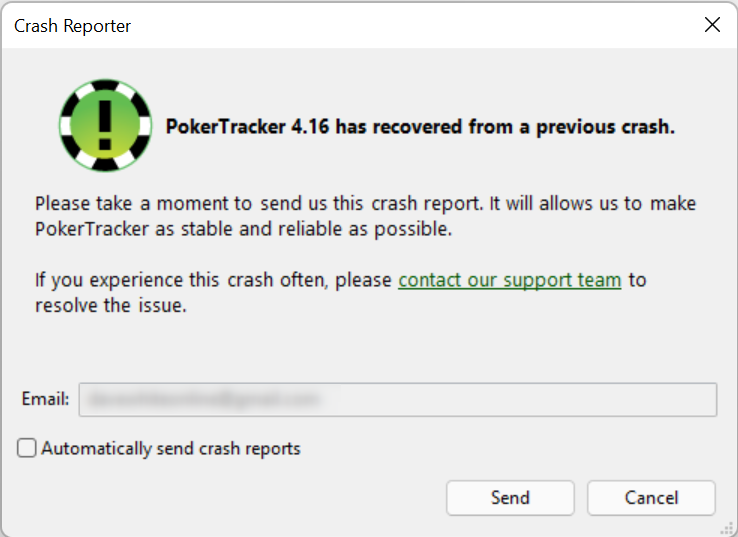
Please send us your crash report.
This will automatically include all of your log data from the crash and is extremely useful to the development team in identifying and resolving crashes. No personal information is included in this upload.