GGPoker Configuration Guide
Overview
GGPoker doesn't allow third-party HUD software, but it does let you download hand history and tournament summary files for any games you've played in the last 90 days. You can then import these files into PokerTracker 4 for post-game analysis.
Manual Hand History Download
GGPoker offers PokerCraft, their own poker analysis website, where you can download your hands for up to 90 days after you've played them.
To download your hands, log in to the GGPoker client and click the PokerCraft link in the toolbar at the bottom of the window.

This opens the my.pokercraft.com website.
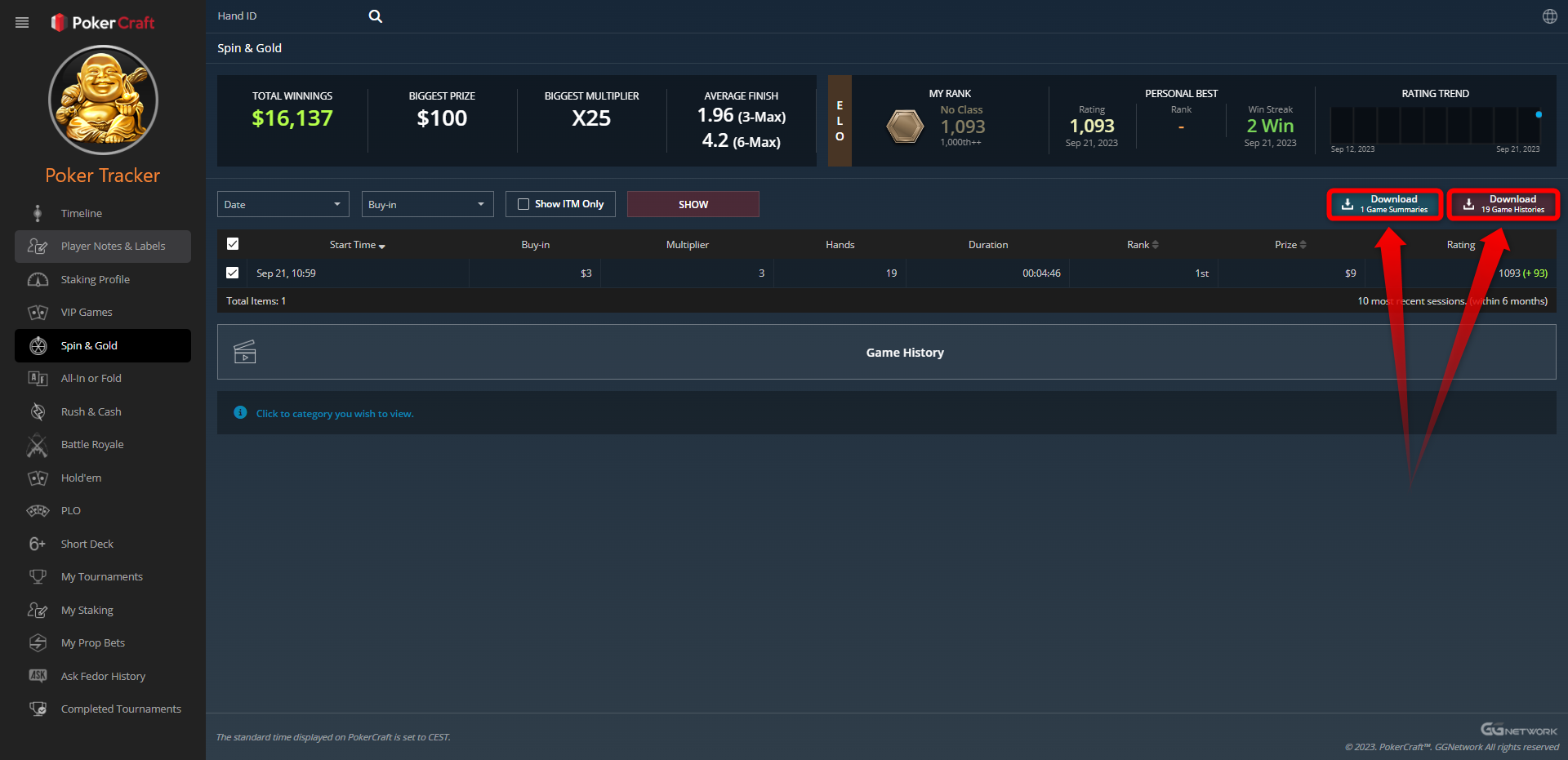
On the left-hand side, a menu lets you choose the game type you want, such as Hold'em, PLO, My Tournaments, or Spin & Gold. Select the format, check the boxes for the sessions or tournaments you want, then click the Download button on the right-hand side.
For tournament games, a second Download button appears for tournament summaries. PokerTracker uses these to track your winnings, so be sure to download them too.
Importing Downloaded Hand Histories
To import the downloaded hand history and tournament summary files into PokerTracker 4, go to the Play Poker tab and click Get Hands From Disk.
From there you have two options:
- Select Files — choose and import individual files.
- Select Directory — import every file in a folder and its subfolders.