GTECH G2 (Boss/IPN) Configuration Guide
Overview
The GTECH G2 Poker client goes by several names. Long-time players often call it Boss Media or just "Boss", its former name.
GTECH G2 once ran on the International Poker Network (IPN), now disbanded. The client now runs across regional networks such as International.ca (Canadian Poker Network) and International Poker Network Italy.
PokerTracker 4 imports text hand histories saved to your computer by the GTECH G2 poker client. Once imported, hands are stored in PostgreSQL and made available for review and analysis in your PT4 database. Configure it correctly so PokerTracker 4 can retrieve these hand histories and display the Heads Up Display (HUD) on your GTECH G2 tables.
This guide covers configuring PokerTracker 4 manually to import hand histories from the GTECH G2 client; alternatively, use the automated Setup Assistant. For general setup, see the PokerTracker 4 Quick Start Guide.
Setup Assistant
For most users, the Setup Assistant is the most efficient way to prepare PokerTracker 4. It automates configuration so you don't have to set up your poker environment manually. Click Tools > Setup Assistant from the main toolbar, choose Configure Sites, and turn GTECH G2 (Boss) to Yes.
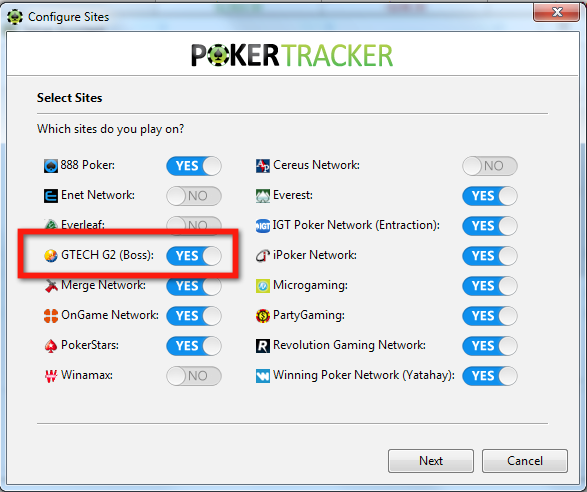
To configure GTECH G2 (Boss) with the Setup Assistant:
- Make sure your GTECH G2 poker client is configured to save hand histories to your hard drive.
- Tell PokerTracker 4 where the GTECH G2 client saves its hand histories. Click Auto Detect to find the path automatically, or click Add to point PT4 to the hand history folder yourself, then click Next.
- On the final step, choose to import existing hand histories: select Yes, choose the destination database, and click OK.
If you have a lot of hand histories saved in your GTECH G2 hand history folder, the import may take some time. Let PokerTracker 4 finish importing all hands for best results.
Configuring GTECH G2
The sections below cover the settings needed to import hands and display the HUD from the GTECH G2 client.
Hand Histories
The GTECH G2 software will automatically save hand history files as you play, and PokerTracker 4 should auto-detect the folder they are written to.
Language
The GTECH G2 client must be installed in English. PokerTracker 4 only supports English; another language will cause import problems.
If the client is installed in another language, uninstall it and reinstall in English.
Preferred Seating
GTECH G2 recently added Preferred Seating, and PokerTracker 4 supports it. This guide will be updated with setup details shortly.
Manual Import Configuration for GTECH G2
PokerTracker 4 needs prior configuration to import GTECH G2 hand histories and display the HUD in real time.
- Click Configure > Site & Import Options from the application menu.
- On the Site Configuration tab, choose GTECH G2 from the Poker Network list on the left.
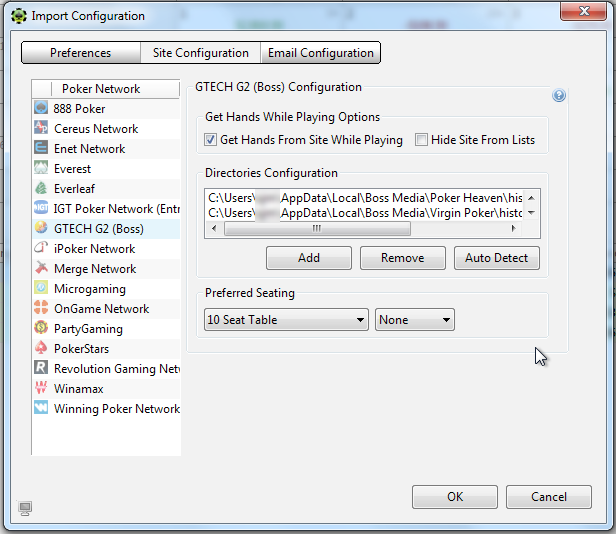
- Select Get Hands From Site While Playing. If you don't play on GTECH G2, select Hide Site From Lists instead to hide it from view.
- Click Auto Detect to populate the path of the GTECH G2 Hand History Directories.
For more help, see the Importing Hand Histories tutorial.