Ignition (Bovada/Bodog) Configuration Guide
Overview
The Ignition software does not save hand histories as you play. Instead, PokerTracker 4 uses an optional Ignition Hand Grabber App to generate them. PT4 can then import those hands to store them in your database for review and analysis, and to display a Heads-Up Display (HUD) on your tables as you play. (For setup details, see the Ignition Hand Grabber App Guide.)
PT4 can also import hand histories downloaded from the Ignition client roughly 24 hours after they are played — see Manual Hand History Download.
This guide covers manual configuration; alternatively you may use the automated Setup Assistant. For first-time PT4 setup, see the PokerTracker 4 Quick Start Guide.
PokerTracker uses the name "Ignition" to cover all skins running the Ignition software — currently Ignition, Bovada, and Bodog.
Installing the Hand Grabber App: once you are registered, launch PT4 (restart it if it's already running) and the app downloads and installs automatically. From then on it launches with PT4 and runs in the background, generating hand histories for as long as PT4 is open.
For grabbing to work correctly:
- The app can only grab hands from the installed Ignition software — playing in a web browser is not supported.
- Tables must be opened after the Hand Grabber App is already running.
- Make sure PT4 is running before you open your Ignition tables.
For hands to import as you play, start Get Hands While Playing on the Play Poker page.
Configuring Ignition in PokerTracker 4
Hands must be generated as you play for auto-import and the HUD to work, which requires the Ignition Hand Grabber App. The Ignition software must be installed in English for full PokerTracker support, but no other changes are required.
From v4.15.4 onward, Ignition appears as its own site in PT4, and while the Hand Grabber App is running its hands import automatically as you play (which also drives the HUD).
The simplest way to configure Ignition is the Setup Assistant (Tools > Setup Assistant): switch Ignition to Yes on the Select Sites page, then click through the steps. The hand history folder is detected automatically — all you need to set manually is your preferred seat, to match the Ignition software.
Alternatively, go to Configure > Sites & Import Options > Ignition and turn on Get Hands From Site While Playing. The import folder is detected automatically when the app is installed.
You can change the directory PT4 monitors by clicking the ellipsis (…) button, but this does not change where the Hand Grabber App saves hands, so it should not normally be changed. Click Auto Detect to reset it to the correct path.
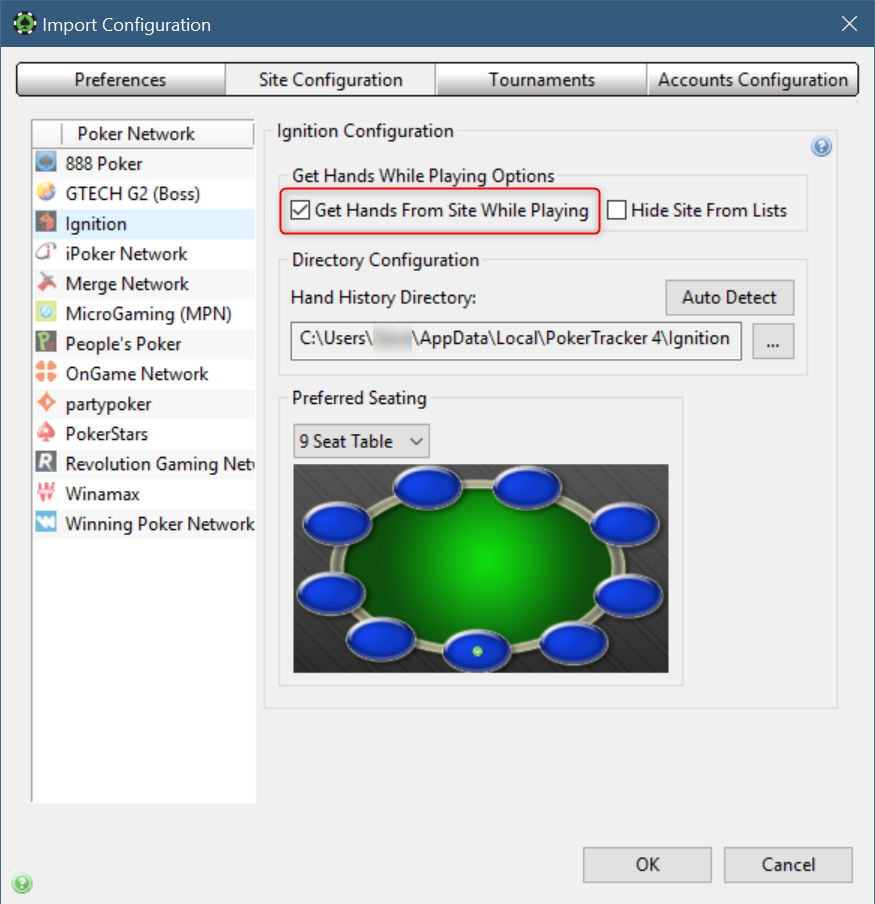
If you use preferred seating in Ignition, select each table size in turn and choose the same seat you use in the Ignition software.
Manual Import of Ignition Hand Histories
PT4 can import hands that were grabbed live but not yet imported, as well as hand histories you download from the Ignition client. The sections below cover each case.
Importing Grabbed Hands
If you didn't use Play Poker > Get Hands While Playing while playing, the hand histories generated by the Ignition Hand Grabber App can be imported later — either by starting Get Hands While Playing, or by running the Setup Assistant from the Tools menu. Any files that weren't previously imported are processed at that time.
The Hand Grabber App must be running before you start playing in order for hand histories to be generated. If PT4 (and therefore the app) is not running while you play, no hand histories are created.
Manual Hand History Download
The Ignition software lets you download hand history files for hands you played, starting 24 hours after play and remaining available for about a week. These files include every player's hole cards, so importing them makes all hole-card information available for analysis.
Because of how player names are generated, you will often get different opponent names when importing grabbed vs. downloaded files. Grabbed hands include observed hands before you sat in, so the extra hole-card detail in downloaded histories can't be merged once grabbed hands with different names already exist in the database. As a workaround, import downloaded histories into a separate database. Bear in mind this data is of limited value — you won't recognize players when you meet them again, and it's information you didn't have when the hand was played.
To download:
- Click Account in the Ignition lobby.
- Go to the Hand History page and choose Game Transactions.
- Select your game type and the period you want.
- On the right, use the buttons to download each session you played.
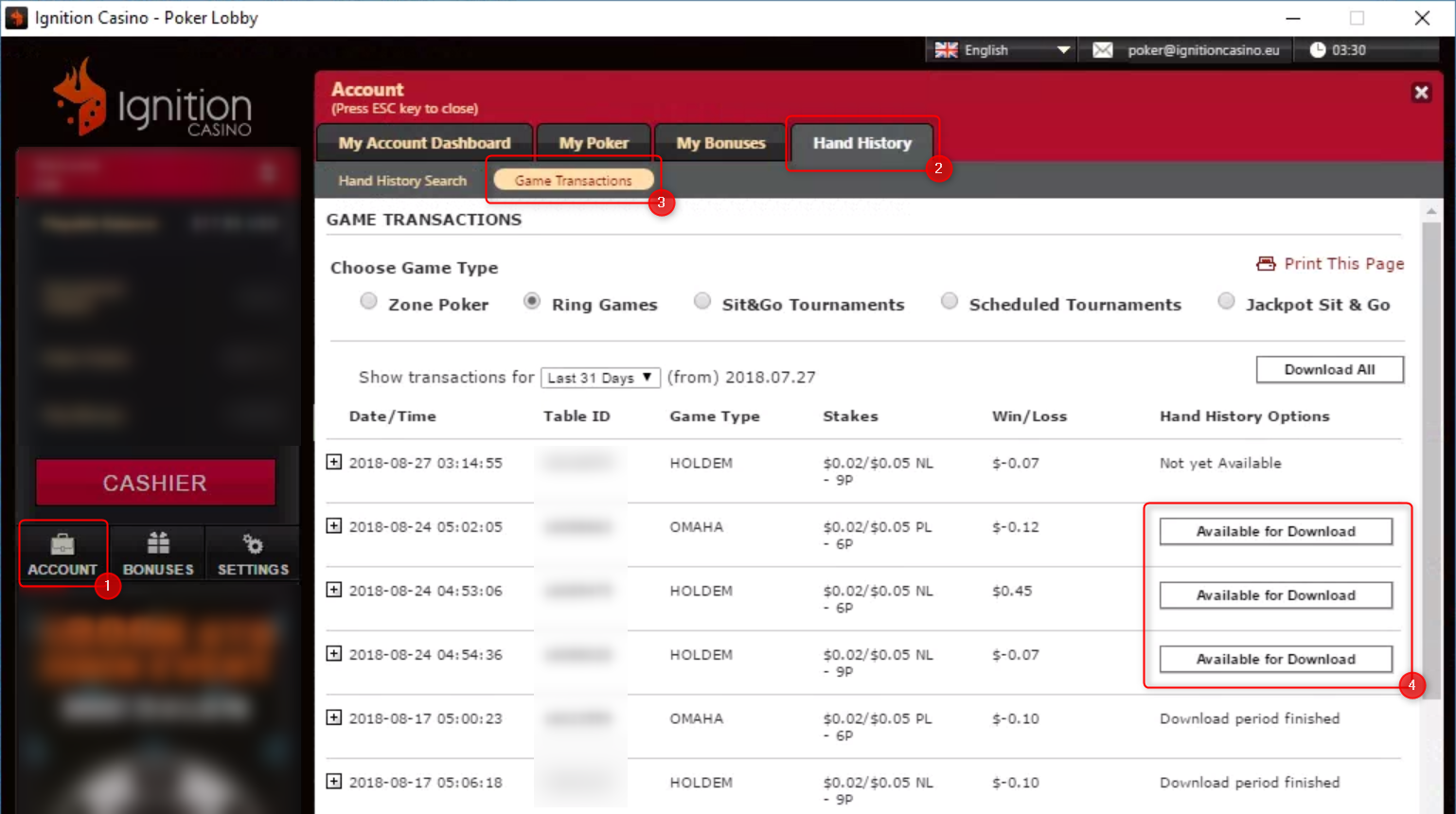
Files download to a Hand History folder inside your Ignition skin's installation folder. To find the exact location, click the Open File button (which replaces Available for Download after a download). When the file opens in your text editor, use Save As to see where it is saved.
- Windows
- macOS
This is either C:\[SKIN_NAME]\Hand History (your Ignition install folder) or %localappdata%\[SKIN_NAME]\Hand History.
It is inside the application's contents, e.g. /Applications/[SKIN_NAME].app/Contents/MacOS/Hand History.
On macOS, PT4 cannot import hand histories stored inside the application, so:
- Create a new folder outside the application — it can be anywhere.
- In Finder, open the Applications folder, right-click your Ignition/Bovada/Bodog application, and select Show Package Contents.
- Open
Contents/MacOS/Hand History/<user>. - Move the downloaded files into your new folder, then continue with the directions below.
Importing Downloaded Hand Histories
To import these files, go to the Play Poker tab and click Get Hands From Disk. You can import specific files, or a directory (every file in that directory and its sub-directories is imported).
Make sure the site software is running in English before downloading, so English hand histories are downloaded — PT4 only imports English histories. Set the language using the dropdown at the top of the lobby window.
If you download regularly you may accumulate many files, and importing a whole directory can be slow. After importing, move the files elsewhere — for example into a new folder inside the Processed folder, alongside the auto-imported histories. Open it via File > Open User Data Folder.
:::warning Importing hands you already grabbed live
The Hand Grabber generates a unique anonymous name for each player based on the time of the first hand — which, for grabbed hands, usually occurs before you start playing. Downloaded hands only begin when you start playing, so they produce different anonymous names. Because the names don't match, PT4 cannot merge the downloaded data into the grabbed hands.
So if you want to import downloaded hands you already imported live via the Hand Grabber, you must first purge those sessions:
- In PT4, go to File > Database > Purge Hands.
- Select the sessions to purge and click Purge Sessions.
- Then import the downloaded hands via Play Poker > Get Hands From Disk.
Alternatively, import your downloaded hands into a separate database.
:::