iPoker Configuration Guide
Overview
PokerTracker 4 imports the text hand histories that the iPoker client saves to your computer. Once imported, the hands are stored in PostgreSQL and made available for review and analysis in your PT4 database.
Correct configuration lets PokerTracker 4 do two things:
- Import your iPoker hand histories into the database.
- Display the Heads-Up Display (HUD) on your iPoker tables in real time.
This guide covers manual configuration. Most users should use the automated Setup Assistant instead. For first-time PT4 setup, see the PokerTracker 4 Quick Start Guide.
iPoker is supported on Windows, and on macOS as of PT4 v4.17.14 for the sites/skins where it has rolled out — see macOS Compatibility.
Setup Assistant
For most users, the Setup Assistant is the fastest way to prepare PokerTracker 4 for iPoker. Open it with Tools > Setup Assistant, click Configure Sites, and turn iPoker to Yes.
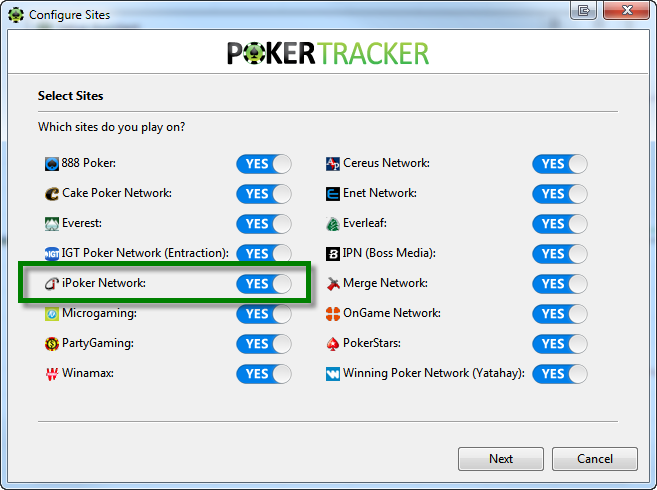
Then work through the three steps:
- Save hand histories. Make sure iPoker is configured to save hand histories to your hard drive.
- Locate the hand histories. Tell PT4 where iPoker saves its hand histories. Use Auto Detect to find the folder automatically, or click Add to point PT4 to the folder yourself.
- Set seat placement. For correct HUD placement, tell PT4 whether iPoker seats you at the bottom of the table. If you use Auto Center on iPoker, set this to Yes; otherwise set it to No. Click Next.
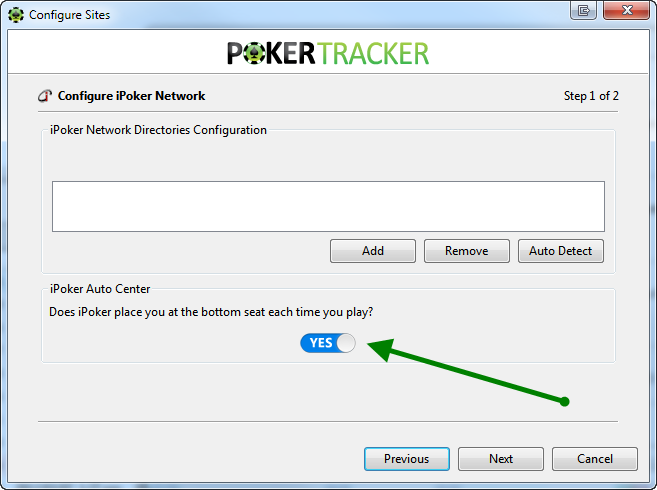
The final step lets you import your existing hand histories. We recommend selecting Yes, choosing the destination database, and clicking OK.
If you have a lot of hands saved in your iPoker folder, the import can take a while. Let PokerTracker 4 finish importing all of them for the best results.
Configuring iPoker
If you prefer to configure things by hand, work through the sections below: set up hand history saving, confirm the client language, optionally enable Auto Center, and then complete the import configuration in PT4.
Hand Histories
You must configure the iPoker client to save hand histories to a folder on your hard drive. This is required for PT4 to import hands and display the HUD.
-
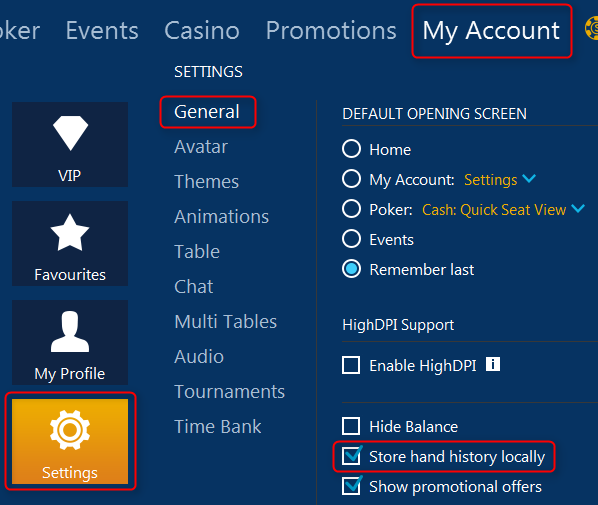
From the iPoker lobby, open My Account > Settings and go to the General section.
-
Check Store Hand History Locally.
-
Note the location where iPoker saves your hand histories. The default is:
%appdata%\Local\<iPoker Client>\data\<Screenname>\History\Datawhere
<iPoker Client>is the client you installed and<Screenname>is your screen name in that client.
Language
The iPoker client must be installed in English. PokerTracker 4 only supports English hand histories; any other language will cause import problems.
If the client is installed in another language, uninstall it and reinstall using English.
Auto Center
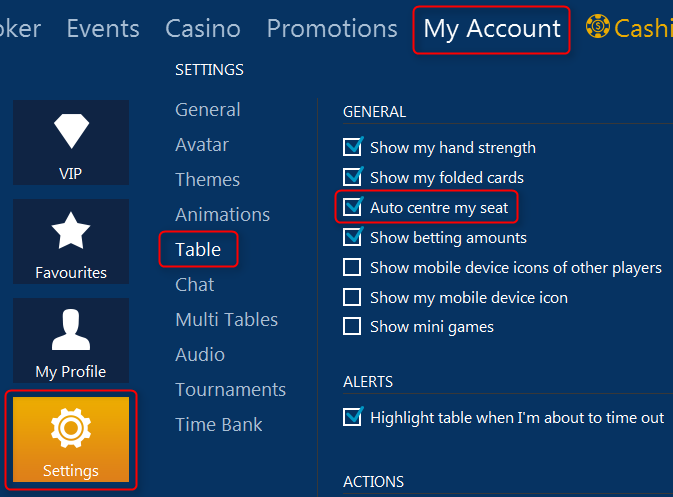
Auto Center always seats you at the bottom of the table. If you use it, enable it in both the iPoker client and PokerTracker 4 so HUD placement stays correct:
- In the iPoker lobby, open My Account > Settings and select the Table section.
- Enable Auto center my seat.
- In PT4, enable Auto Center under Configure > Sites & Import Options > iPoker (Client Options).
Enable Speed Poker HUD
Speed Poker tables are not enabled by default. If you play them with a HUD, open Configure > Site & Import Options, select iPoker Network, and check Enable Speed Poker HUD, then click OK. (If you still need to set up the site, see Manual Import Configuration for iPoker.)
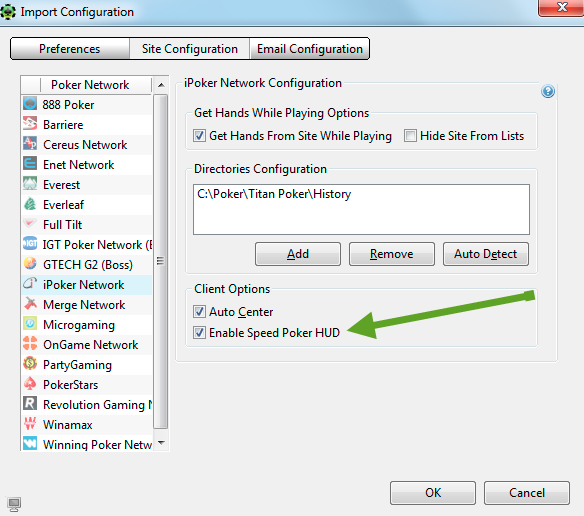
Once that option is enabled, follow these steps in order every time — the HUD will not work otherwise:
- Start PokerTracker 4.
- Start iPoker and log in.
- Click Get Hands While Playing in PokerTracker 4.
- Join a Speed Poker table.
If the HUD misbehaves, close both PokerTracker 4 and iPoker and start again from step 1.
- The HUD starts working after the first hand is imported (not played).
- Players without preferred seating are seated at seat 3 (6-max) or seat 5 (9-max).
- Let the importer finish importing existing hands before playing, so the HUD starts faster.
- Make sure neither iPoker nor PokerTracker 4 is open before updating PT4 — rebooting first can help.
- Some personal firewalls can block the Speed Poker HUD; see the Firewall Troubleshooting Guide for help.
Speed Poker Hand Errors
Some players see "Invalid Stack/Pot Size" errors when importing Speed Poker hands, caused by an error in the hand history files written during play. To fix it:
-
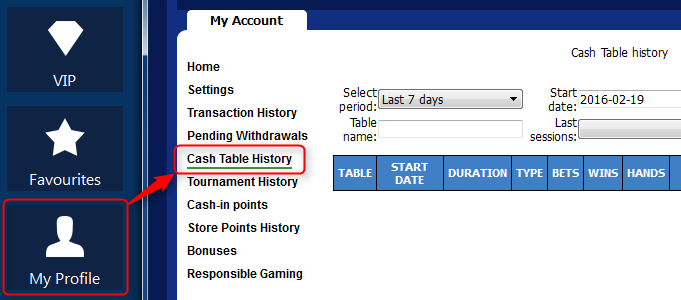
In the iPoker software, go to My Profile > Cash Table History.
-
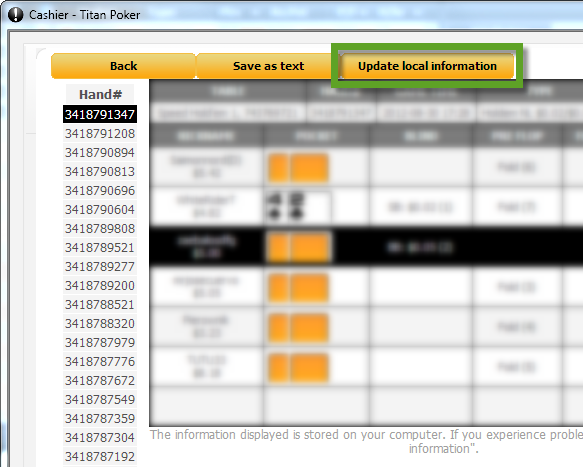
Open a session where hands weren't imported correctly, then click Update Local Information. This saves corrected hand history files to your normal folder.
-
In PT4, go to Play Poker and click Get Hands From Disk to import the corrected files.
Manual Import Configuration for iPoker
PokerTracker 4 cannot import iPoker hands or display the HUD until it is configured. Open Configure > Site & Import Options, select the Site Configuration tab, and choose iPoker from the Poker Network list on the left.
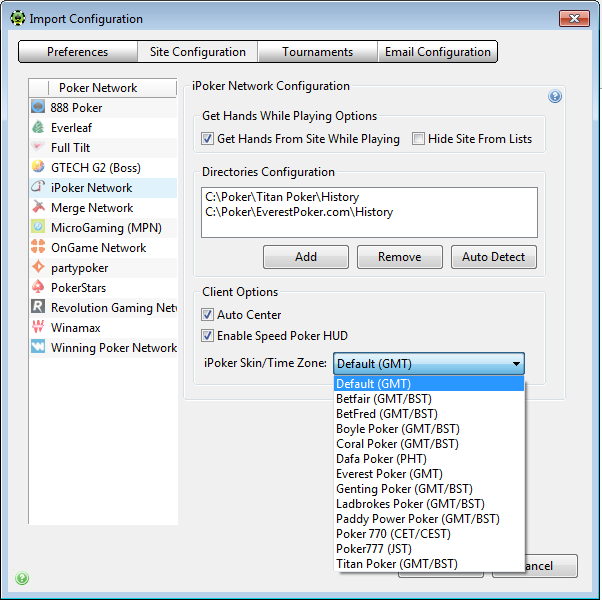
Then:
- Select Get Hands From Site While Playing (or, if you don't play iPoker, Hide Site From Lists to remove it from view).
- Click Auto Detect to populate the iPoker Hand History directory path.
- Tick Auto Center if applicable.
For more help, see the Importing Hand Histories tutorial.
Time Zone
The iPoker Network does not use a unified clock — each skin writes hand histories using its own default time zone, and iPoker offers no option to match your local time. To record the correct local time, set the iPoker Skin/Time Zone option in the iPoker Site Configuration: select the skin you play on, then click OK.

macOS Compatibility
PokerTracker 4 v4.17.14 introduces support for the macOS version of iPoker that is rolling out for some iPoker sites/skins.
If Auto Detect (under Configure > Sites & Import Options > iPoker) does not find the hand history folder for your site, please send us the full hand history path so we can add the site to our configuration. To find and send it:
-
Open a new Finder window.
-
Go to
/Users/[username]/Library/Containers.tipPress Command-Shift-G and type
~/Library/Containers. -
Find your poker site in the folder list and double-click to open it.
-
Open Data/Library/Application Support.
-
Find the folder with your poker site's name, right-click it, hold the Option key, and choose Copy "…" as Pathname.
-
Open a support ticket titled macOS iPoker configuration and paste the copied path into the message.
-
Once sent, you can configure the path manually on the iPoker configuration page by clicking Add.
Do not type the path as shown on screen — the real path differs from the displayed one. You must copy and paste it as described above so we receive the correct information.