Merge Configuration Guide
Overview
PokerTracker 4 imports text hand histories that are saved to your computer by the Merge Network poker client. Once imported, these hands are stored within PostgreSQL and made available for review and analysis in your PT4 database. This process must be correctly configured so that PokerTracker 4 can retrieve these hand histories and also display the Heads Up Display (HUD) on your Merge Network table(s) correctly.
This guide is intended for users who wish to manually configure PokerTracker 4 to import hand histories from Merge Network, alternatively you may choose to use the automated Setup Assistant. For general information on the initial setup of PokerTracker 4, please consult the PokerTracker 4 Quick Start Guide.
Setup Assistant
For most users, configuring Merge Network by using the Setup Assistant will be the most efficient method of preparing PokerTracker 4 for use with Merge Network. The Setup Assistant was created to help users automate the configuration of PokerTracker 4 without the need to manually configure your poker environment. To begin the Setup Assistant, simply click Tools > Setup Assistant from the main toolbar. Click the Configure Sites option and turn Merge Network to Yes.
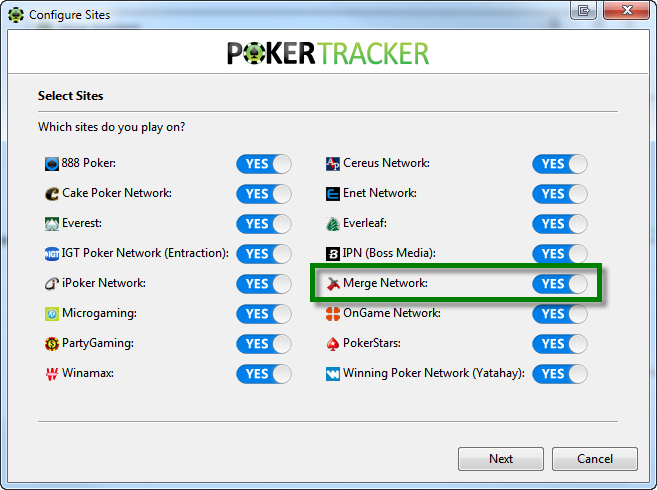
There are a couple steps for configuring Merge Network using the Setup Assistant.
-
Step 1: If you haven't already, please make sure that Merge Network is configured to save hand histories to your hard drive.
-
Step 2: You must tell PokerTracker 4 where Merge Network saves its hand histories. You can use the Auto Detect option to let PokerTracker 4 automatically find where the hand histories are being written. This can be also done manually by going to “Add” and pointing PT4 to the Merge Network Hand History Folder on your computer. Once this is configured correctly, click Next.
-
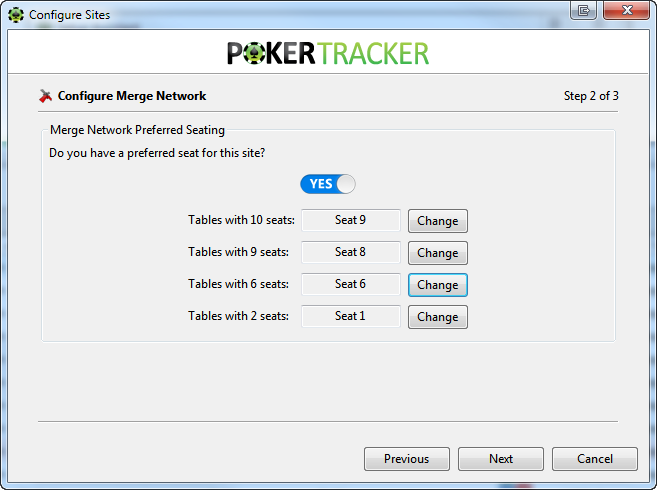
Step 3: To assure proper HUD placement, you must also configure your seating preferences in PokerTracker 4 to match your seating preferences on Merge Network. A preferred seat is the seat location you automatically sit at when you sit down at a table. PokerTracker 4 must know your preferred seat to ensure that the HUD correctly displays while you are playing. If you have a preferred seat on Merge Network, make sure the button says “Yes”. (If you do not, please turn this option to “No” and push Next) . When possible, PokerTracker will import the preferred seating selection for you from Merge Network, if this cannot occur then simply push Change next to each table type and select the seat in the graphical interface where you automatically sit at while playing.
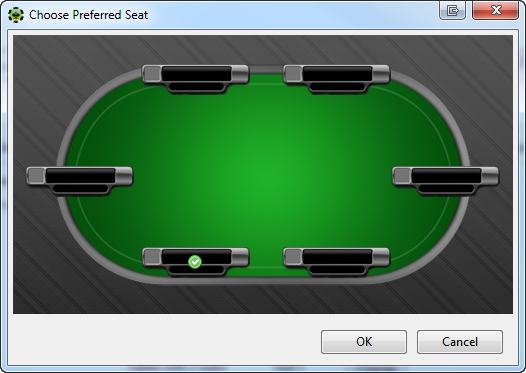
Simply push Change next to each table type and select the seat in the graphical interface where you automatically sit at while playing. Once you have configured your seat preference for each table size correctly, click Next
The final step gives you the option to import existing hand histories. It is recommended that you select yes, choose the database where you want PokerTracker 4 to import the existing hand histories, and then click OK
If you have a lot of hand histories saved in your Merge Network folder, the import process may take some time. Please be patient and let PokerTracker 4 import all of your hands for optimal results.
Configuring Merge Network
Hand Histories
You must configure the Merge Network client to save hand histories to a designated directory on your hard drive. This step is required to allow PokerTracker 4 to import the hand histories for the database and display the HUD.
To save your Hand Histories on Merge Network, do the following:
-
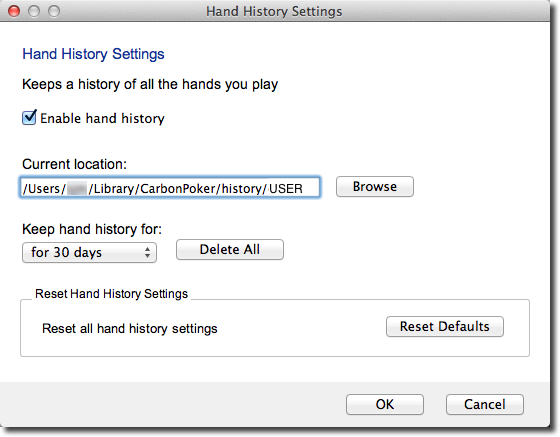
From the Merge Network lobby, click on Settings -> Hand History Settings.
-
Check Enable Hand History.
-
The default location where hand histories are saved is typically:
- Windows: "C:\Users\USERNAME\AppData\Local[Site Name]\history" where [Site Name] is the Merge skin that you are using.
- macOS: /Users/USERNAME/Library/[Site Name]/history/[Screen Name] where [Site Name] is the Merge skin that you are using, and [Screen Name] is the name of the player's account.
-
Click OK to save the settings.
Windows Hand History Settings
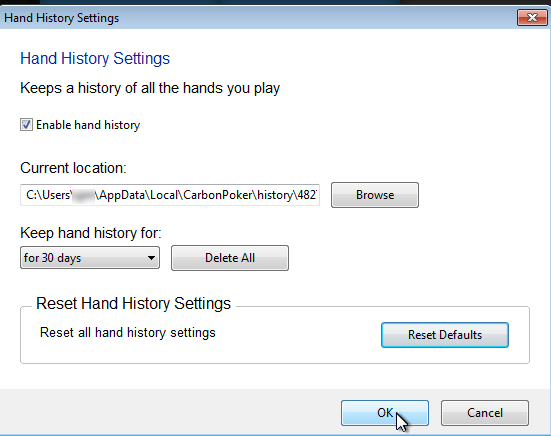
macOS Hand History Settings
Language
The Merge Network client must be configured to use the English language. PokerTracker 4’s hand history importer only supports the English language, PokerTracker 4 cannot read hand histories saved in any language other than English. To configure the Language in Merge Network, do the following:
- From the Merge Network lobby, choose the Language menu option and select English.
Preferred Seating
You might choose to use the Preferred Seat option in your Merge Network client (so that you are always placed in the same seat location at every table). To configure this, do the following:
-
From the Merge client, click Settings > Preferred Seating Settings...
-
Check Enable Preferred Seating
-
Select table types from the drop-down menu and select your preferred seat on each in the graph below.
-
Select the matching preferred seat setting for that table size in PT4 (Configure > Sites & Import Options).
-
Click OK
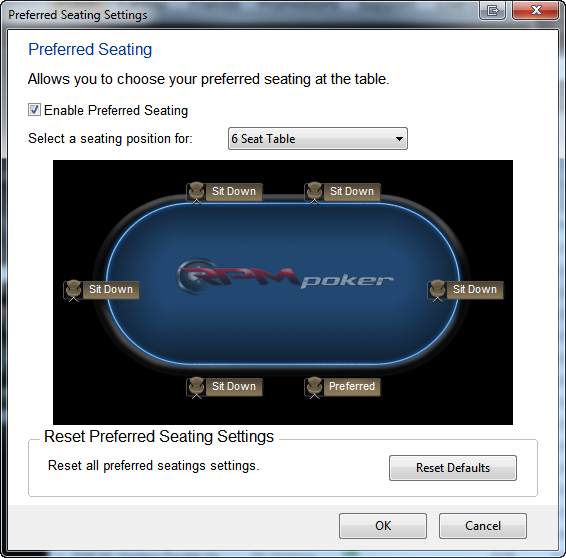
Because Merge writes hand histories while you are seated and waiting for the blinds (i.e. not dealt in) the HUD will appear, but it will not adjust to your preferred seat until you have played one hand and that has been imported. If you re-position the stats during this time they will be incorrect once your first played hand is imported - you should position the stats either with preferred seating turned off, or after you have played at least one hand at the table.
Refer to the Preferred Seating Guide for more information.
Time Zone
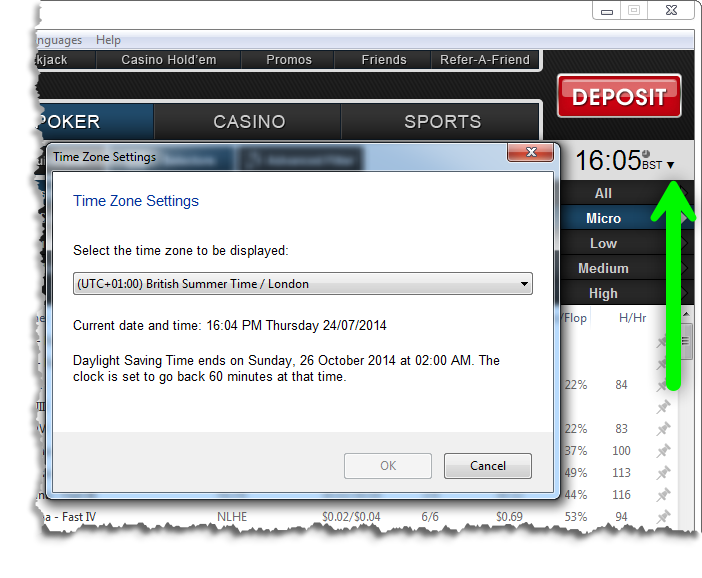
When hand histories are imported, PokerTracker uses your computer's time zone to help us record the time that the hand history was played. To assure that the time for each hand imported is accurate, you must configure that Merge Poker Client's time zone settings to match the time zone used by your local computer.
To open the settings window click on the down arrow to the right of the time in the poker lobby on the top right, just below the Deposit button
Manual Import Configuration for Merge Network
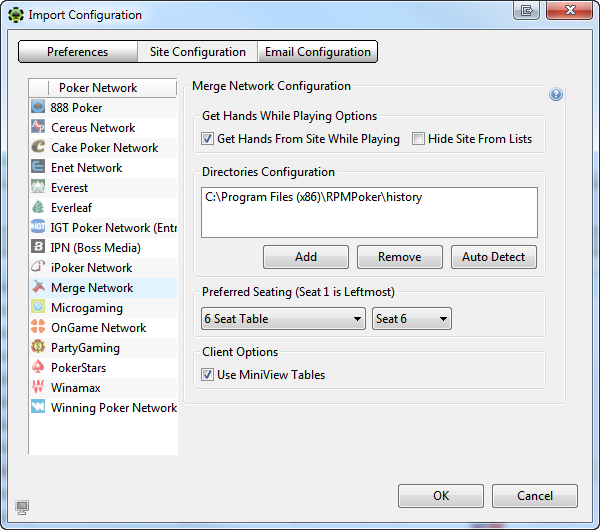
PokerTracker 4 cannot import Merge Network hand histories or display the Heads Up Display (HUD) in real-time while playing without prior configuration. You can easily do this by clicking Configure in the application menu, and then select Site & Import Options. View the Site Configuration tab and choose Merge Network along the left side Poker Network list.
Windows Site Configuration
macOS Site Configuration
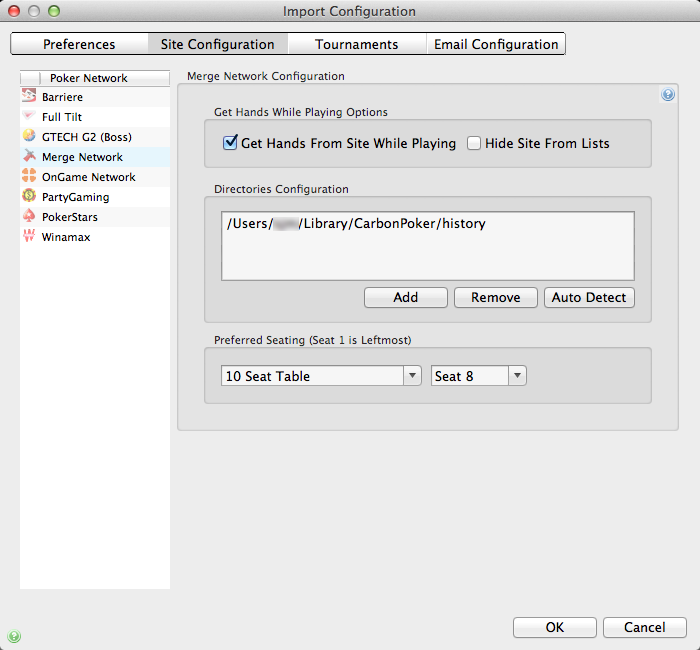
Make sure Get Hands From Site While Playing is selected, or if you do not play on Merge Network then you can select Hide Site From Lists to hide it from view. Next, click Auto Detect to populate the path of the Merge Network Hand History Directories. Finally, set up your preferred seating if applicable. Click OK to save your selections.
If you need more help, please consult the Importing Hand Histories tutorial for more information.