partypoker Configuration Guide
Overview
PokerTracker 4 imports the text hand histories that the partypoker client saves to your computer. Imported hands are stored in your database for review and analysis, and PokerTracker 4 uses them to display the Heads Up Display (HUD) on your tables.
This guide covers configuring partypoker manually. You can also use the automated Setup Assistant. For initial setup, see the PokerTracker 4 Quick Start Guide.
"partypoker" here refers to all regional clients running the partypoker software or its derivatives from bwin.party.
In most regions, partypoker no longer saves hand history files to your computer as you play, so automated import and the HUD are not available. If this affects your client, see Downloading Hand Histories from 'My Game'.
Setup Assistant
For most users, the Setup Assistant is the easiest way to prepare PokerTracker 4 for partypoker. Click Tools > Setup Assistant from the main toolbar, choose Configure Sites, and set PartyGaming to Yes.
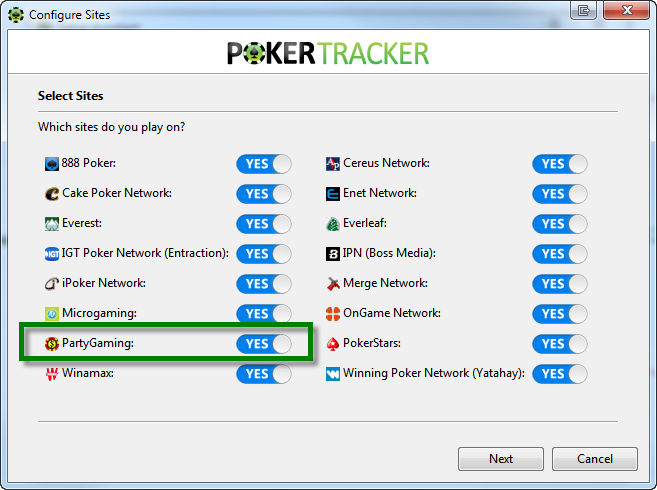
Step 1 — Make sure partypoker is configured to save hand histories to your hard drive.
Step 2 — Tell PokerTracker 4 where partypoker saves its hand histories. Click Auto Detect to find the folder automatically, or click Add to point to it manually. Then click Next.
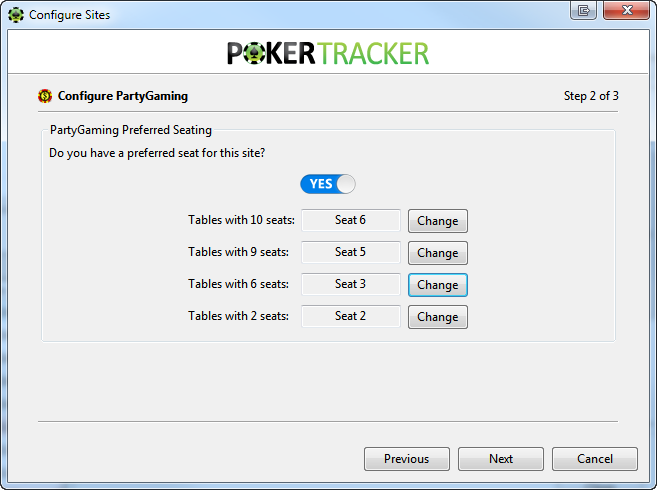
Step 3 — Set your seating preferences so the HUD lands on the correct seats. A preferred seat is the seat you are automatically placed in when you sit at a table; PokerTracker 4 needs to know it to position the HUD correctly.
- If you use a preferred seat at partypoker, set this to Yes. PokerTracker 4 will import your selection when possible.
- If it can't, click Change next to each table type and select your seat in the graphical interface.
- If you don't use a preferred seat, set this to No and click Next.
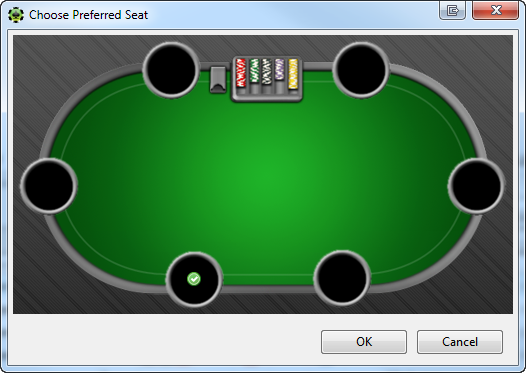
Final step — You can import your existing hand histories. We recommend selecting Yes, choosing the target database, and clicking OK.
If you have many hand histories saved, the import may take a while. Let PokerTracker 4 finish importing all of them for best results.
Configuring partypoker
If you prefer not to use the Setup Assistant, configure partypoker manually using the sections below.
Hand Histories
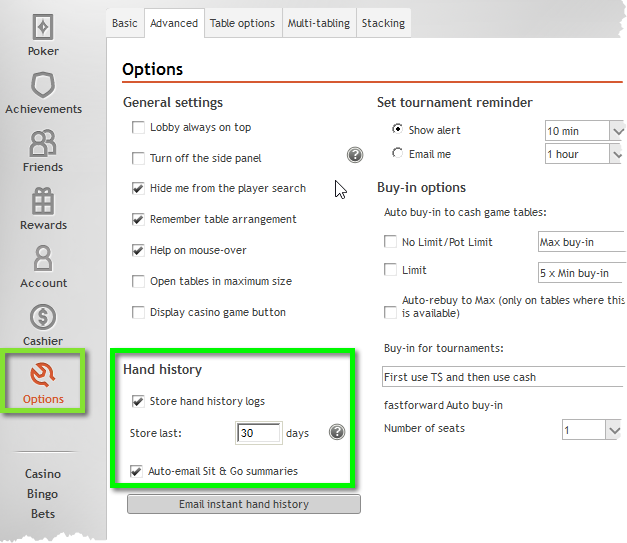
partypoker must be set to save hand histories to your hard drive. This is required for PokerTracker 4 to import hands and display the HUD.
To save hand histories at partypoker:
- From the partypoker lobby, select Options > Advanced.
- Ensure hand history logs are stored locally on the machine.
- Click Save.
Language
partypoker must be set to English. PokerTracker 4 only supports English, and other languages will cause problems. If partypoker is installed in another language, uninstall it and reinstall using English.
Preferred Seating
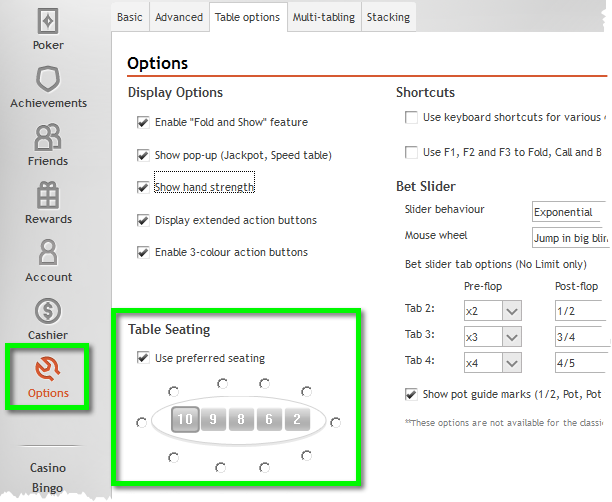
The Preferred Seat option at partypoker places you in the same seat at every table. To configure it:
- From the partypoker lobby, select Options > Advanced > Table Options.
- Check the Use preferred seating checkbox.
- Select the table type(s) you play by clicking the number shown on the table.
- Click your preferred seat for each table type, then click Save.
macOS
PokerTracker 4 automatically detects the hand history folder if it is in the default location:
- /Users/USERNAME/partypoker/HandHistory
Before configuring, make sure all tables are closed. From the site configuration menu, select partypoker > Preferences (shortcut: CMD + ,) and click General. Check Store Hand History logs, then close the preferences window for the change to take effect. You can now start playing.
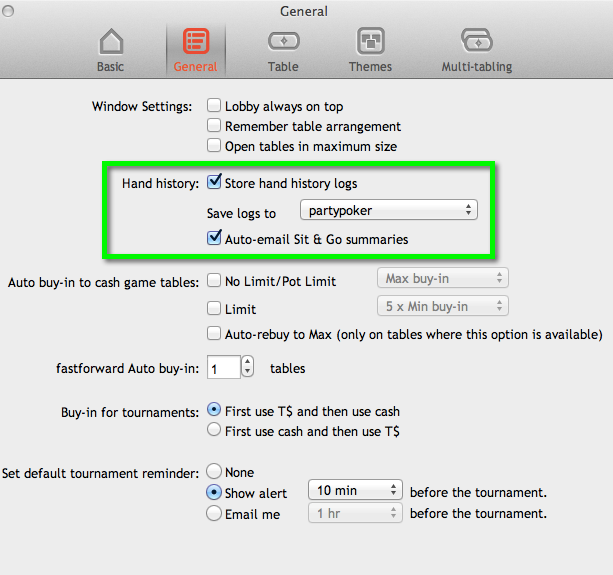
If you play Sit & Gos, we recommend enabling Auto-email Sit & Go summaries. These summaries can be imported into PokerTracker 4 using the Get Hands From Email import function.
Enable Fast Forward Poker HUD
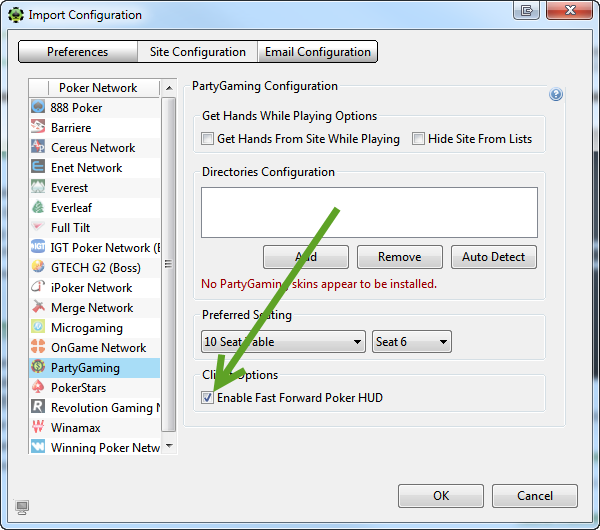
fastforward tables are not enabled by default and aren't available in the Setup Assistant, so you must configure them manually. From the main menu, click Configure > Site & Import Options, select partypoker (see manually configuring partypoker if you need help), check Enable fastforward HUD, and click OK.
Once configured, follow these steps exactly to get your HUD working at fastforward tables:
- Start PokerTracker 4.
- Start partypoker and log into your account.
- Click Get Hands While Playing in PokerTracker 4.
- Join a fastforward table and start playing.
If you have HUD issues, close both PokerTracker 4 and partypoker, then start again from step 1.
A few notes about fastforward tables:
- The HUD will not work until after the first hand is imported (not played).
- Without preferred seating enabled, the default seat is seat 3 (6-max) or seat 5 (9-max).
- For best results, let the importer finish importing existing hand histories before playing — this reduces how long the HUD takes to start.
- Close both partypoker and PokerTracker 4 before updating PokerTracker 4. Rebooting first can help.
- Some personal firewalls can block the fastforward HUD — see the Firewall Troubleshooting Guide. The Comodo Firewall is known to be incompatible; we recommend replacing it if you play fastforward tables.
The fastforward HUD is not supported in the macOS version of PokerTracker 4.
Manual Import Configuration at partypoker
PokerTracker 4 needs to be configured before it can import partypoker hand histories or display the HUD in real time. From the application menu, click Configure > Site & Import Options, open the Site Configuration tab, and choose partypoker from the Poker Network list on the left.
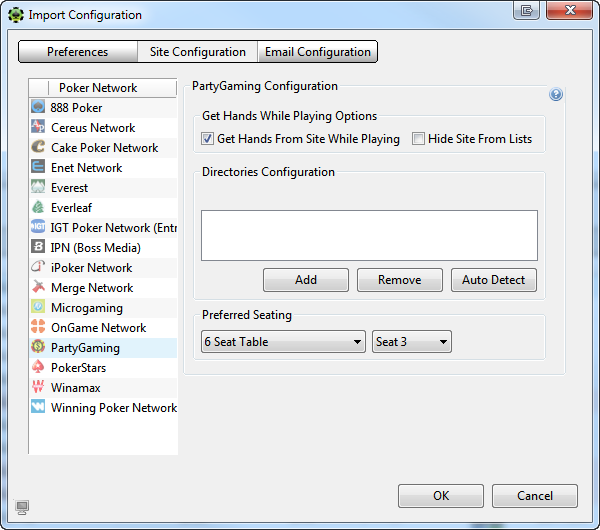
Make sure Get Hands From Site While Playing is selected. (If you don't play at partypoker, select Hide Site From Lists instead.) Click Auto Detect to populate the partypoker hand history directories, then set up your preferred seating if applicable.
For more help, see the Importing Hand Histories tutorial.
Downloading Hand Histories from 'My Game'
In most regions, partypoker no longer saves hand history files to your computer as you play. If this affects you, download your hand histories from the 'My Game' partypoker website and import them into PokerTracker 4 manually.
To download hand histories from 'My Game':
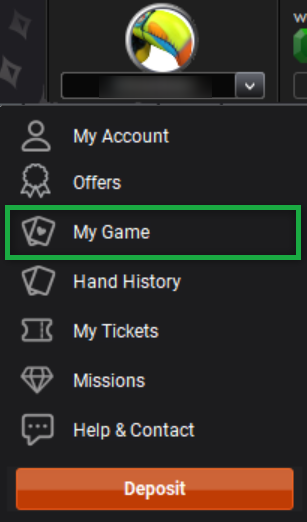
- In the partypoker lobby, click your name to open the menu and choose My Game.
- On the web page that opens, click Export Hands at the top.
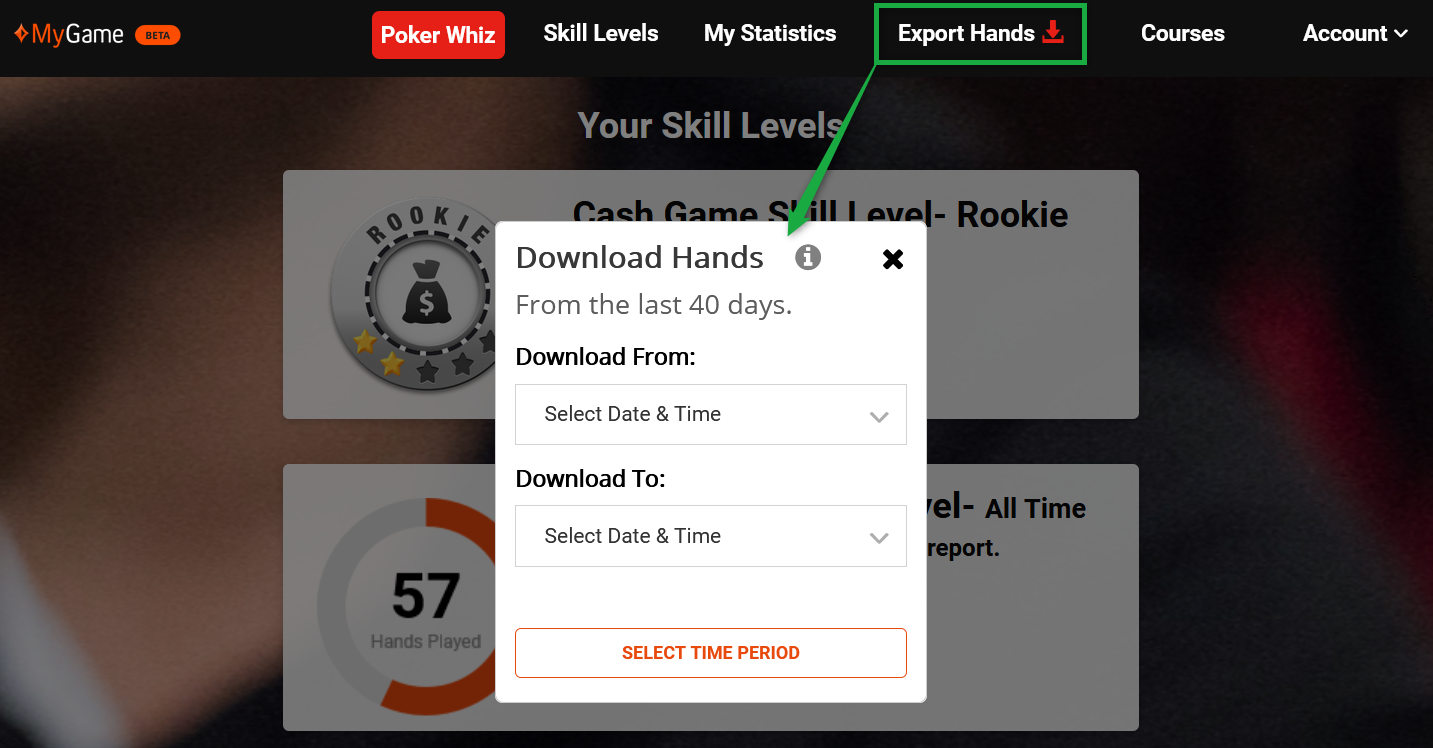
- Enter the date range you want and click Download.
- Select Save File and click OK. The file downloads to your browser's normal download location.
To import the file, open the Play Poker tab in PokerTracker 4, click Get Hands From Disk, choose Select Files, and browse to the downloaded file.
Hand histories from My Game are anonymized: your own name appears as 'Hero' and opponents appear as 'PlayerX'. To combine this data with your earlier partypoker hands under your screen name, link the 'Hero' player as an alias. Guide: Aliases