PokerStars Configuration Guide
Overview
PokerTracker 4 imports the text hand histories that the PokerStars client saves to your computer. Imported hands are stored in your database for review and analysis, and PokerTracker 4 uses them to display the Heads Up Display (HUD) on your tables.
This guide covers configuring PokerStars manually. You can also use the automated Setup Assistant, which many users prefer for initial configuration. For initial setup, see the PokerTracker 4 Quick Start Guide.
Setup Assistant
For most users, the Setup Assistant is the easiest way to prepare PokerTracker 4 for PokerStars. Click Tools > Setup Assistant from the main toolbar, choose Configure Sites, and set PokerStars to Yes. (Zoom players will need to configure PokerTracker 4 manually.)
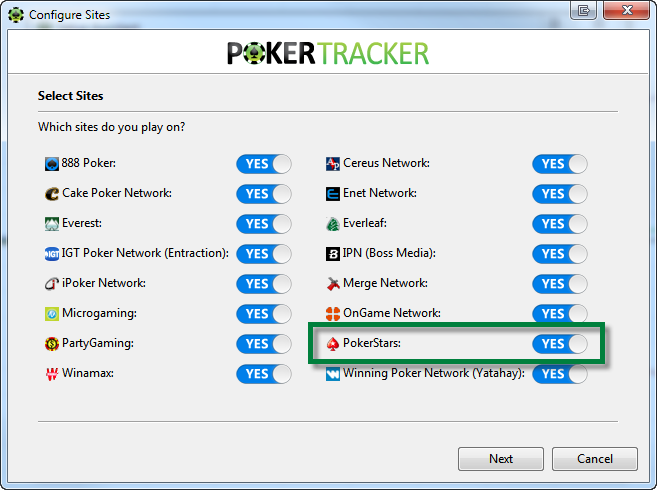
Step 1 — Make sure PokerStars is configured to save hand histories to your hard drive.
Step 2 — Tell PokerTracker 4 where PokerStars saves its hand histories. Click Auto Detect to find the folder automatically, or click Add to point to it manually. We recommend adding the PokerStars Tournament Summary folder at the same time so tournament results are accurate. Then click Next.
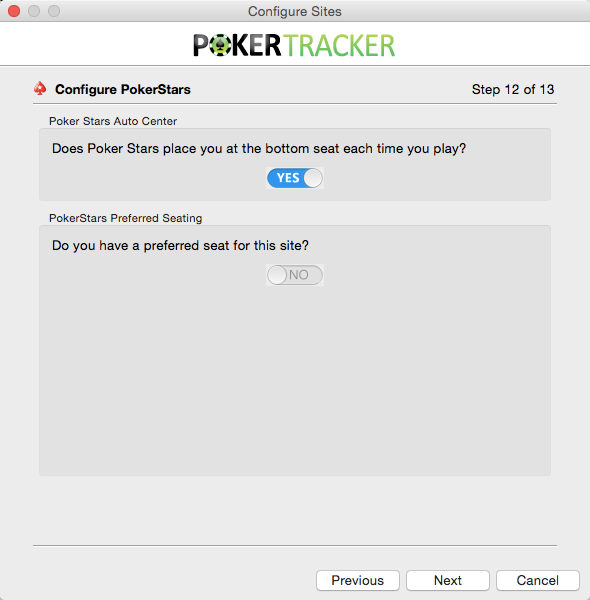
Step 3 — Set your seating preferences so the HUD lands on the correct seats. A preferred seat is the seat you are automatically placed in when you sit at a table; PokerTracker 4 needs to know it to position the HUD correctly.
- Recommended: Use Auto-Center, which is enabled by default on new PokerStars installations. Make sure PokerStars is set to auto-center your seat, then set the Auto-Center option to Yes.
- To define your own preferred seat instead, set the preferred seat option to Yes and Auto-Center to No. PokerTracker 4 imports your selection from PokerStars when possible; if it can't, click Change next to each table type and select your seat in the graphical interface.
- If you don't want a preferred seat, set both options to No.
When you've configured each table size, click Next.
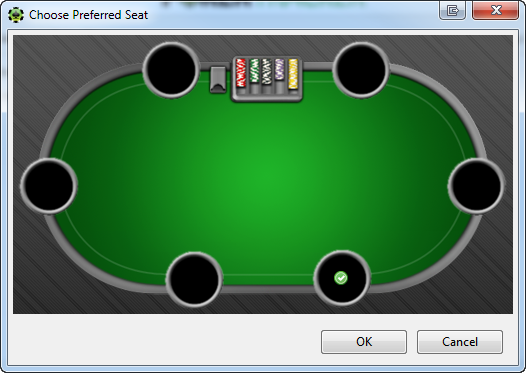
Final step — You can import your existing hand histories. We recommend selecting Yes, choosing the target database, and clicking OK.
If you have many hand histories saved, the import may take a while. Let PokerTracker 4 finish importing all of them for best results.
Configuring PokerStars
If you prefer not to use the Setup Assistant, configure PokerStars manually using the sections below.
Hand Histories
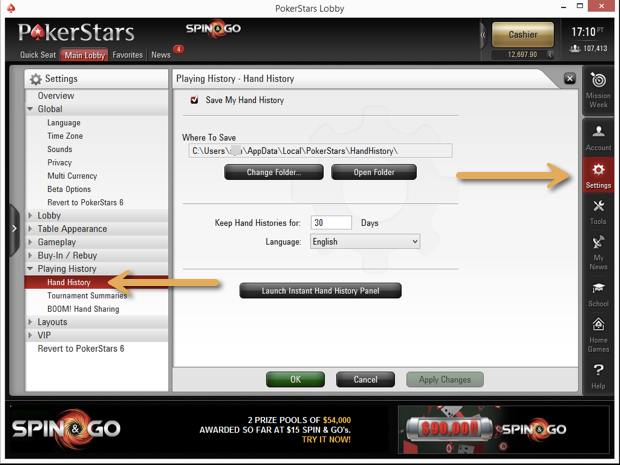
The PokerStars client must be set to save hand histories to your hard drive. This is required for PokerTracker 4 to import hands and display the HUD.
To save hand histories on PokerStars:
- From the PokerStars lobby, click Settings > Playing History > Hand History.
- Check Save My Hand History.
- Set Language to English. Hands in other languages will not import into PokerTracker 4.
- Note the default folder shown under Where To Save.
- Click OK.
- Make sure that folder is configured in PokerTracker 4.
Hotkeys
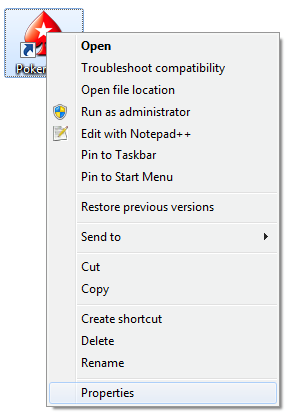
To use PokerStars hotkeys while the PokerTracker 4 HUD is running, you must run PokerStars as administrator.
- Right-click the shortcut you use to launch PokerStars and choose Properties.
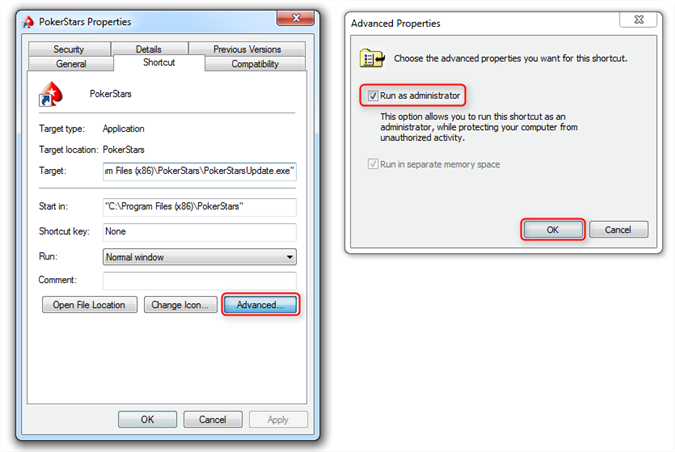
- Click Advanced, enable Run as administrator, and click OK.
Tournament Summaries
The PokerStars client must be set to save tournament summaries to your hard drive. Without summaries, your tournament results in PokerTracker 4 will be incomplete.
To save tournament summaries on PokerStars:
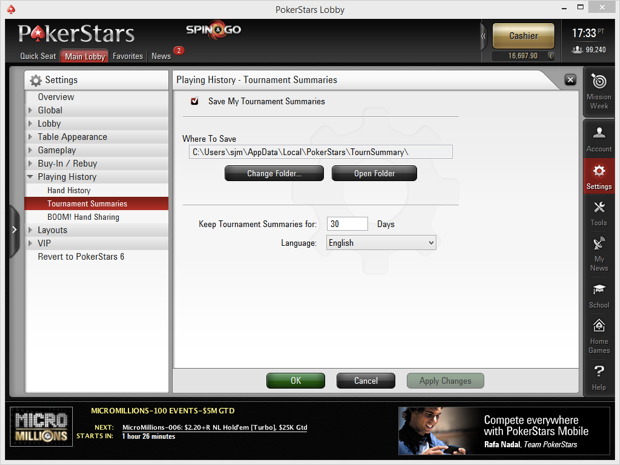
- From the PokerStars lobby, click Options > Playing History > Tournament Summaries.
- Check Save My Tournament Summaries.
- Set Language to English. Summaries in other languages will not import into PokerTracker 4.
- Note the default folder shown under Where To Save.
- Click OK.
- Make sure that folder is configured in PokerTracker 4.
Language
The PokerStars client must be set to English. PokerTracker 4's importer only supports English and cannot read hand histories saved in any other language.
To set the language in PokerStars:
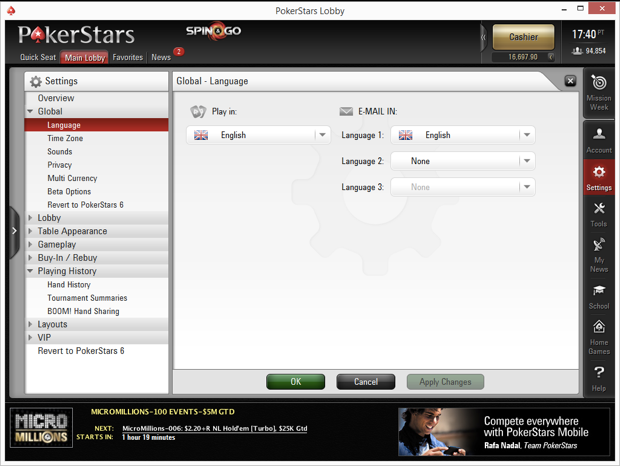
- From the PokerStars lobby, select Options > Global > Language and set Play in to English.
- If you play tournaments, also set Email in to English under Options > Global > Language.
Preferred Seating
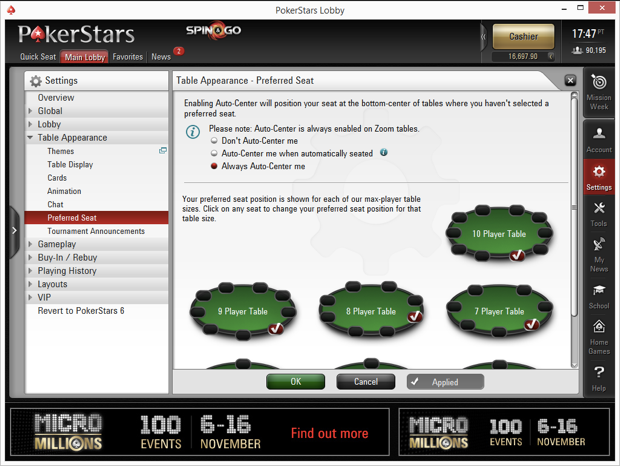
The Preferred Seat option in PokerStars places you in the same seat at every table.
To configure it:
- From the PokerStars lobby, click Options > Table Appearance > Preferred Seat.
- For best performance, select Always Auto-Center me. Alternatively, select Don't Auto-Center me, then choose each table type and click to define your preferred seat(s).
- Click OK.
Enabling the Zoom Poker HUD
Zoom tables aren't enabled by default, so you may need to configure them manually. From the main menu, click Configure > Site & Import Options, select PokerStars (see manually configuring PokerStars if you need help), check Enable Zoom HUD, and click OK.

Also make sure PokerStars is installed in English, not just writing hand histories in English.
macOS users
For the Zoom HUD to work, PokerTracker 4 must create a PokerStars configuration file. If you see this message when launching PokerTracker, enter your system password to allow the file to be created:
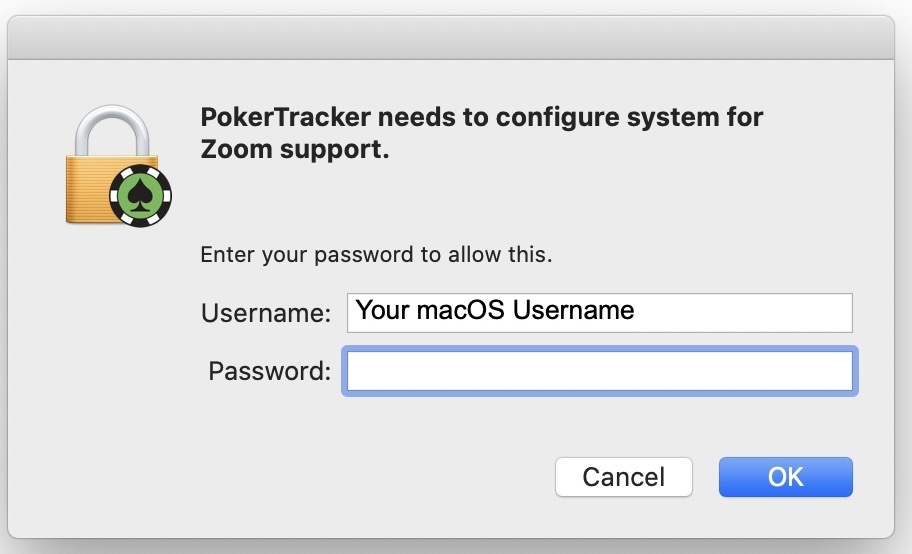
If the HUD still doesn't work at your Zoom tables:
- Delete the PokerStars app from Applications.
- Download a new installer from the PokerStars website and install it.
- On macOS 14 and later, add PokerTracker 4 to Privacy & Security > App Management.
- Launch PokerTracker 4 first so it can add the configuration to PokerStars, then launch PokerStars.
Notes about Zoom tables:
- For best results, let the importer finish importing existing hand histories before playing Zoom — this reduces how long the HUD takes to start.
- Close both PokerStars and PokerTracker 4 before installing any PokerTracker 4 updates. Rebooting first can help.
- Some personal firewalls can block the Zoom HUD — see the Firewall Troubleshooting Guide.
Manual Import Configuration for PokerStars
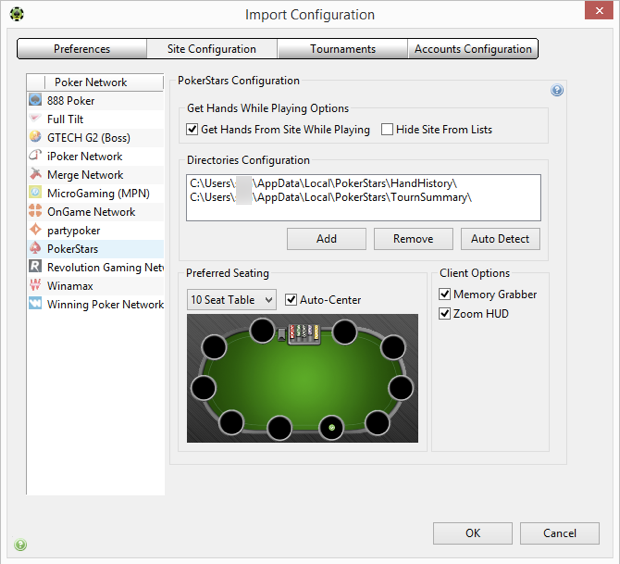
PokerTracker 4 needs to be configured before it can import PokerStars hand histories or display the HUD in real time. From the application menu, click Configure > Site & Import Options, open the Site Configuration tab, and choose PokerStars from the Poker Network list on the left.
Windows import configuration:
Mac import configuration:
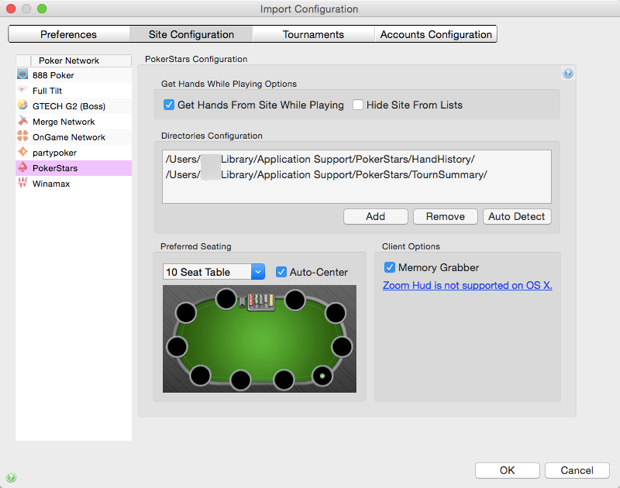
Make sure Get Hands From Site While Playing is selected. (If you don't play on PokerStars, select Hide Site From Lists instead.) Click Auto Detect to populate the PokerStars hand history directories. Then, if applicable:
- Set up your preferred seating, or select Auto-Center to always display the Hero at the bottom center of the table.
- Enable the Zoom HUD (Windows only).
- Enable the Memory Grabber to prefetch hand histories.
For more help, see the Importing Hand Histories tutorial.
Memory Grabber
The Memory Grabber integrates with PokerStars to pull a number of prior hands from the client's memory, so the PokerTracker 4 HUD can populate the moment you sit at a table. If you experience performance issues, disable the Memory Grabber.
This feature does not work with Zoom tables.
PokerStars Audit Files
The best way to import all of your tournament results is to enable tournament summaries, as described in the Tournament Summaries section above.
For tournaments played before you started using PokerTracker — or before you enabled tournament summaries — you can request an 'audit' file from PokerStars and import it. Audit files contain limited information but can help fill gaps in your results.
To request an audit file, go to Tools > History & Stats > Playing History Audit in the PokerStars lobby.
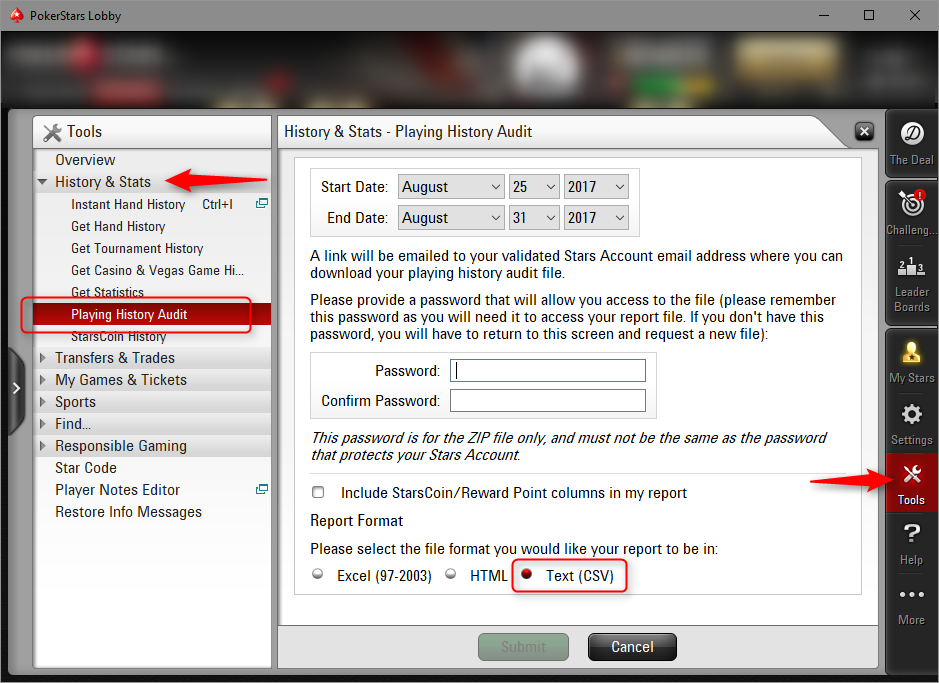
Select Text (CSV) for the file format — this is the format PokerTracker 4 supports. Follow the directions to download the file, then import it using Get Hands From Disk on the Play Poker page (Guide).
Importing Hands Played on PokerStars Mobile
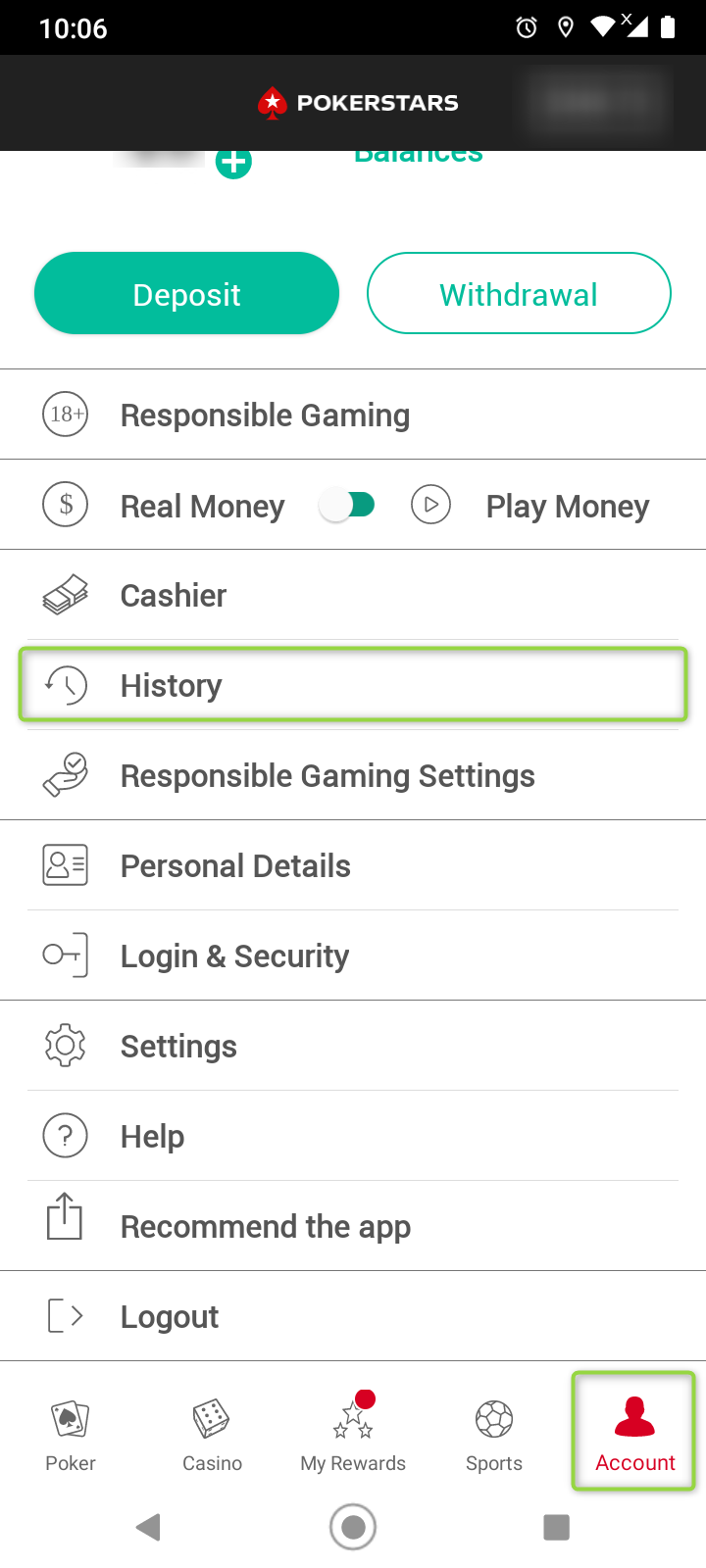
To import hands you played on PokerStars Mobile, request your hand histories by email from the PokerStars app:
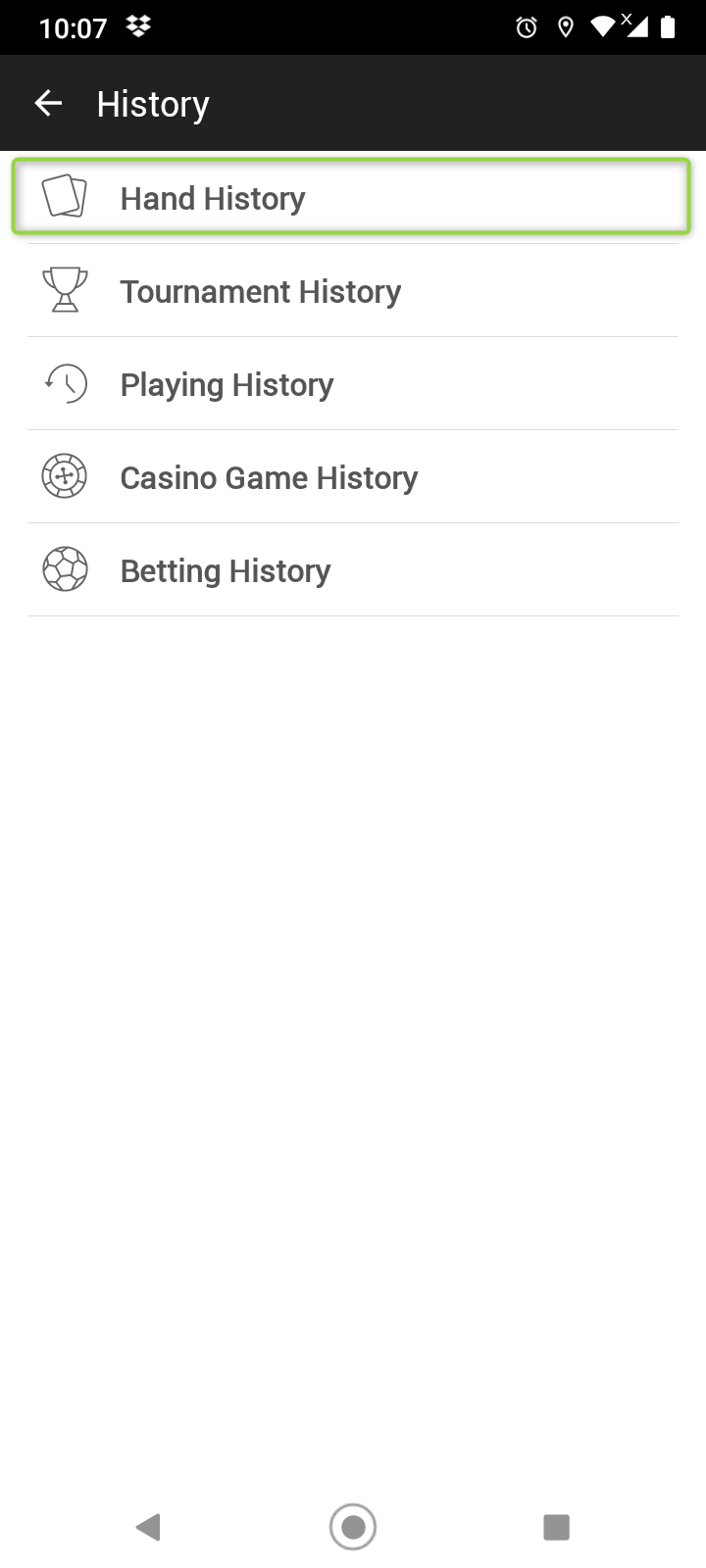
- In the app, go to the Account section and tap History.
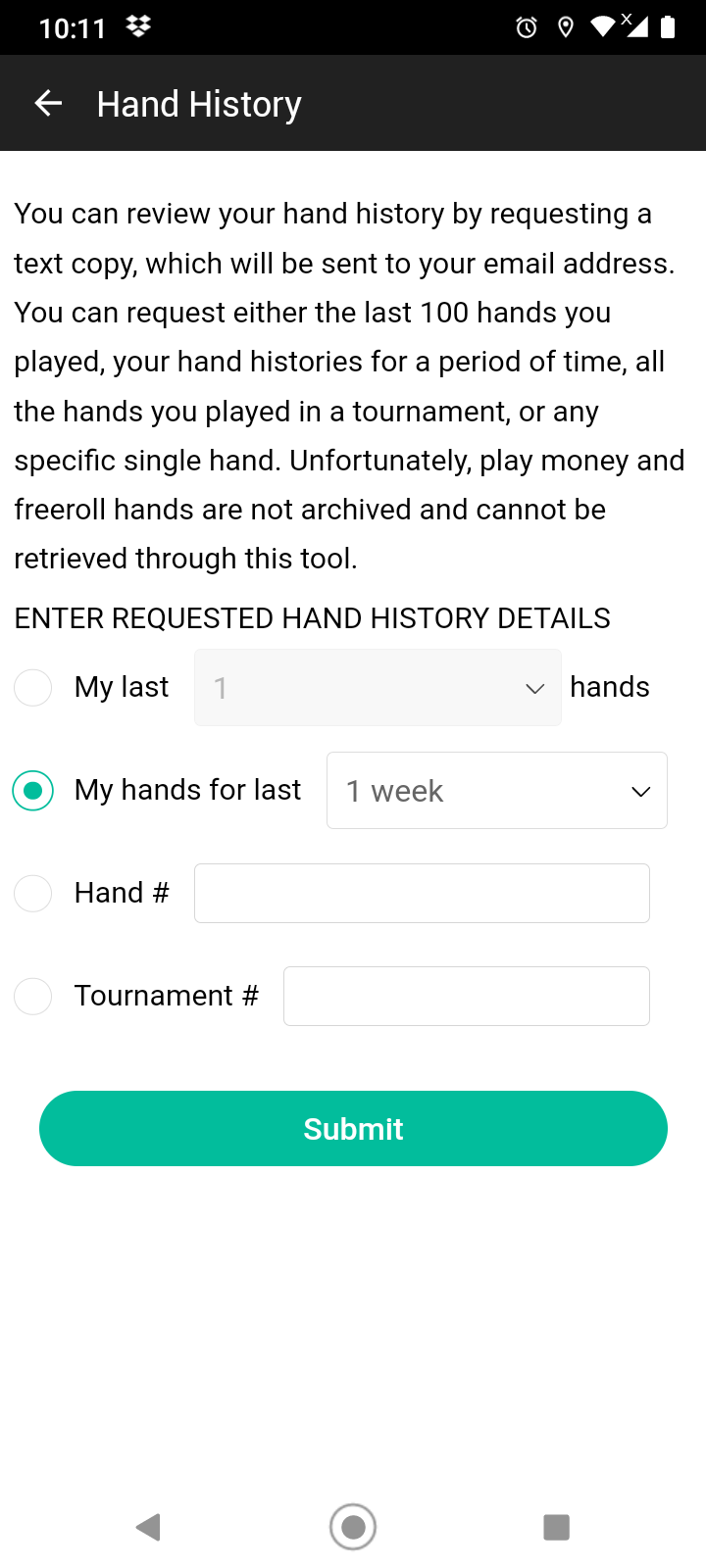
- Tap Hand History.
- Select the hands you want to request.
When you receive the email, either import it directly using Get Hands From Email, or save the email's content to a plain text file and import it using Get Hands From Disk.
When saving to a file, use a plain text editor — the file must not contain any formatting or extra line breaks.
For more help, see the Importing Hand Histories tutorial.
HUD Flicker
If PokerStars is set to pop up your tables when action is required, this can cause a slight flicker in the HUD that some users find annoying. This only happens when stacking tables.
To disable it, go to Settings > Gameplay > Multi-Tabling in PokerStars and turn off Popup table whenever user action is required. Click Apply Changes, then OK.
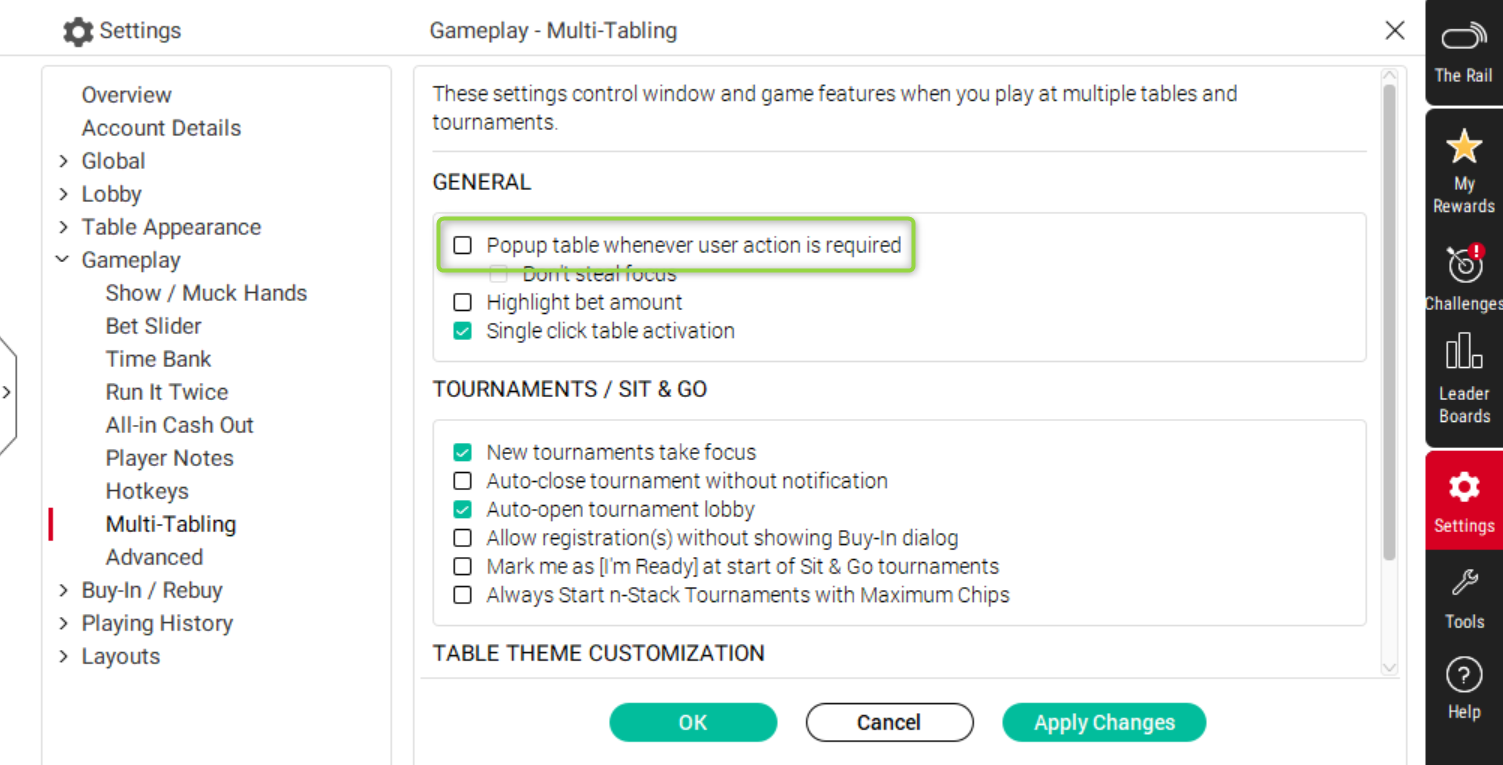
This occurs because the PokerStars window forces itself on top of the HUD, and the HUD must repeatedly correct this by forcing itself back on top.