Unibet Configuration Guide
Overview
PokerTracker 4 imports the text hand histories that the Unibet Poker client saves to your computer. Imported hands are stored in your database for review and analysis, and PokerTracker uses them to display the Heads Up Display (HUD) on your tables.
Set up Unibet in two stages: configure the Unibet Poker client, then configure PokerTracker 4 to read what it saves — either with the Setup Assistant or by hand. For initial setup, see the PokerTracker 4 Quick Start Guide.
Configuring Unibet
Configure the Unibet Poker client first, so that it is saving hand histories before you set up PokerTracker 4.
Hand histories
The Unibet Poker client must be set to save hand histories to your hard drive. This is required for PokerTracker 4 to import hands and display the HUD.
- In the Unibet Poker client, click the Settings (gear) icon at the bottom right.
- On the General settings page, turn on Store hand history locally.
- Note the folder shown beneath the toggle.
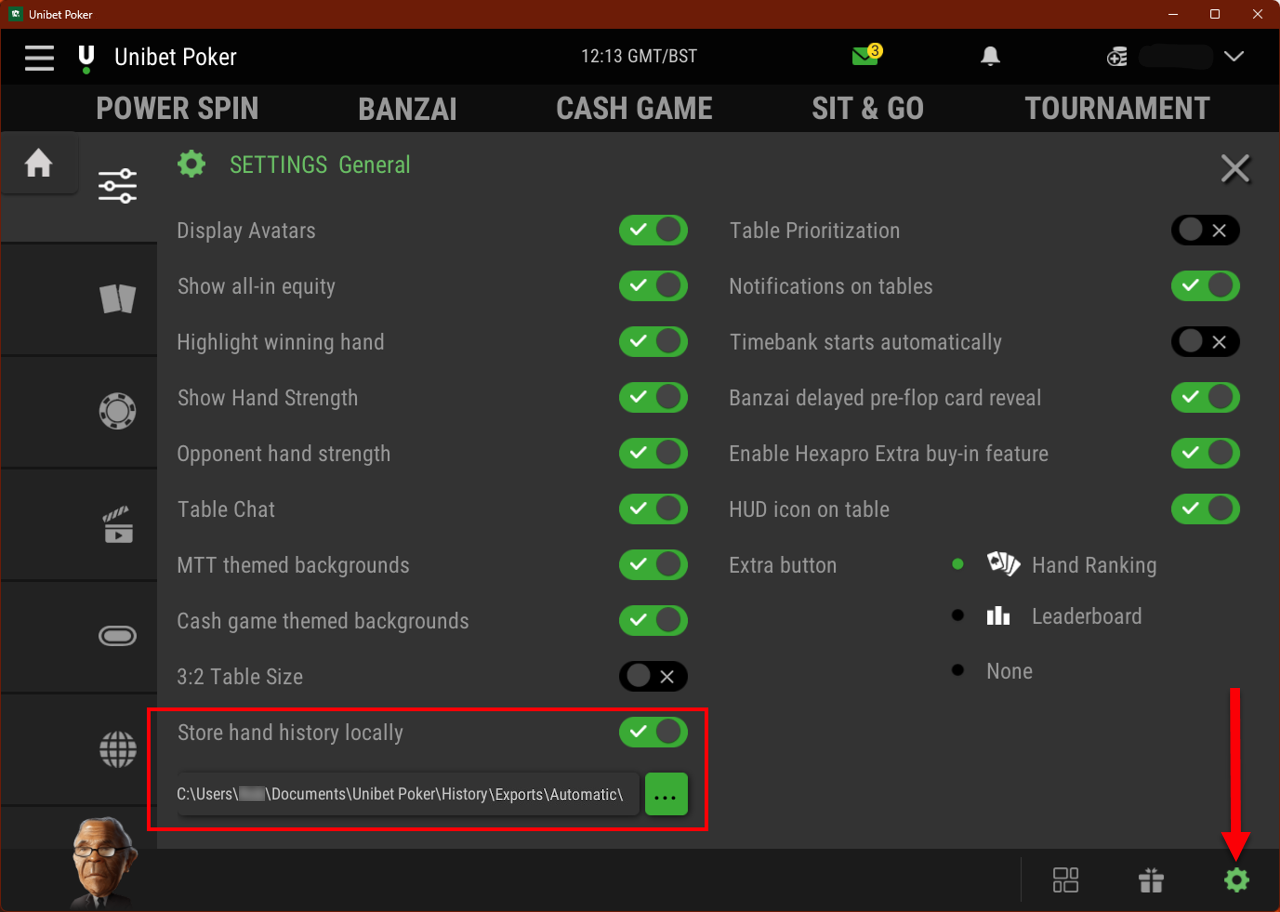
The Store hand history locally option is only available in certain Unibet markets. If your Unibet client does not show this option, it does not save local hand histories and cannot be used with PokerTracker 4.
By default, Unibet stores hand history files in:
C:\Users\USERNAME\Documents\Unibet Poker\History\Exports\Automatic\
You must play at least one hand at Unibet with Store hand history locally enabled so the hand history folder exists. This is important when configuring PokerTracker.
Language
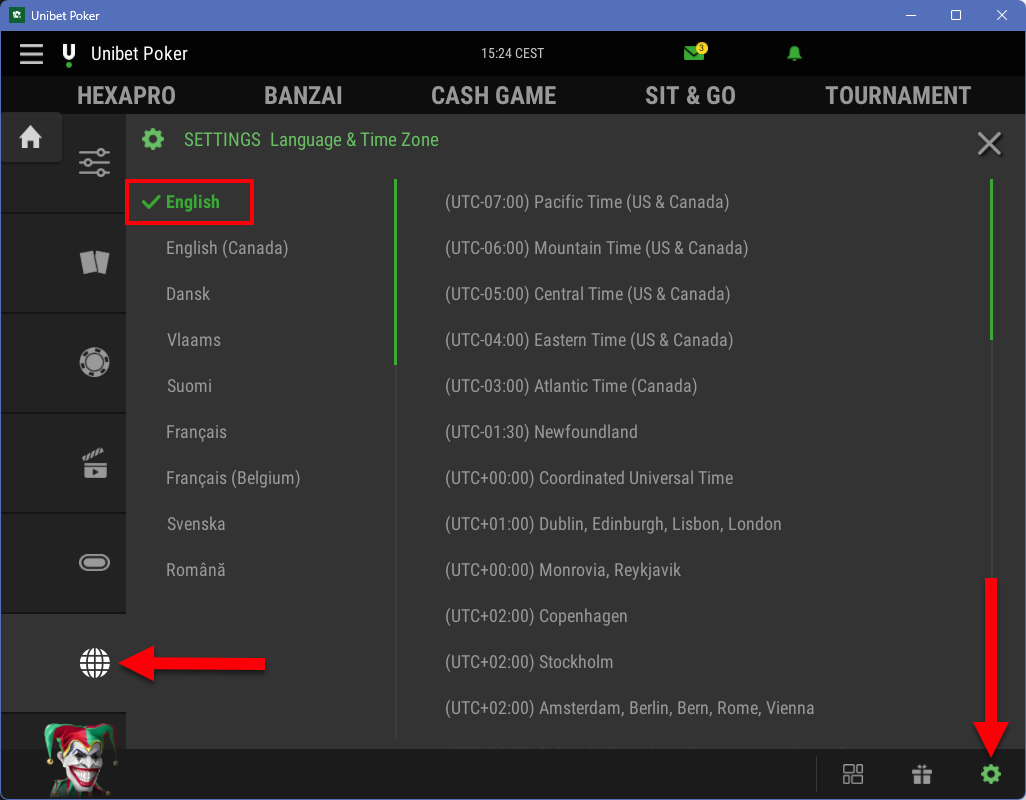
The Unibet Poker client must be set to English. PokerTracker 4 only supports English, and other languages will cause import problems.
- In the Unibet Poker client, click the Settings (gear) icon at the bottom right.
- Click the Language & Time Zone (globe) icon on the left.
- Select English from the language list.
Configuring PokerTracker 4
Once Unibet is saving hand histories, tell PokerTracker 4 where to find them.
Setup Assistant
For most users, the Setup Assistant is the recommended way to prepare PokerTracker 4 for Unibet. Click Tools > Setup Assistant from the main toolbar, choose Configure Sites and set Unibet to Yes.
Step 1 — Make sure Unibet is configured to save hand histories to your hard drive.
Step 2 — Tell PokerTracker where Unibet saves its hand histories. Click Auto Detect to find the folder automatically, or click Add to point to it manually. Then click Next.
Final step — You can import your existing hand histories. Select Yes, choose the target database and click OK.
If you have many hand histories saved, the import may take a while. Let PokerTracker finish importing all of them for best results.
Manual configuration
If you prefer not to use the Setup Assistant, configure PokerTracker 4 by hand. PokerTracker 4 must be configured before it can import Unibet hand histories or display the HUD in real time.
- From the application menu, click Configure > Site & Import Options, then open the Site Configuration tab.
- Choose Unibet from the Poker Network list on the left.
- Select Get Hands From Site While Playing. (If you don't play on Unibet, select Hide Site From Lists instead.)
- Click Auto Detect to populate the Unibet hand history directory.
Unibet always auto-centers you at the table. There is no preferred-seat or auto-center option to configure.
Playing on Unibet
With your Unibet tables open, click Play Poker > Get Hands While Playing. Hands are imported automatically as you play, and the HUD appears on your table after a hand or two.
Get Hands While Playing is the only import option that starts the HUD for real-time play. For the full set of auto-import options, see Automated Hand History Importing.
Manual import of Unibet hand histories
To import Unibet hand histories you already have on disk — downloaded post-game, archived or hands played on another computer — open the Play Poker tab and click Get Hands From Disk. You then have two options:
- Select Files — choose and import individual files.
- Select Directory — import every file in a folder and its subfolders.
For more help, see the Importing Hand Histories tutorial.