Winamax Configuration Guide
Overview
PokerTracker 4 imports the text hand histories that the Winamax client saves to your computer. Imported hands are stored in your database for review and analysis, and PokerTracker 4 uses them to display the Heads Up Display (HUD) on your tables.
This guide covers configuring Winamax manually. You can also use the automated Setup Assistant. For initial setup, see the PokerTracker 4 Quick Start Guide.
Setup Assistant
For most users, the Setup Assistant is the easiest way to prepare PokerTracker 4 for Winamax. Click Tools > Setup Assistant from the main toolbar, choose Configure Sites, and set Winamax to Yes.
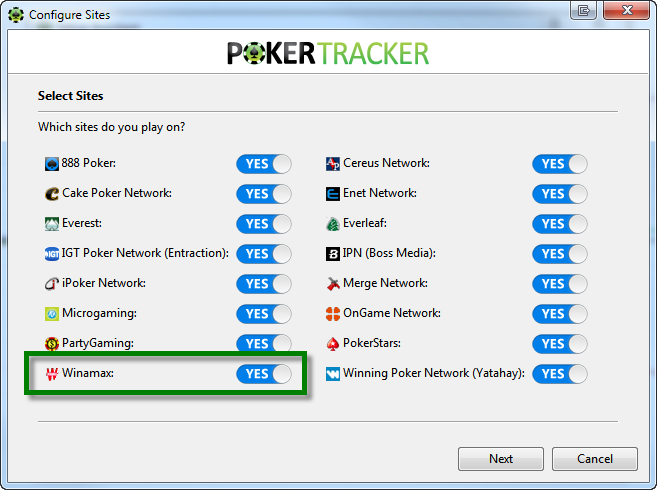
Step 1 — Make sure Winamax is configured to save hand histories to your hard drive.
Step 2 — Tell PokerTracker 4 where Winamax saves its hand histories. Click Auto Detect to find the folder automatically, or click Add to point to it manually. Then click Next.
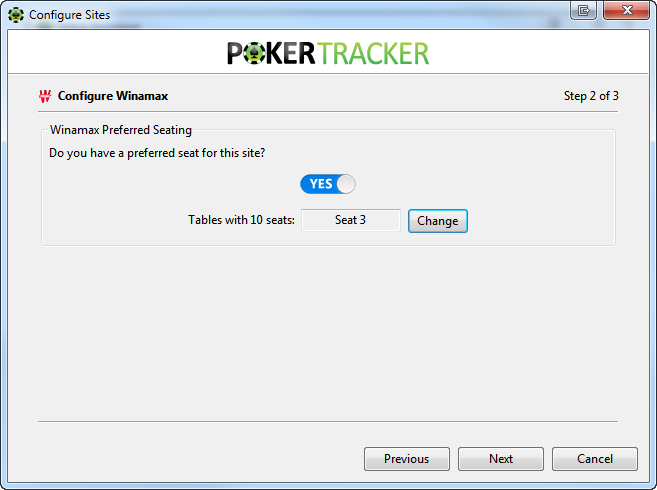
Step 3 — Set your seating preference. Winamax always centers you in the bottom seat, so configure PokerTracker 4 to match.
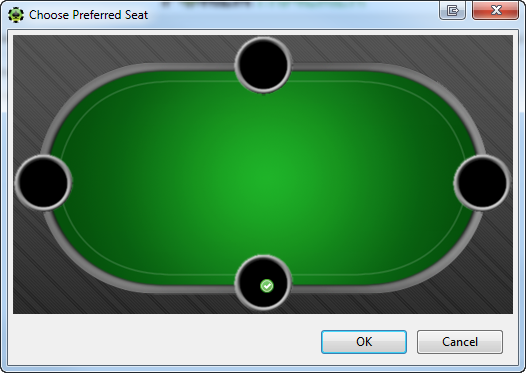
Once you've set your seat preference, click Next.
Final step — You can import your existing hand histories. We recommend selecting Yes, choosing the target database, and clicking OK.
If you have many hand histories saved, the import may take a while. Let PokerTracker 4 finish importing all of them for best results.
Configuring Winamax
If you prefer not to use the Setup Assistant, configure Winamax manually using the sections below.
Language
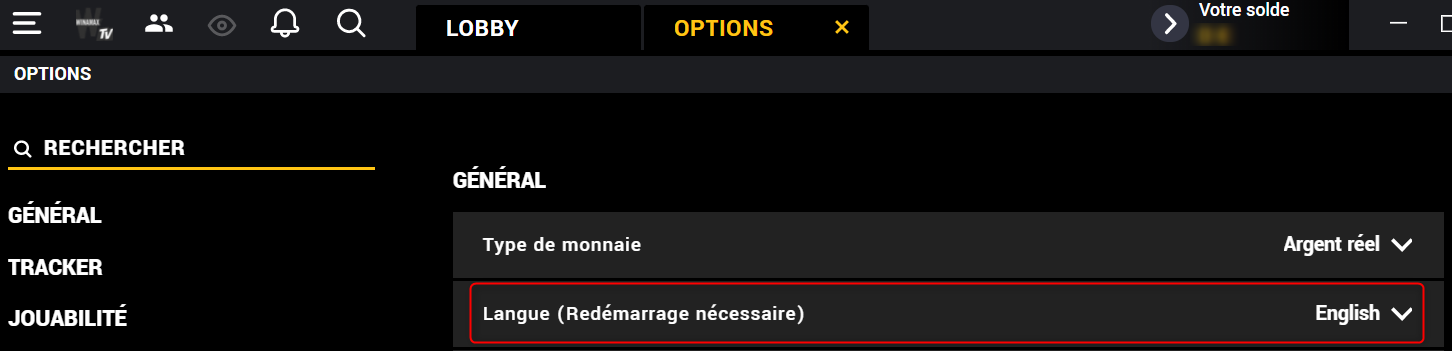
The Winamax client must be set to English. PokerTracker 4 only supports English, and other languages will cause problems.
To change the language:
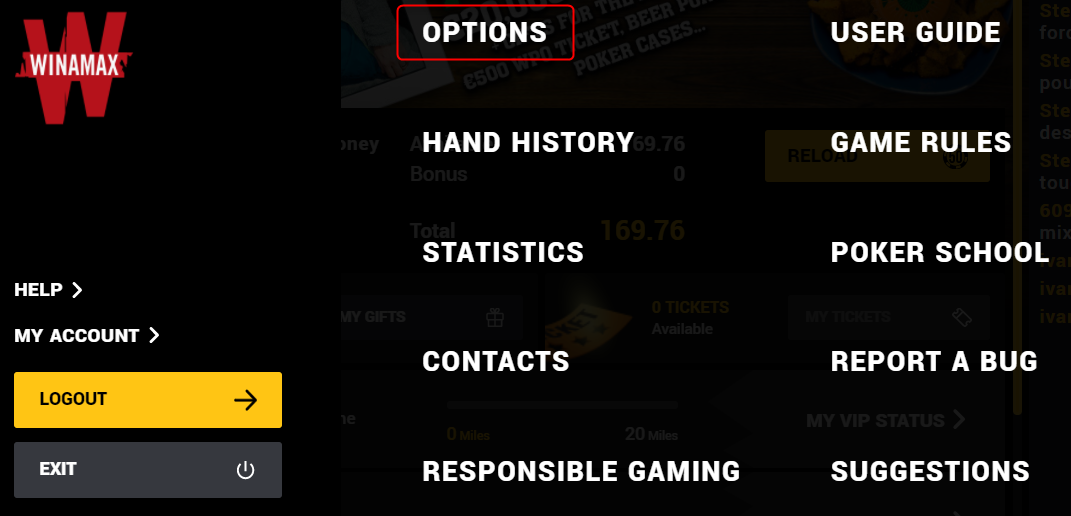
- In the lobby, click the menu.
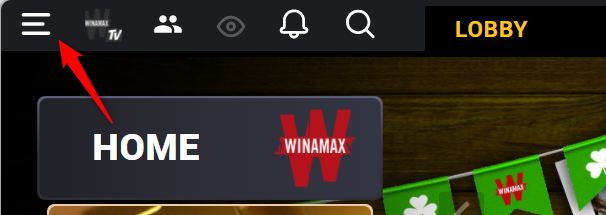
- Click Options.
- In the General / Général section, set Language / Langue to English.
Hand Histories
By default, Winamax stores hand history files in the folder shown below. If the folder doesn't exist yet, it is created after you play your first hand.
- Windows
- macOS
C:\Users\USERNAME\AppData\Roaming\winamax\documents\accounts\WINAMAX USER NAME\History
/Users/USERNAME/Library/Application Support/Winamax/documents/accounts/WINAMAX USER NAME/history
Connection to the Tracker
PokerTracker 4 supports the Playground view by connecting to the Winamax software, whether you use the multi-table view or a separate window for each table.
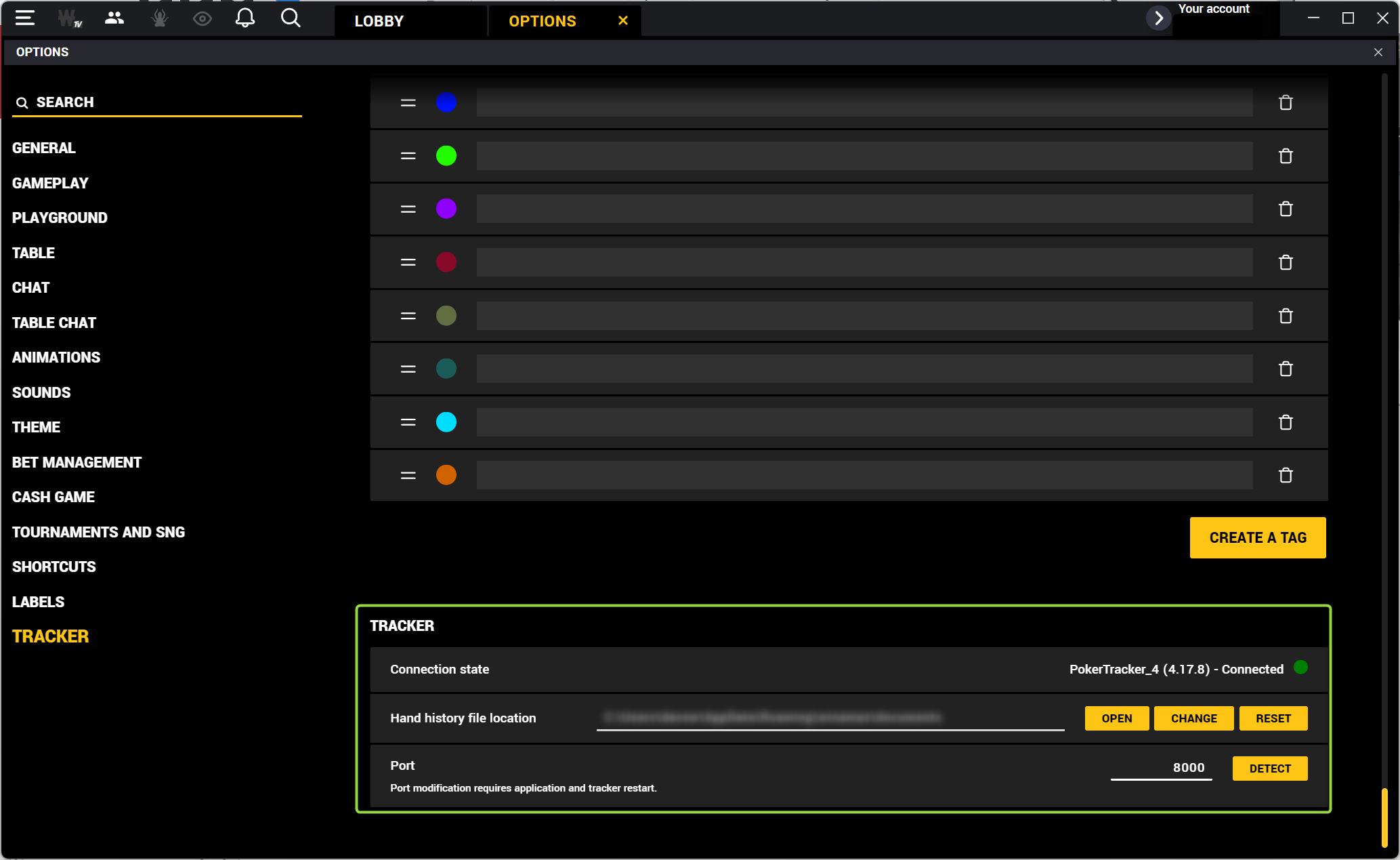
No configuration is required in Winamax — the default settings work for most users. The hand history file location and port number are detected automatically when you set up the import configuration in PokerTracker 4.
The connection is shown in the Tracker section of the Winamax options, where you can see the connected PokerTracker 4 version, the hand history file location, and the port number in use.
PokerTracker 4 only connects when you start Get Hands While Playing.
You shouldn't need to change the port number, but you can if another program is using the same one. After changing any settings here, restart PokerTracker 4 for them to take effect.
Manual Import Configuration for Winamax
PokerTracker 4 must be configured before it can import Winamax hand histories or display the HUD in real time.
-
From the application menu, click Configure > Site & Import Options, then open the Site Configuration tab.
-
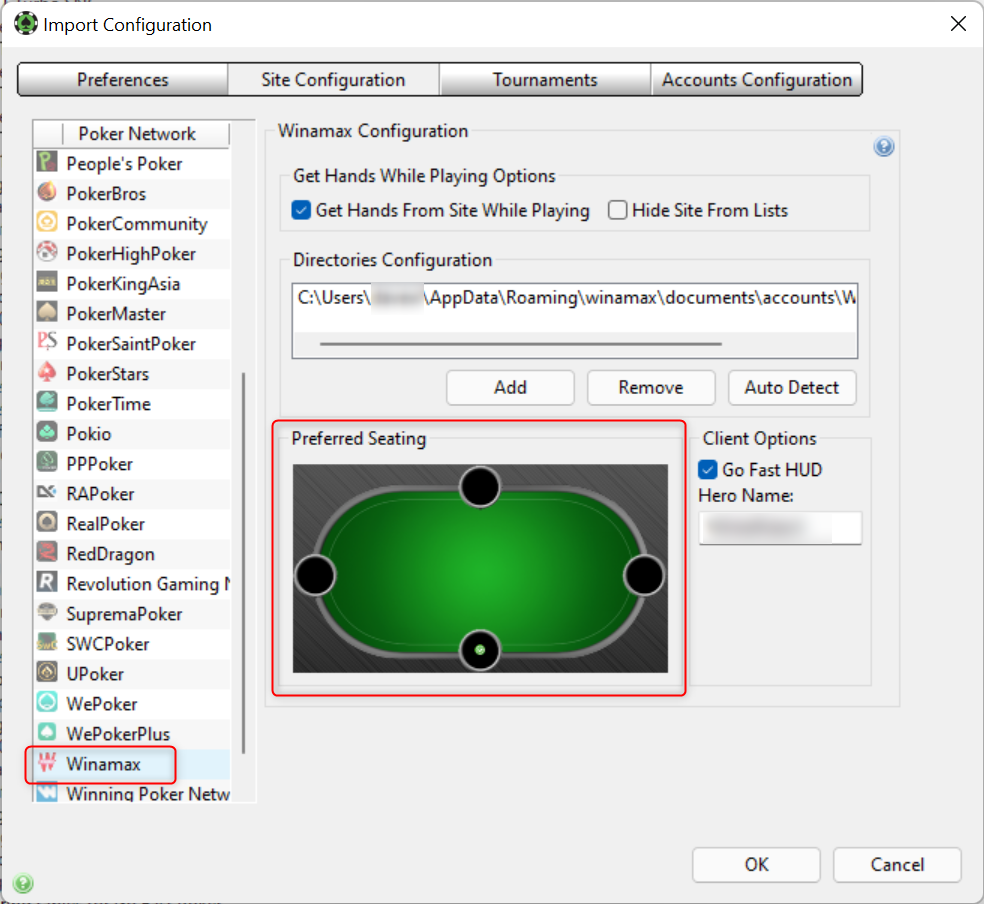
Choose Winamax from the Poker Network list on the left.
-
Select Get Hands From Site While Playing. (If you don't play on Winamax, select Hide Site From Lists instead.)
-
Click Auto Detect to populate the Winamax hand history directories.
tipYou must have played at least one hand at Winamax so the hand history folder exists before using Auto Detect.
-
Set your preferred seat to the bottom seat in the graphical selector. The latest Winamax software has no preferred seat option — you are always shown in the center seat — so this keeps the HUD in the correct position.
-
Enter your Winamax username in the Hero Name field.
For more help, see the Importing Hand Histories tutorial.