Winning Poker Network (WPN) Configuration Guide
Overview
PokerTracker 4 imports the text hand histories saved to your computer by the Winning Poker Network (WPN) client. Imported hands are stored in PostgreSQL and made available for review and analysis in your PT4 database. Correct configuration lets PT4 retrieve these hand histories and display the Heads Up Display (HUD) on your WPN tables.
WPN has both Windows and Mac clients, and PT4 supports both.
This guide covers configuring PT4 for WPN manually. You can also use the automated Setup Assistant. For general setup, see the PokerTracker 4 Quick Start Guide.
Setup Assistant
For most users, the Setup Assistant is the most efficient way to prepare PT4 for WPN — it automates configuration so you don't have to set up your poker environment by hand. Click Tools > Setup Assistant from the main toolbar, click Configure Sites, and turn Winning Poker Network to Yes.
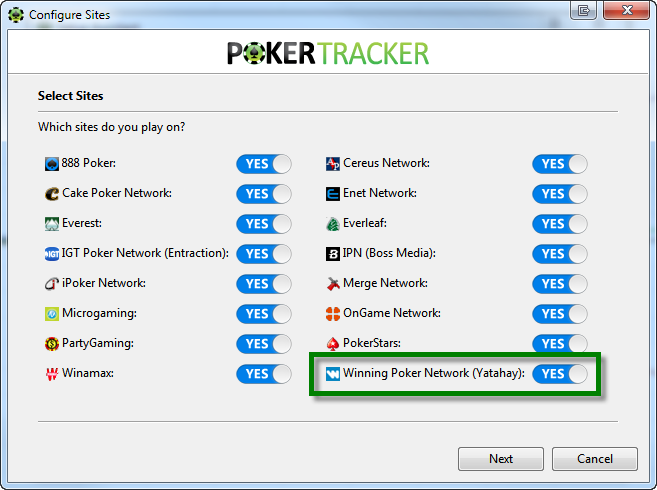
- If you haven't already, confirm that WPN is configured to save hand histories to your hard drive.
- Tell PT4 where WPN saves its hand histories. Use Auto Detect to let PT4 find them automatically, or click Add and point PT4 to the WPN hand history folder yourself. Click Next.
- The final step offers to import existing hand histories. Select Yes, choose the destination database, and click OK.
If you have a lot of hand histories saved in your WPN folder, the import may take some time. Let PT4 import all of your hands for optimal results.
Configuring Winning Poker Network
Configure both the WPN client and PT4 as described in the sections below.
Hand Histories
The WPN client automatically saves hand histories and tournament summaries to set directories on your hard drive, where PT4 reads them into the database.
To see or change where they are stored:
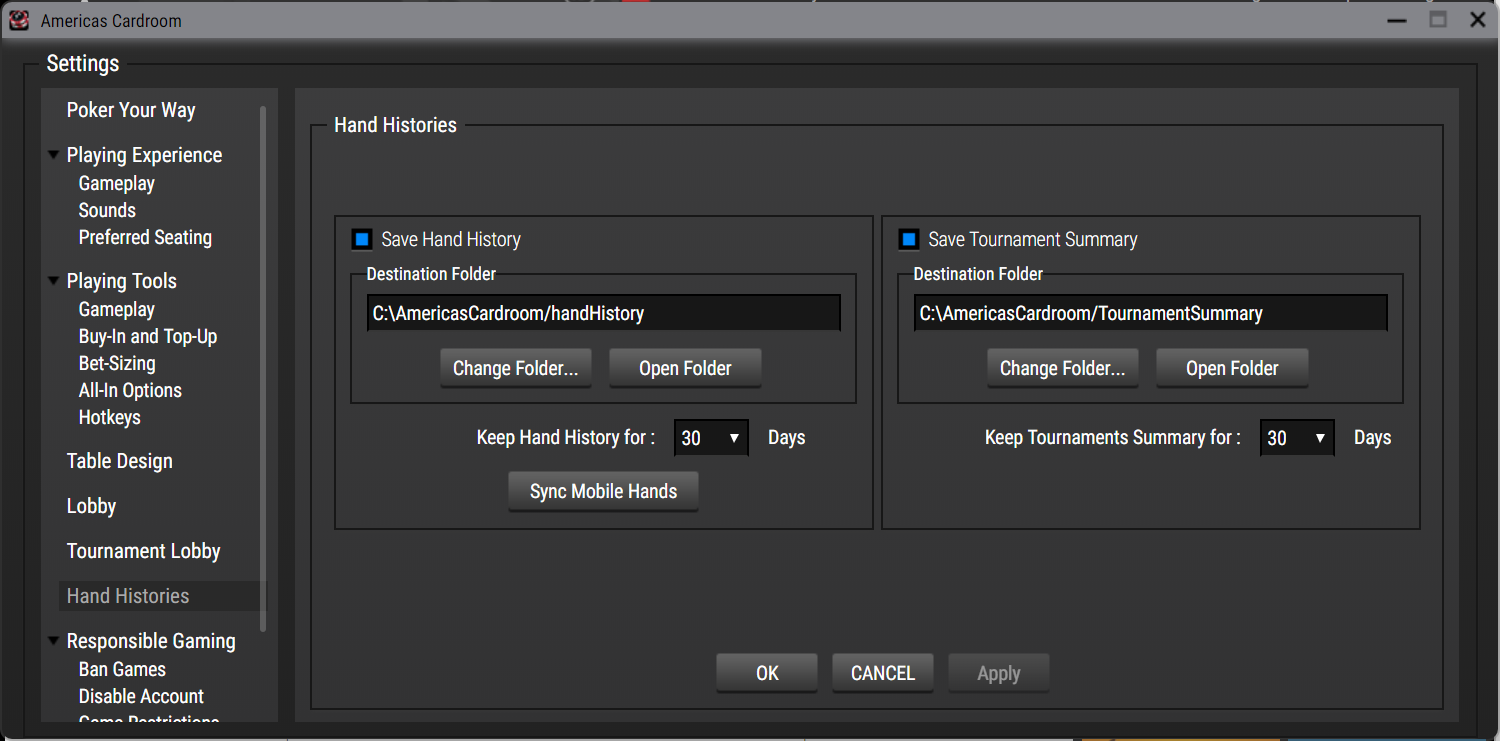
- From the WPN lobby, click Settings > Hand Histories.
- Note the location under Destination Folder. PT4 can locate the folder automatically only if the default location is used, as shown below (your skin name may vary).
Language
The WPN client must be installed in English. PT4 only supports English, and a client in another language will cause problems.
If your WPN client is in another language, uninstall it and reinstall, selecting English as the install language.
Preferred Seating
Set a preferred seat in the WPN client so you are always placed in the same seat at every table.
- From the WPN lobby, click Settings > Preferred Seating.
- Select the table sizes you want to change and choose your preferred seat for each.
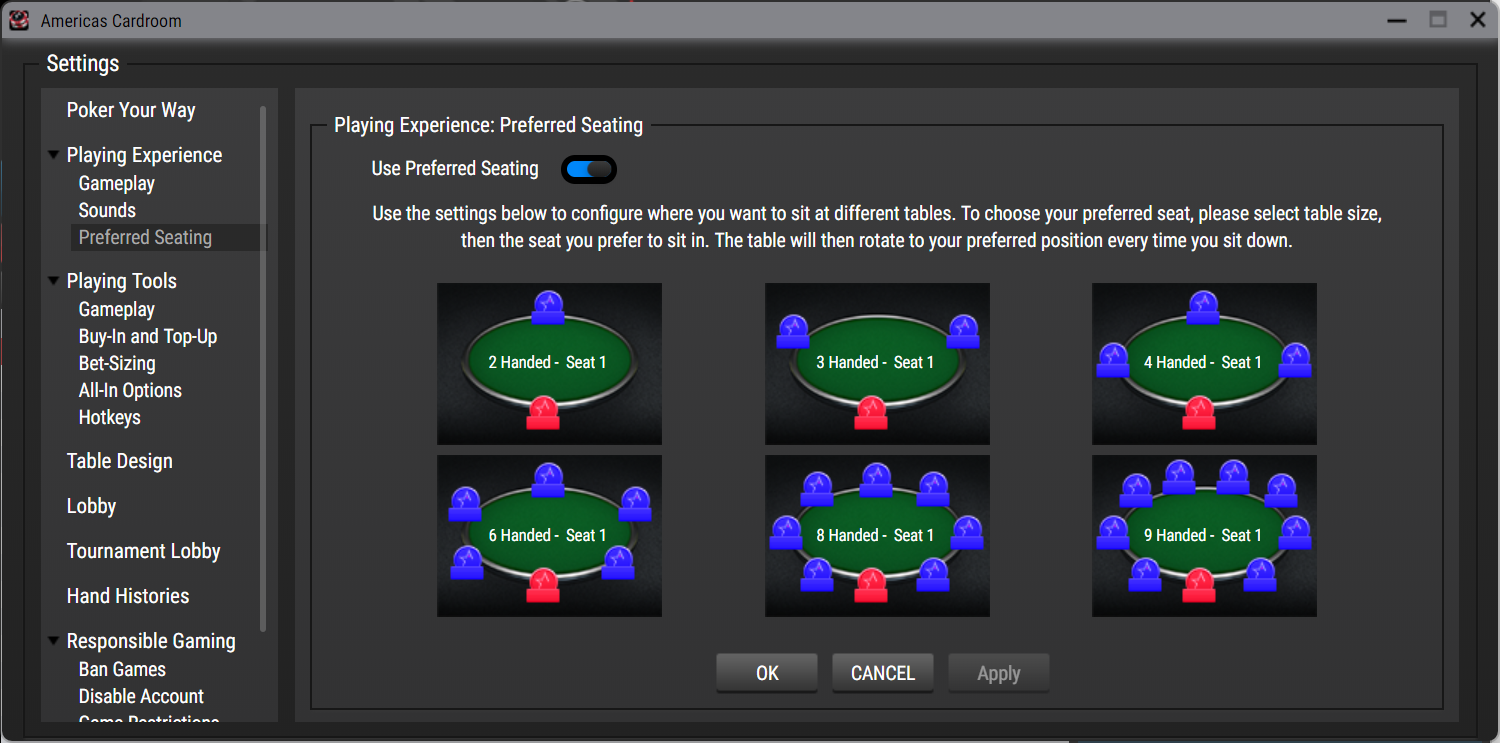
- If you don't select a seat, WPN shows Default and seats you in the bottom center seat at tables of that size.
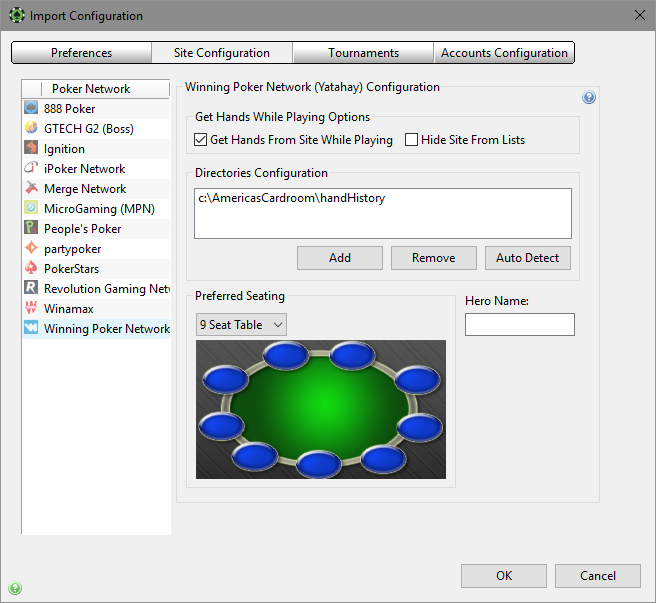
- In PT4, set the matching preferred seat for each table size under Configure > Sites & Import Options > Site Configuration > Winning Poker Network. If you leave a table size unset, PT4 also defaults to the bottom center seat.
- Click OK.
WPN does not write hand histories while you are seated and waiting for the blinds (not dealt in), so the HUD won't appear until after the first hand is imported.
See the Preferred Seating Guide for more information.
HUD for Blitz Poker
Blitz tables may need manual configuration. Go to Configure > Site & Import Options, select Winning Poker Network, and check the Blitz HUD option.

Notes about Blitz tables and PT4:
-
The HUD starts working after the first hand is imported (not played).
-
For best results, let the importer process any existing hand histories before playing at Blitz tables, so the HUD starts faster.
-
Close both WPN and PT4 before installing any PT4 update. Rebooting before updating can help.
-
If the HUD doesn't appear at your Blitz tables, check whether PT4 detected your hand history folders. Go to Configure > Site & Import Options and select Winning Poker Network.

If you see "Winning Poker Network does not appear to be installed", close PT4, then uninstall and reinstall your WPN software.
Manual Import Configuration for the Winning Poker Network
PT4 needs configuration before it can import WPN hand histories or display the HUD in real time. Click Configure > Site & Import Options, open the Site Configuration tab, and choose Winning Poker Network in the Poker Network list on the left.
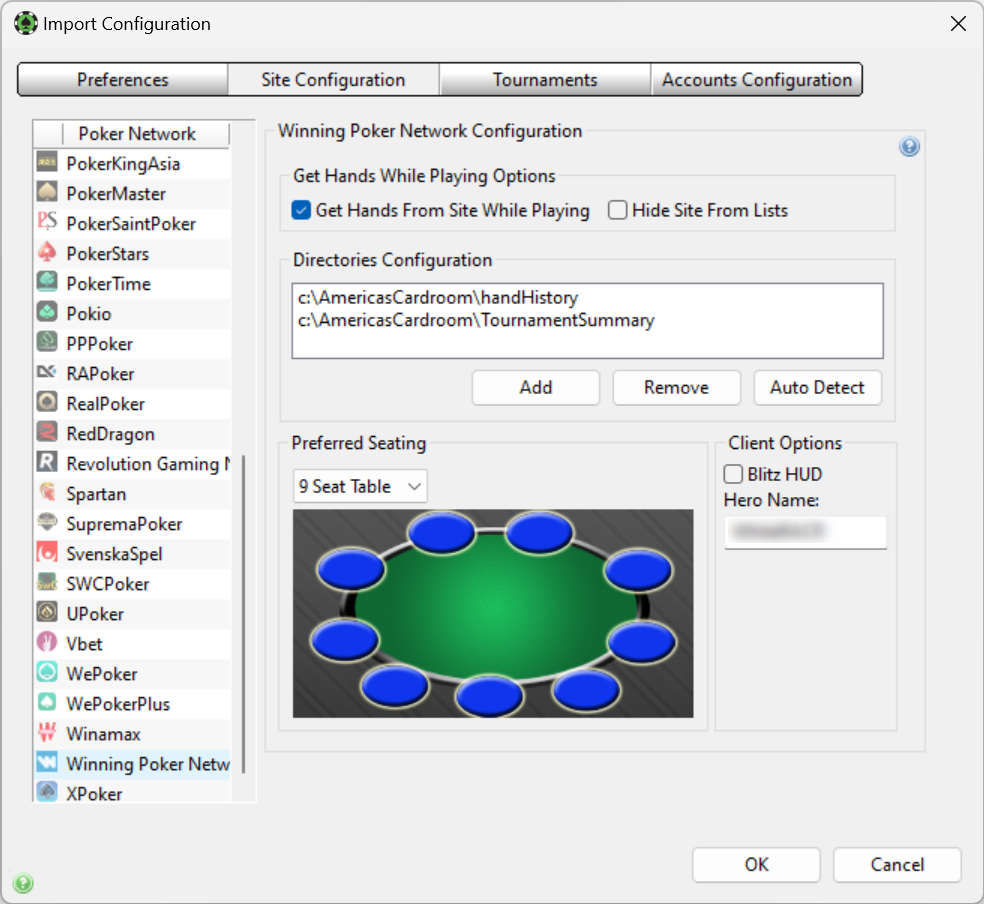
- Select Get Hands From Site While Playing. If you don't play on WPN, select Hide Site From Lists instead to hide it from view.
- Click Auto Detect to populate the WPN hand history and tournament summary directory paths.
- If Auto Detect doesn't add a directory, click Add and browse to the correct folder. Find where WPN saves hand histories by checking the client, as described in the Configuring Winning Poker Network section above.
- If you play Blitz poker, enable the Blitz HUD option and enter your screen name in the Hero Name field.
For more help, see the Importing Hand Histories tutorial.
Known Issues While Playing
All PT4 users on WPN should be aware of these issues:
- PT4 cannot support "Sit Here" functionality: the HUD only works correctly when you occupy the same seat at every table. Remain in your assigned seats, or choose a system-wide Preferred Seat, to keep the HUD working.
- The WPN client software is sometimes licensed to separate third-party networks such as BetCoin. PT4 supports the WPN client regardless of the network where the game takes place. BetCoin and WPN are separate networks with their own player pools and unique player IDs, but the two companies unify their tournament pools to create larger fields — a unified event is called a Network Tournament. For example, a BetCoin player named "playerA" appears as "bcp-playerA" in network tournaments, to avoid conflicts with players from other networks on the same client; WPN home players have no prefix. The hand history records the name the same way. In a local tournament or game within your own network, you keep your regular name. PT4 treats each name as a unique player, so tracking for "playerA" and "bcp-playerA" stays separate. To unify the two, use the PT4 Alias function.
macOS Compatibility
As of May 2019, WPN offers a macOS client identical to the Windows version. The macOS version of PT4 has full WPN functionality, matching the Windows version, from v4.15.12 onward.