Moving Processed Files: Unable to Get Hands While Playing
Overview
Every time you start the Auto Import process in PokerTracker 4, all of the hand history files in the hand history folders are read. Any files that were previously imported will be re-read, recognized as duplicates, and not imported again.
If you see this error message:
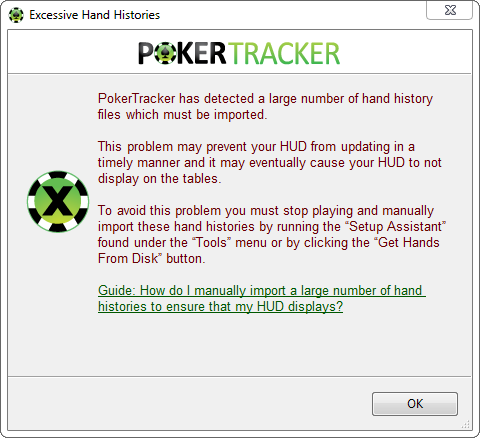
Go to Tools > Setup Assistant and run through the Site Configuration process, which imports your existing hand histories and moves them to the Processed folder.
Review the rest of this guide to avoid seeing this message again.
Managing Duplicates
Duplicate hand histories slow down Auto Import and delay your HUD. The sections below explain how to keep processed files out of your import folders and how to clear out a backlog of old hands.
Moving Processed Files
If a lot of old hand history files build up, reading and checking them takes longer, delaying the import of new hands you are currently playing — and therefore delaying the appearance and updates of the HUD.
If you play at a site on the MicroGaming network, the rest of this tutorial does not apply to you. MicroGaming writes hand histories to a database file which suffers from the same problem, but the solution is different. See the "Configuring the MicroGaming Network" section of the MicroGaming Configuration Guide for what to do instead.
To avoid this, leave the Move Processed Files To option enabled. To access it, go to Configure > Sites & Import Options and click the Preferences tab.
When Auto Import is stopped, PT4 moves any files it has read ("processed") to the configured folder. By default this 'processed' folder is
- Windows
- macOS
C:\Users\xxx\AppData\Local\PokerTracker 4\Processed

/Users/USERNAME/Documents/PokerTracker/Processed
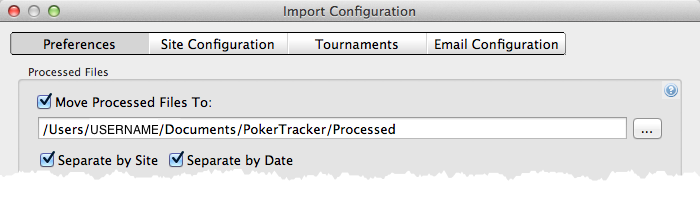
You can change which folder the files are moved to, but it is very important that the 'processed' folder is completely separate from any folders you auto import from. If you configure PokerTracker 4 to move files to a folder it imports from (including subfolders), the files will be continually re-read, moved back, and read again.
- Do NOT set Move Processed Files To to a subfolder of your hand history folder.
- Do NOT configure Auto Import to import from the 'processed' folder.
Some poker sites lock the hand history files while the table windows are open, which means they can't be moved. You may need to close all the tables before stopping Auto Import so the files can be moved.
If You Have a Lot of Duplicates
If a lot of Duplicates are reported every time you start Auto Import, you probably have some old hand history files in your hand history folder.
First, make sure the 'import' folders and 'processed' folder are configured correctly, as described above.
If you need help configuring PokerTracker 4 to import from your poker site, see the site-specific configuration guides.
To import and then clear the old hand history files, follow these steps:
- Make sure the Move Processed Files To option is enabled and set to an acceptable folder, as described above.
- Close all of your poker site applications, then restart PokerTracker 4.
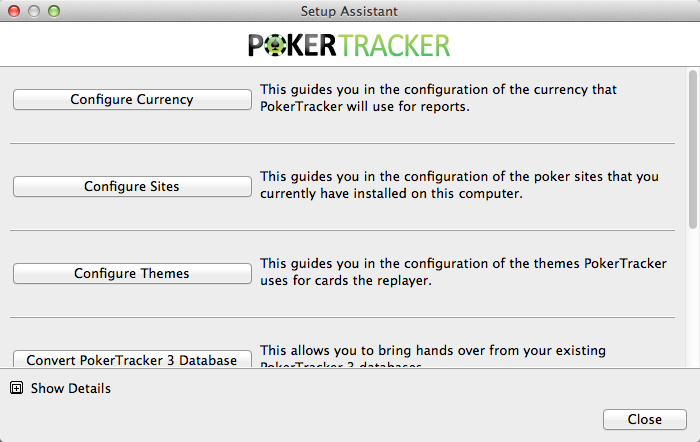
- Click Tools > Setup Assistant and select Configure Sites. Complete the wizard by selecting which sites you play at and confirming the hand history folder is correctly entered for each poker site.
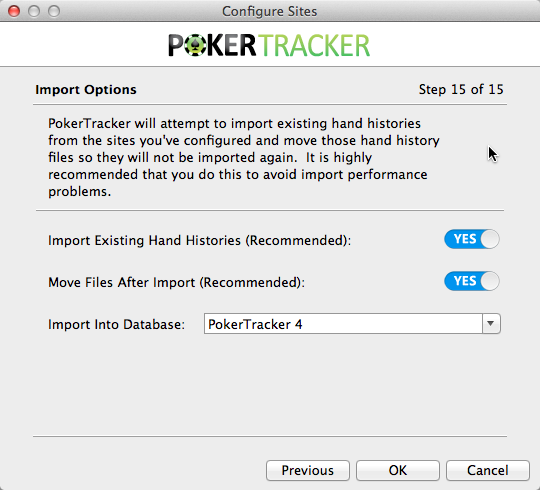
- On the Import Options page at the end of the Configure Sites wizard, make sure the switches are set to YES. Click OK to import any hands remaining in the hand history folders. When this completes, the hands are moved to the Processed folder.
Next time you start Auto Import you should not see any duplicates reported, and your HUD performance will be greatly improved.