PostgreSQL Troubleshooting
PostgreSQL How To...
Common PostgreSQL tasks and where to find the full instructions.
Make PostgreSQL Run Faster
PostgreSQL performance is dominated by disk speed and available RAM. The single biggest improvement is a Solid State Drive (SSD); a 7200 RPM drive is acceptable, but 5400 RPM drives are not recommended.
- Tune PostgreSQL to use more of your RAM — see PostgreSQL Performance Tuning.
- Keep your database optimized as it grows — see Database Housekeeping.
- For hardware recommendations, see the Recommended Hardware FAQ.
Update PostgreSQL
PokerTracker 4 supports PostgreSQL 9.6 or greater (we recommend PostgreSQL 16). To move to a newer release, follow the dedicated guides:
Always back up your databases before updating.
Backup and Restore in pgAdmin 4
PokerTracker 4 has backup and restore built in — use it whenever possible. The external pgAdmin 4 method below is only for rare cases where the built-in tools cannot reach your database, such as when PokerTracker 4 runs in a virtual machine but PostgreSQL is installed on the host OS. (See the networking guide for that scenario.)
The screenshots below show an older version of pgAdmin. The steps are equivalent in pgAdmin 4.
Using pgAdmin 4 to Back Up a Database
-
Open pgAdmin 4.
Windows: Start > PostgreSQL > pgAdmin 4. macOS: /Applications/pgAdmin 4.
-
Connect to the server.
In the Browser tree, expand Servers > PostgreSQL and connect. If asked for a password, the default is dbpass; another commonly used password is postgrespass.
-
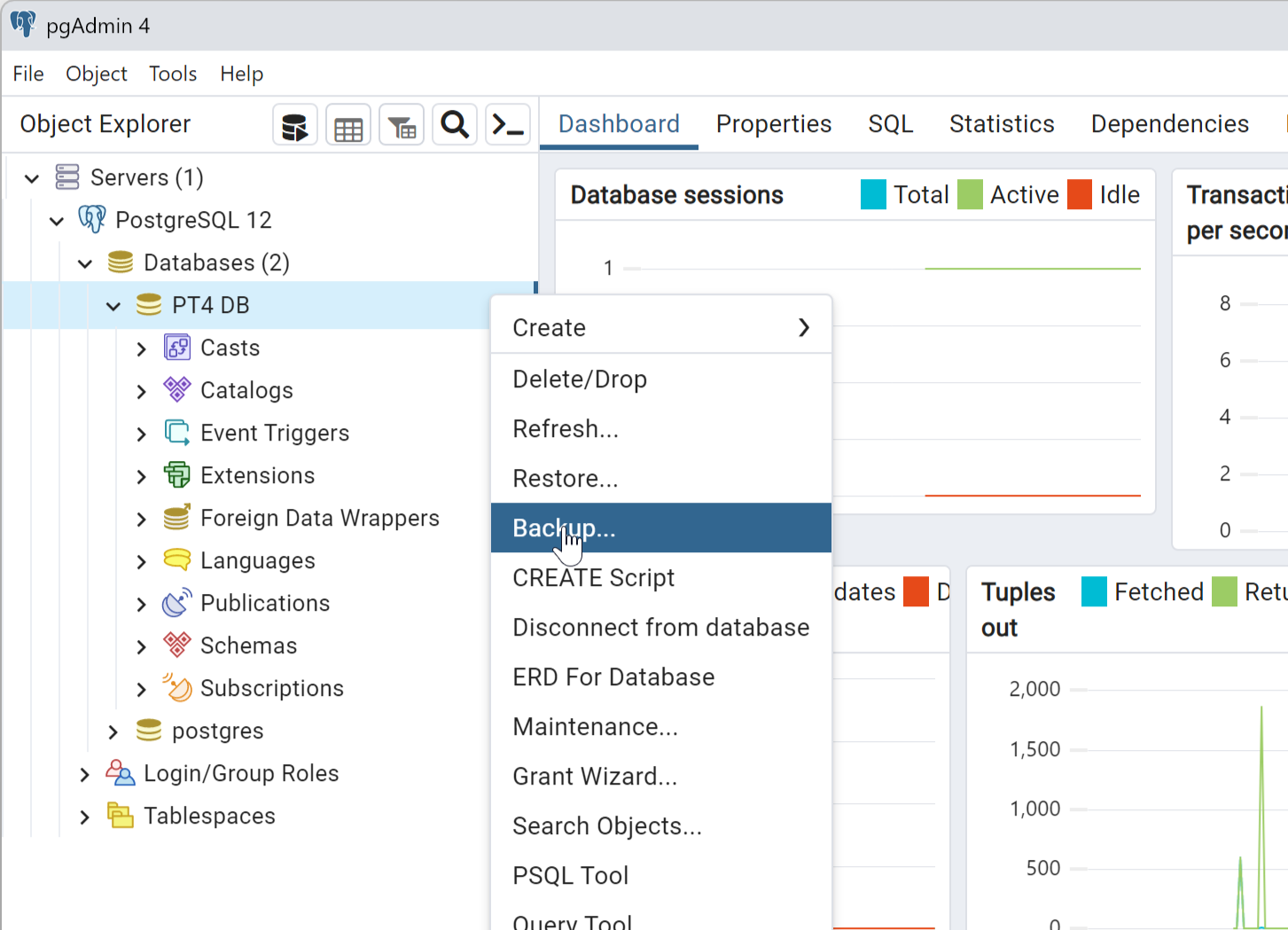
Expand Databases and select your database.
Right-click the database you want to back up and choose Backup....
-
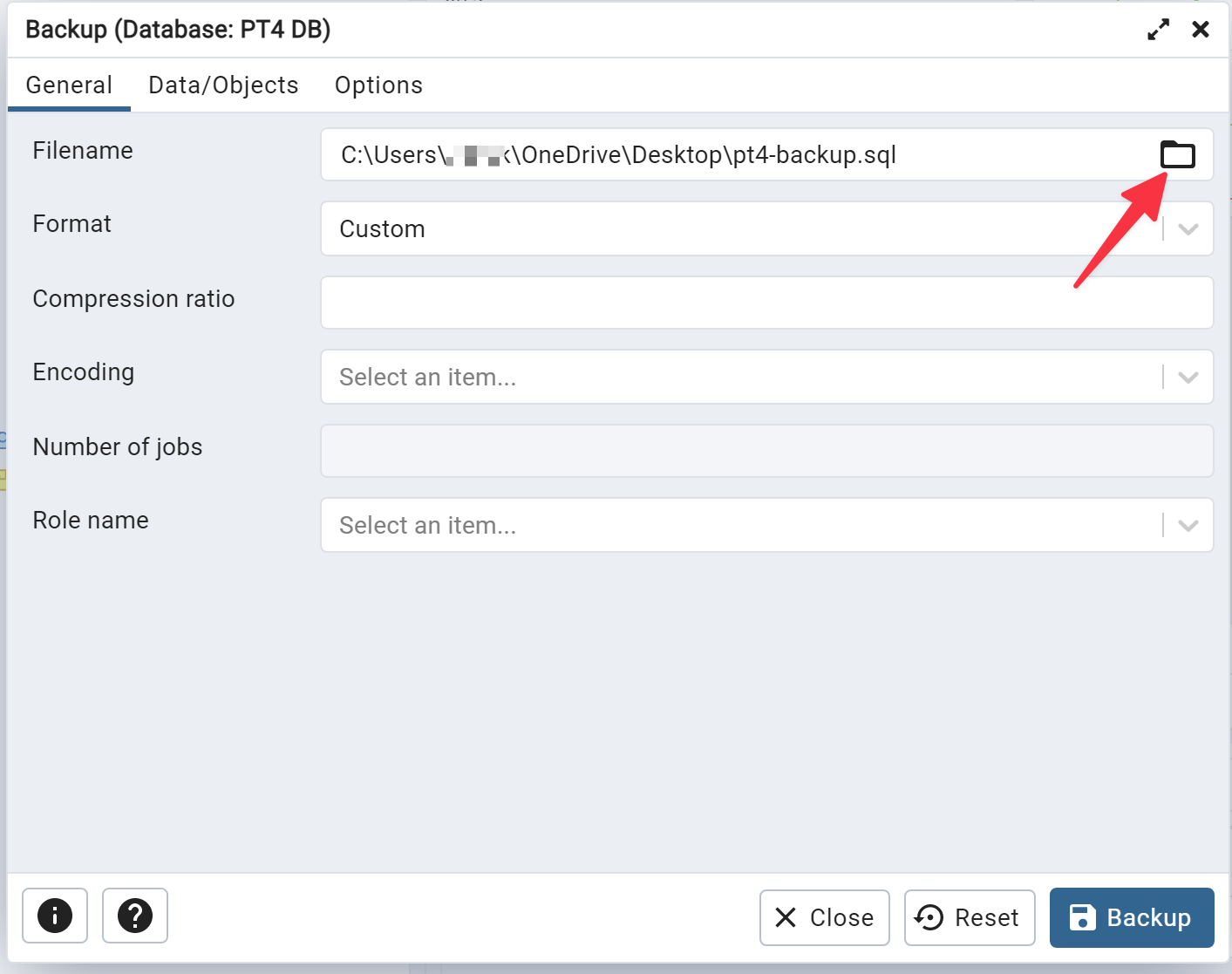
Choose the backup filename and location.
Type the path and filename, or click the browse button ( "..." ) to the right to select the location and filename of the backup.
Leave all other fields as the default.
-
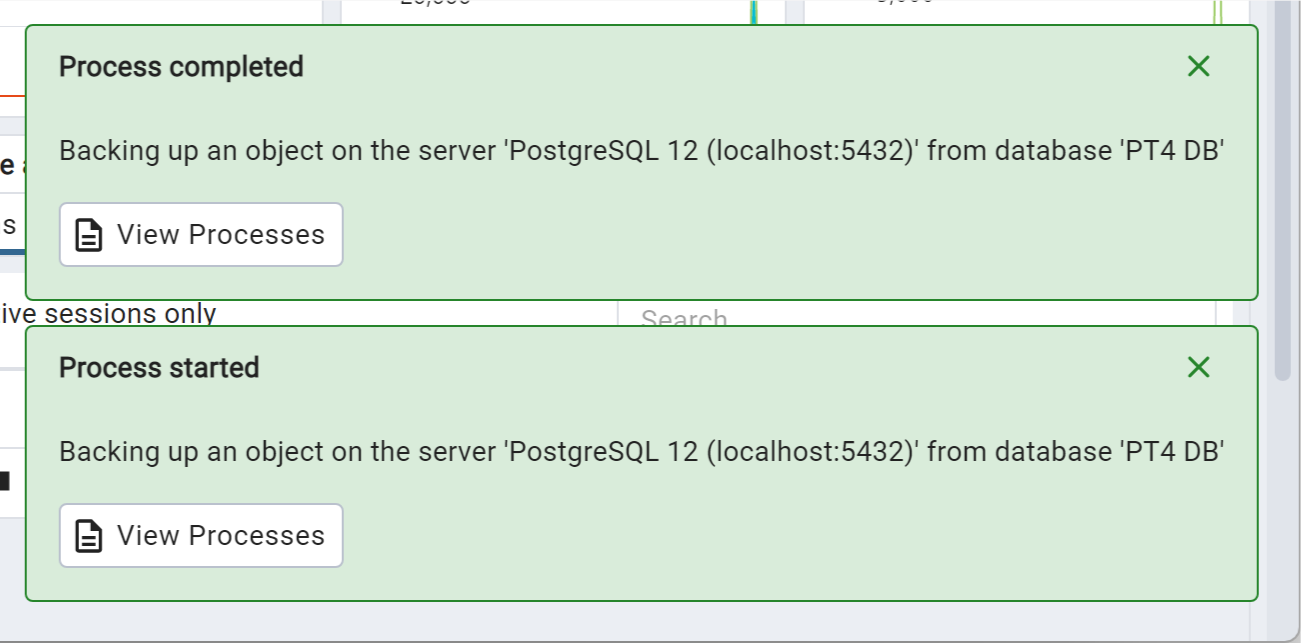
Click the Backup button to start.
You will see a popup in the bottom-right hand corner of pgAdmin when the backup process has started and once the backup has completed.
Using pgAdmin 4 to Restore a Database
-
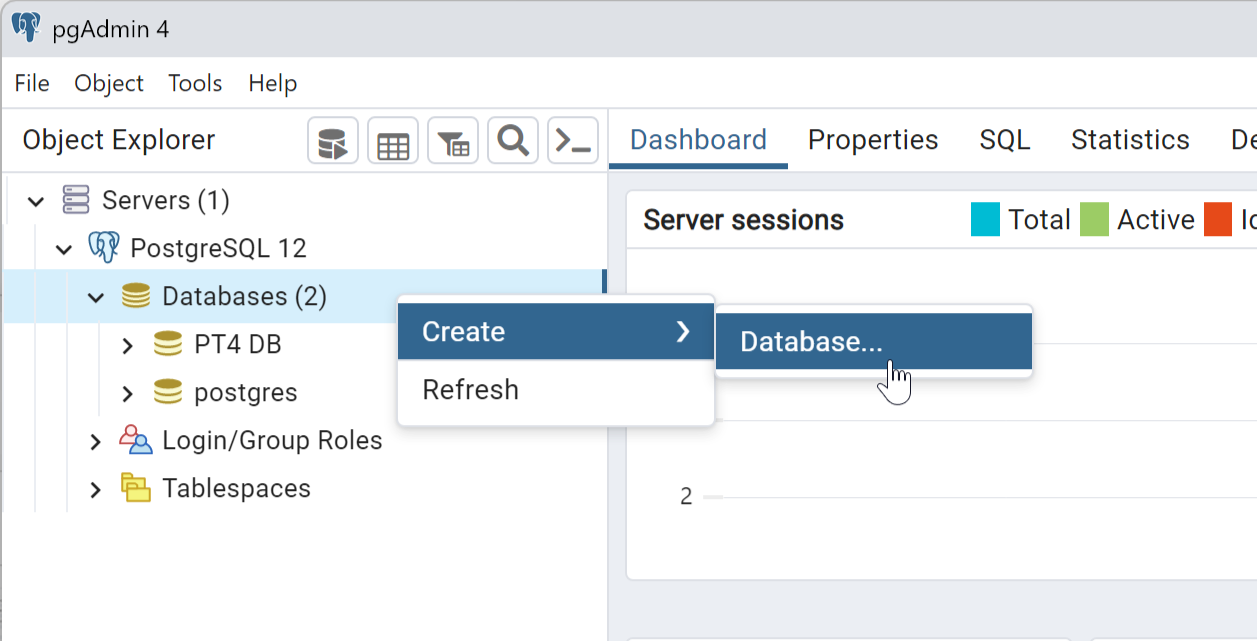
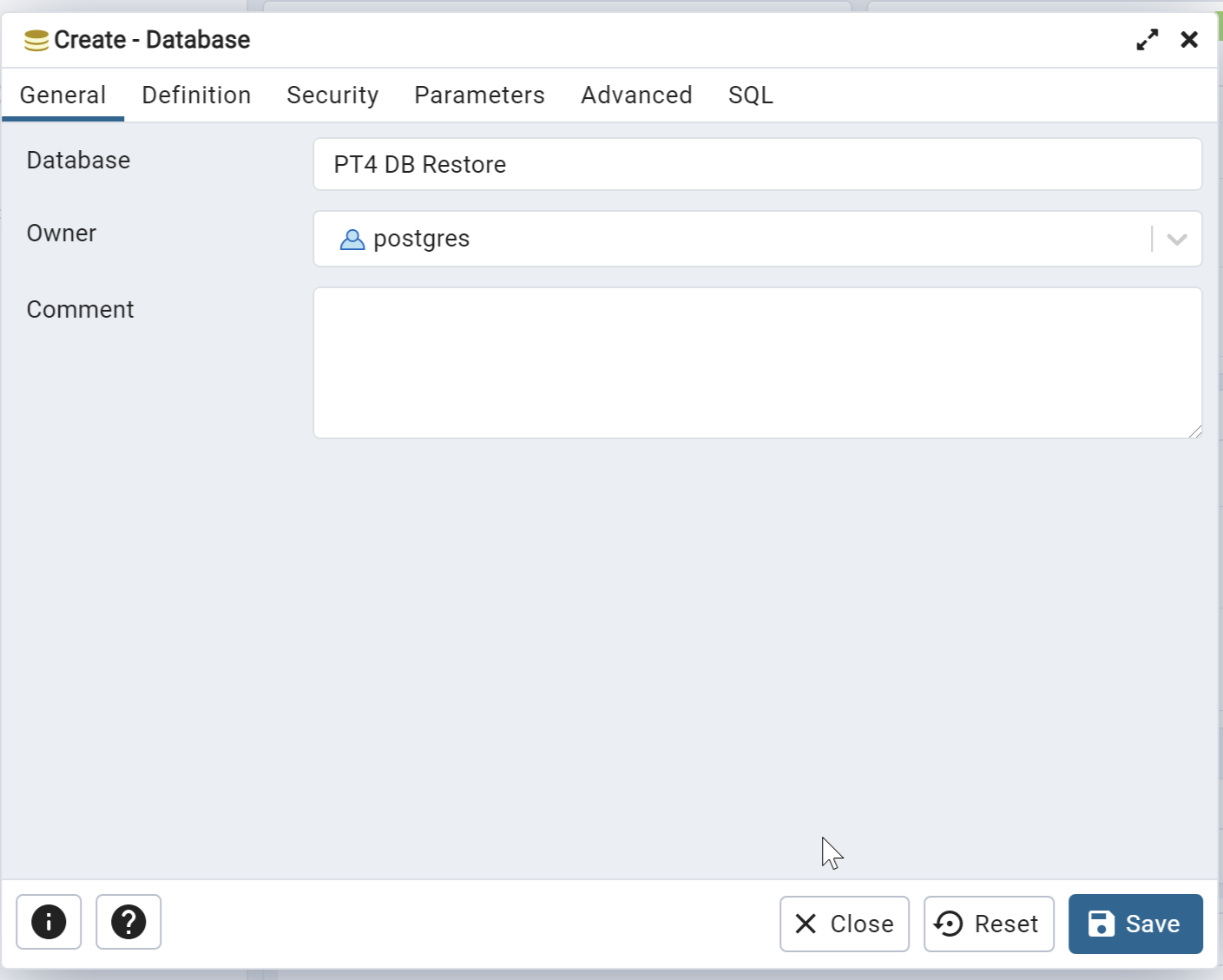
Create a new database.
In the Browser tree, right-click Databases and choose Create > Database....
-
Type in the name for the database then click Save.
-
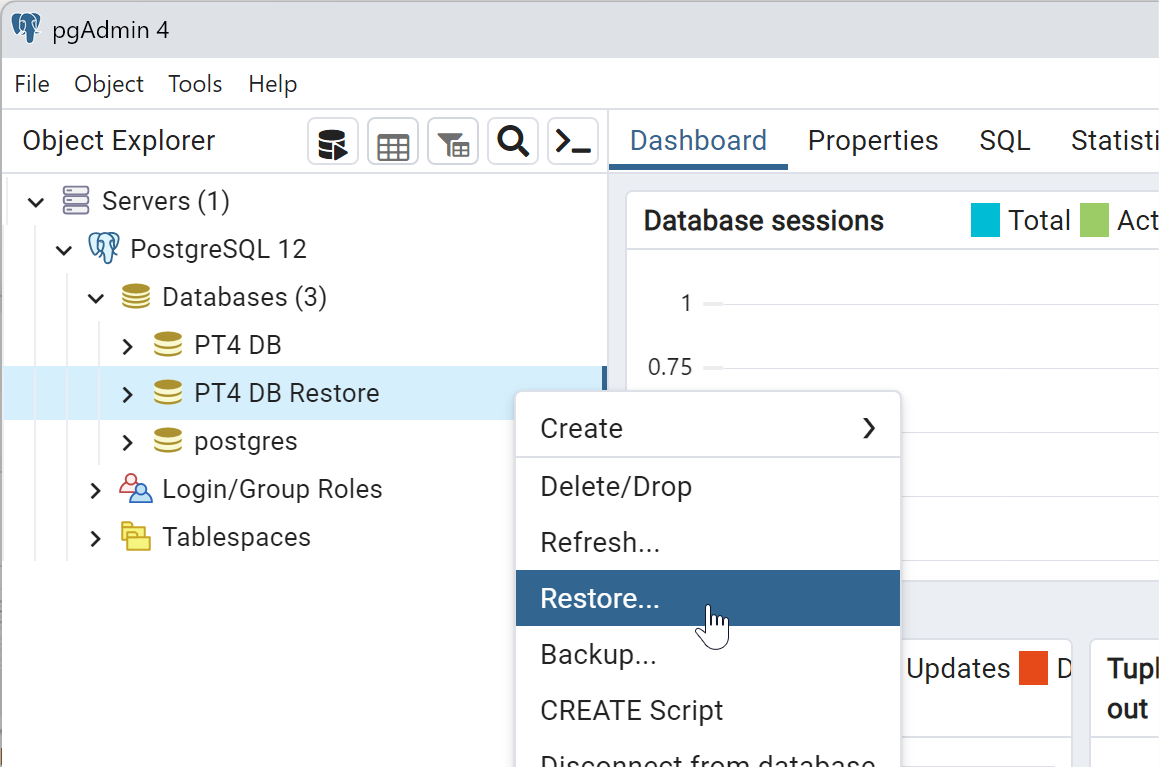
Restore the backup into the new database.
Right-click the new database and choose Restore....
-
Select the backup file you created earlier.
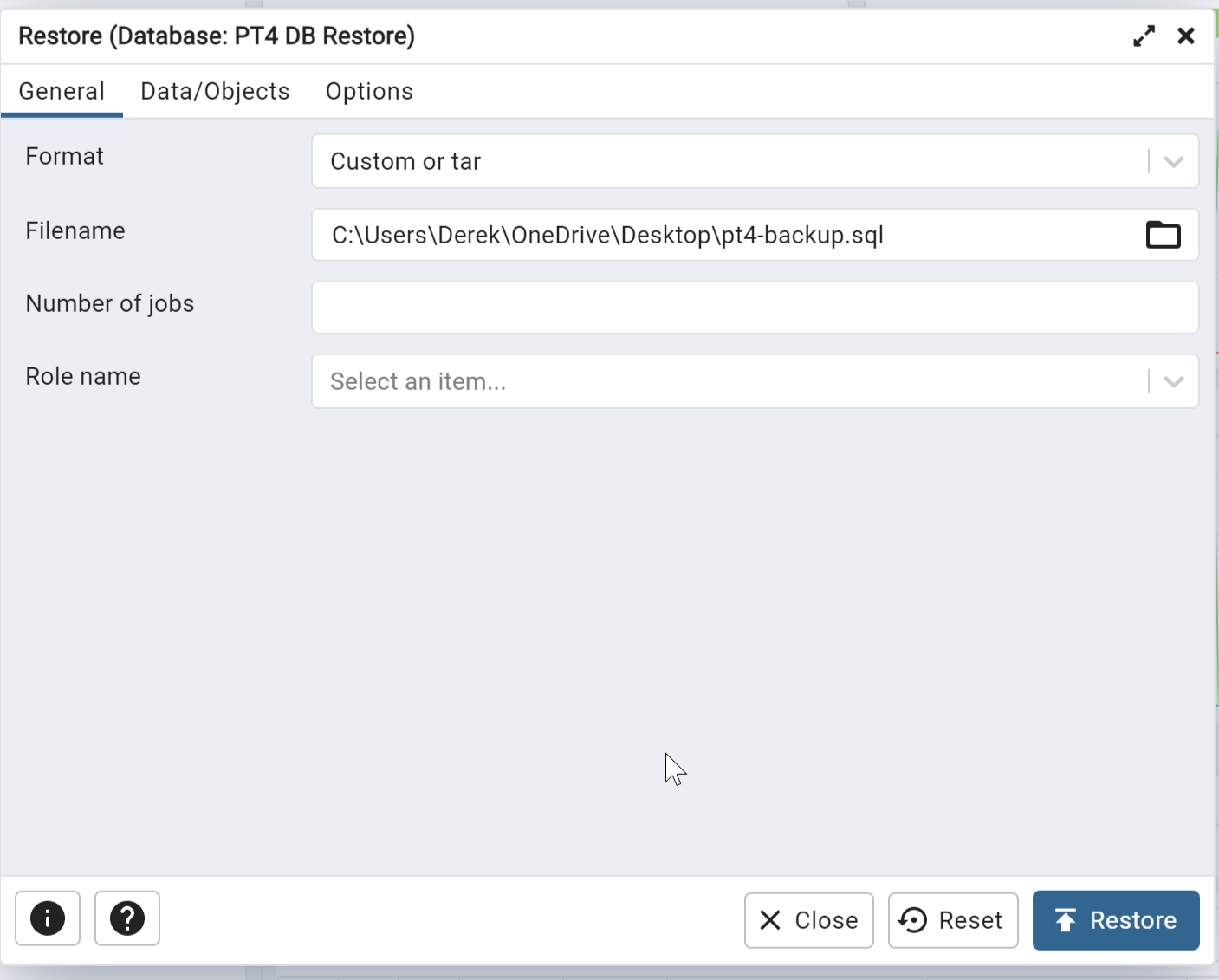
-
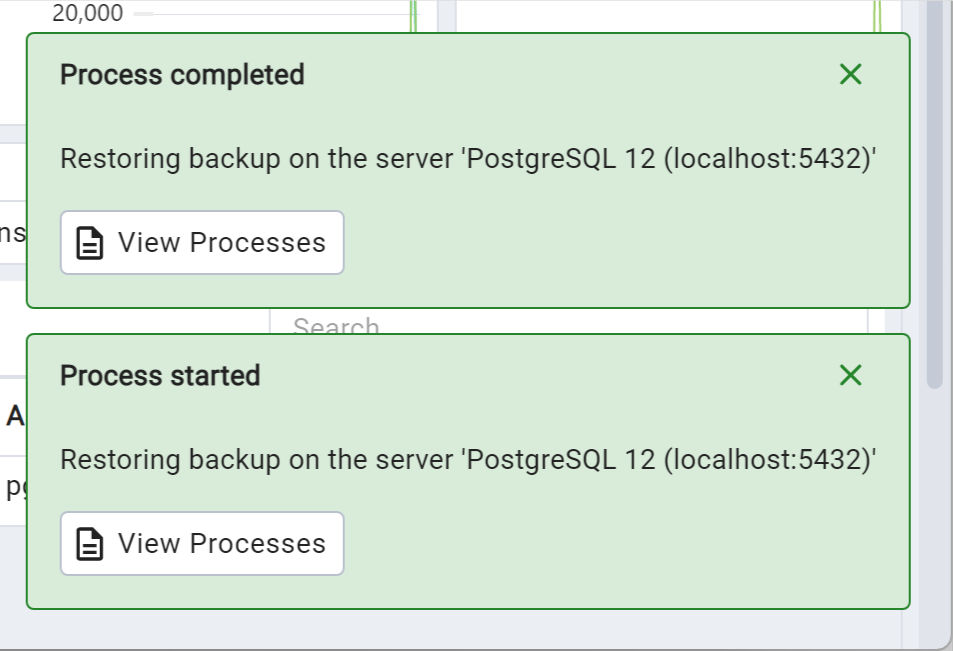
Click Restore.
No other changes are needed. pgAdmin will display a popup in the bottom-right of the screen when the restore process starts and when it completes.
Add a Manually Restored Database
-
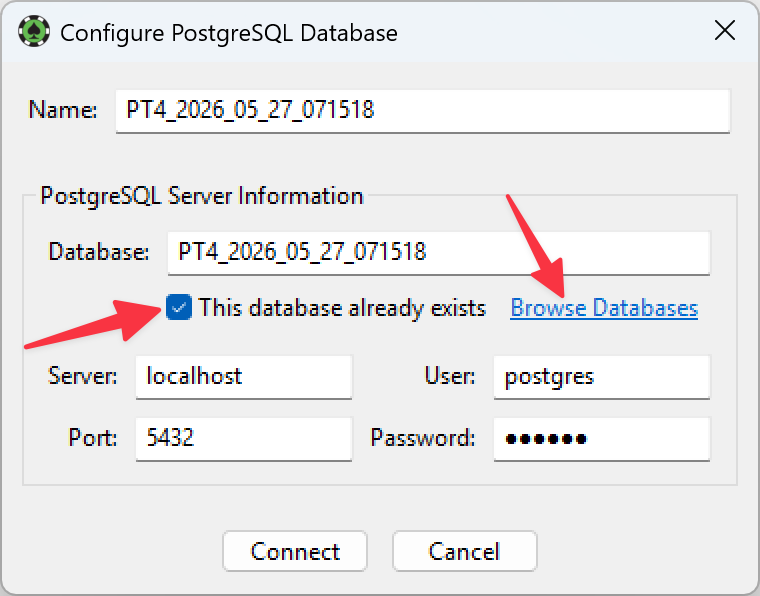
Open the Database Management window (Database > Database Management) and click New.
-
Enable This database already exists, click Browse Databases, and select the database you just restored.
Problems
Solutions to the most common PostgreSQL errors.
Unable to Login to the Database
Error: could not connect to server / connection refused
unable to login to database (PT4_xxxx_xx_xx_xxxxxx) - reason: could not connect to server: connection refused (0x0000274D/10061) Is the server running on host "localhost" and accepting TCP/IP connections on port 5432?
This usually means the PostgreSQL service is not running. Restart it — see Restart the PostgreSQL Server.
If restarting does not help, a stale postmaster.pid file may be blocking startup. With the PostgreSQL service stopped, look for postmaster.pid in the data folder (Windows: C:\Program Files\PostgreSQL\16\data; macOS: /Library/PostgreSQL/16/data) and delete it, then restart your computer. Replace 16 with your installed version. Do not delete postmaster.pid unless the PostgreSQL service is stopped.
Error: no pg_hba.conf entry
unable to login to database (PT4 DB). Reason: FATAL: no pg_hba.conf entry for host "::1", user "postgres", database "PT4 DB", SSL off
Edit the pg_hba.conf file.
- Windows
- macOS
You must edit the pg_hba.conf file as an administrator. Run Notepad by right-clicking its icon and selecting Run As Administrator. Click File > Open and select the pg_hba.conf file, normally found at C:\Program Files\PostgreSQL\16\data\pg_hba.conf.
Scroll to the bottom and add this line exactly as you see it here:
host all all ::1/128 md5
Save the file and quit Notepad. To enable the changes, either restart your computer or click Start > Programs > PostgreSQL > Reload Configuration.
-
Open the Terminal application found at /Applications/Utilities/Terminal.
-
Open pg_hba.conf in the Nano editor.
Type
sudo nano /Library/PostgreSQL/16/data/pg_hba.confand press Return. Enter your macOS administrator password if requested. -
Scroll to the bottom of the file with the down arrow key and add this line exactly as you see it here:
host all all ::1/128 md5 -
Press CTRL+O to save, then CTRL+X to exit.
-
Restart your computer to enable the changes.
Replace 16 with your installed PostgreSQL version.
Trouble Installing or Running PostgreSQL
Problems installing, running, or networking PostgreSQL are often caused by security software blocking access. Check the Firewall Troubleshooting Guide to confirm PokerTracker 4 and PostgreSQL have full access.
Will Not Connect - Wrong User or Password
If PostgreSQL was installed on your computer before PokerTracker 4, use the password set when it was installed. If you previously tried another tracker, try postgrespass; if you previously had a different version of PokerTracker, the default may be dbpass.
If you cannot remember your password and the default options do not work, you can configure PostgreSQL to not require a password for connections from your local computer:
Passwords will still be required for server access from anywhere besides your local computer.- Windows
- macOS
You must edit the pg_hba.conf file as an administrator. Run Notepad by right-clicking its icon and selecting Run As Administrator. Click File > Open and select the pg_hba.conf file, normally found at C:\Program Files\PostgreSQL\16\data\pg_hba.conf.
Scroll to the bottom and replace every instance of md5 or scram-sha-256 with the word trust.
Save the file and quit Notepad. To enable the changes, either restart your computer or click Start > Programs > PostgreSQL > Reload Configuration.
-
Open the Terminal application found at /Applications/Utilities/Terminal.
-
Open pg_hba.conf in the Nano editor.
Type
sudo nano /Library/PostgreSQL/16/data/pg_hba.confand press Return. Enter your macOS administrator password if requested. -
Scroll to the bottom of the file with the down arrow key and replace every instance of md5 or scram-sha-256 with the word trust.
-
Press CTRL+O to save, then CTRL+X to exit.
-
Restart your computer to enable the changes.
Replace 16 with your installed PostgreSQL version.
Unable to Import Hand
If you see an error like this:
Unable to import hand (#18202934050). Reason: Unable to execute query: COPY tourney_holdem_hand_summary FROM STDIN;; Reason: Fatal Error (ERROR: could not read block 0 of relation 1663/16438/16742: Invalid argument CONTEXT: COPY tourney_holdem_hand_summary, line 1: "54551 100 736 3 971 18202934050 2008/06/17 20:55:42 2008/06/17 17:22:44 9 2 2 2 1500.00 1500.00 1500..." )
...or this:
Unable to import hand (#7651813545). Reason: Unable to execute query: COPY holdem_hand_player_statistics FROM STDIN;; Reason: Fatal Error (ERROR: index "hhps:idx5-id_session" contains unexpected zero page at block 0 HINT: Please REINDEX it. CONTEXT: COPY holdem_hand_player_statistics, line 1: "70112 696 696 0 2 8819 2008/08/15 04:05:59 8 f f 0 f 0 f f f f f 0 f 0 t f f t f 0 f 0 t f t t f 0 f..." )
There are two common causes.
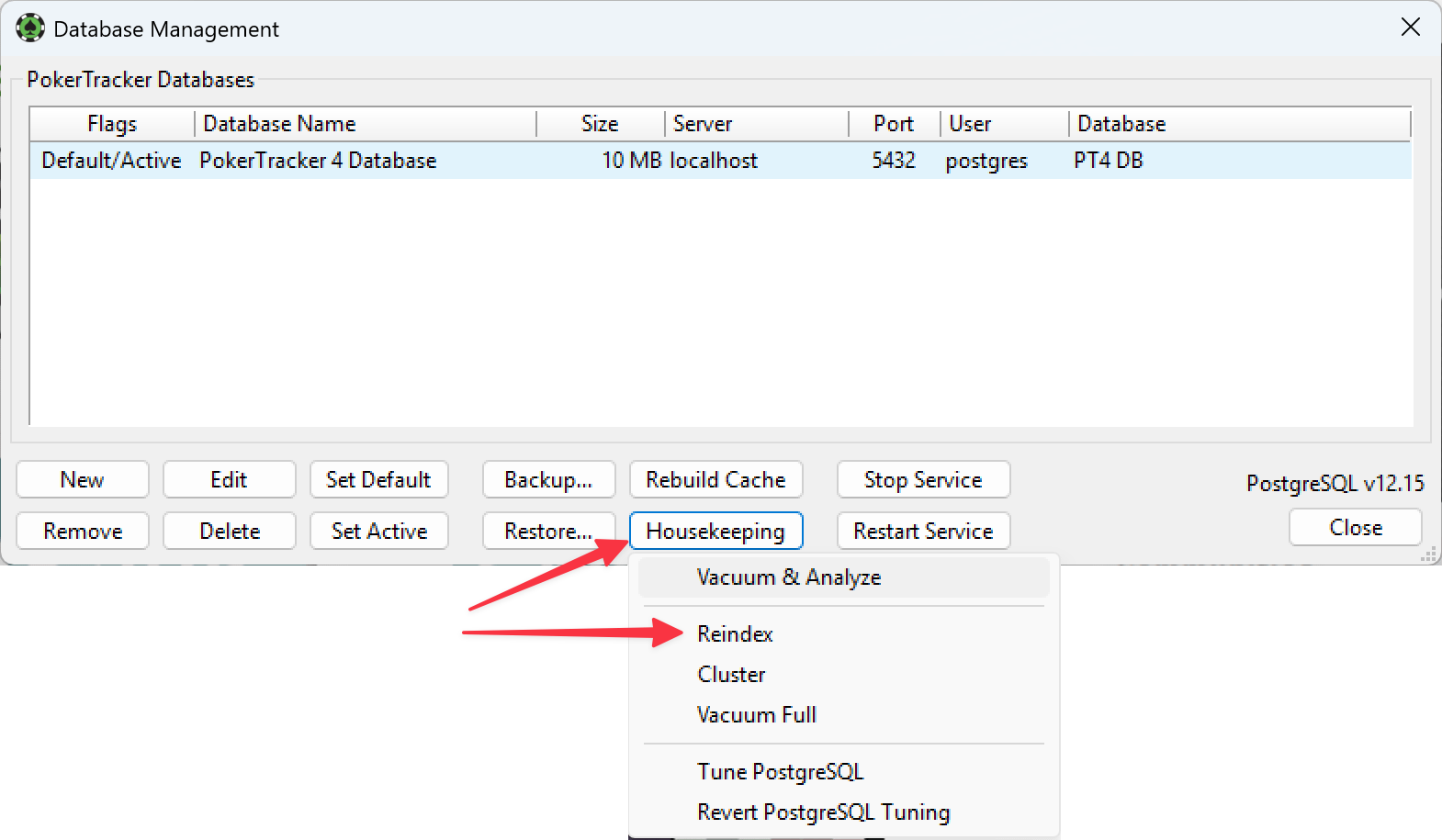
The first is data corruption from a computer crash, which requires reindexing your database. Reindex from the Database > Database Management window (Housekeeping > Reindex) — see Database Housekeeping for the full procedure. After housekeeping, rebuild the cache so your database performs as expected.
The second cause is faulty hardware. Although we do not advise it, you can set PostgreSQL to ignore these errors by editing the postgresql.conf file.
- Windows
- macOS
You must edit the postgresql.conf file as an administrator. Run Notepad by right-clicking its icon and selecting Run As Administrator. Click File > Open and select the postgresql.conf file, normally found at C:\Program Files\PostgreSQL\16\data\postgresql.conf.
Scroll to the bottom, create a new line, and add the text zero_damaged_pages = on.
Save the file and quit Notepad. To enable the changes, either restart your computer or click Start > Programs > PostgreSQL > Reload Configuration.
-
Open the Terminal application found at /Applications/Utilities/Terminal.
-
Open postgresql.conf in the Nano editor.
Type
sudo nano /Library/PostgreSQL/16/data/postgresql.confand press Return. Enter your macOS administrator password if requested. -
Scroll to the bottom of the file, create a new line, and add the text
zero_damaged_pages = on. -
Press CTRL+O to save, then CTRL+X to exit.
-
Restart your computer to enable the changes.
Replace 16 with your installed PostgreSQL version.
If you continue to have problems with your hard drive, consider replacing it with a 7200 RPM (or faster) drive or an SSD.
PostgreSQL on a Networked Computer
You can host PostgreSQL on another computer on your local network. See PostgreSQL Server Hosted on a Local Network for setup instructions.
This method is not officially supported. Because PokerTracker 4 was not designed for remote database access, some features — Backup, Restore, database tuning, and database maintenance — only work when the database is on the same computer as PokerTracker 4.
PostgreSQL on a Separate Drive
To run your database from a different drive, fully remove PostgreSQL from your computer (see below), then reinstall it to your chosen drive. For more details, see the forum post on creating a database on a separate drive.
PostgreSQL on a Hotswap Drive
This guide sets up your database on a hot-swappable hard drive so you can move it between computers and use the same database. This avoids the networking limitations of PostgreSQL and lets you use your database outside your local network.
It assumes PokerTracker 4 is installed on two Windows computers with separate databases. We do not recommend this option for macOS users at this time.
Before you start, back up your databases and store the backup somewhere safe.
Prepare the Hotswap Drive
- Open Start > Computer (the "My Computer" window — you'll return here often).
- Right-click your hotswap drive, choose Rename, and name it for your database (for example,
pg_16). - Right-click the drive again and choose Format. Set the file system to NTFS with a block size of 4096, choose Quick Format, then click Start.
- Assign a drive letter that is available on both computers. Open Start > right-click Computer > Manage > Disk Management. Right-click your hotswap drive, choose Change Drive Letter and Paths > Change..., select Assign the following drive letter, and choose P (for PostgreSQL). Accept the warning to continue.
Uninstall PostgreSQL
- Open Start > Control Panel > Programs and Features. Wait for the list to populate, right-click PostgreSQL, and choose Uninstall. Note the version number.
- Open an elevated Command Prompt (right-click Command Prompt > Run as Administrator) and run
net user /delete postgres. You should see "The command completed successfully." If you get "access denied," you are not running as administrator. Typeexitwhen done. - Delete the leftover folder at C:\Program Files\PostgreSQL. Confirm your data is backed up and secured first.
Download and Install PostgreSQL
Download the Enterprise DB version of PostgreSQL that you want to install — generally the latest release within the same major version you were already running.
Run the installer and, when prompted for the install location, browse to your P: drive at P:\PostgreSQL\16 (replace 16 with your version; click the new-folder icon to create the folder).
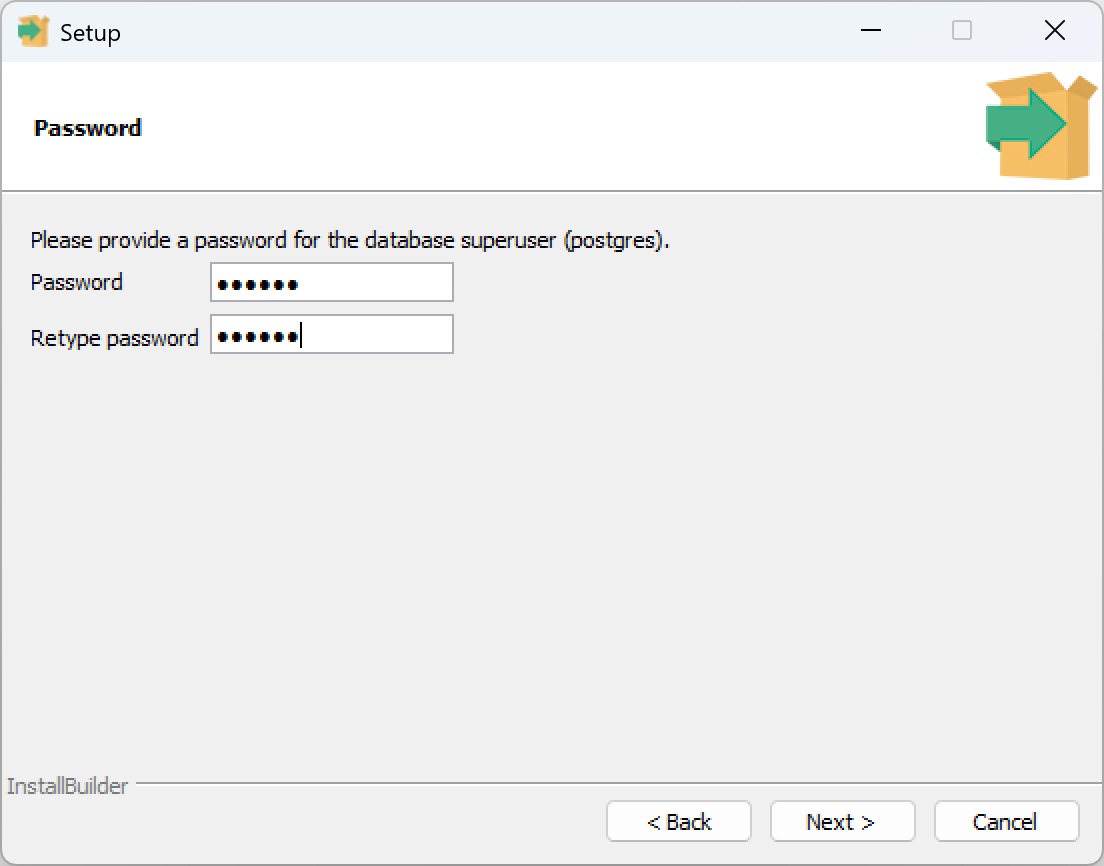
Continue through the installer. On the password screen enter dbpass in both boxes. Click Next until installation completes.
Restore Databases
Restore your backed-up databases using the same method you used to back them up.
PostgreSQL Shutdown and Startup
Now move to the other computer and sync it to the hotswap drive.
You MUST stop the PostgreSQL service every time you move the drive between computers, or you risk losing the database server.
On your main computer:
- Close PokerTracker 4.
- Open Start > right-click Computer > Manage > Services.
- Find PostgreSQL in the list, right-click it, and choose Stop. You can now safely remove the drive.
Before attaching the drive to the other computer, make sure the PostgreSQL service is NOT running there. Once the drive is attached, start the service: right-click PostgreSQL > Start.
Second Computer
If PostgreSQL is installed on this computer, uninstall it first.
- Plug in the drive and assign it drive letter P: as you did on the first computer (see Prepare the Hotswap Drive).
- Download the same version of PostgreSQL you used before and run the installer, again setting the location to P:\PostgreSQL\16.
- Let the installer create the service password, but on the password screen uncheck Initialize Database. Complete the install.
- Edit C:\Program Files\PokerTracker 4\Data\Config\PokerTracker.cfg, remove all database information, and save.
- Run PokerTracker 4. On the PostgreSQL configuration screen, enter the password dbpass and click Connect.
- When prompted to create a database, check This Database Already Exists, click Browse, select your database, and click Connect.
You now have the same database available on both computers.
Remember to stop the PostgreSQL service before moving the drive, and start it again after plugging it into the other computer (Start > Programs > PostgreSQL > Start Service).