Restart the PostgreSQL Server
Overview
On rare occasion you may need to restart the PostgreSQL server. This is usually only necessary after a configuration change that requires a restart.
PokerTracker 4 supports PostgreSQL 9.6 or greater only. Older versions (8.x and 9.0–9.5) are no longer supported.
The easiest way to restart the server is from within PokerTracker 4, which works on both Windows and macOS. OS-level fallback methods are also described below.
Methods That Can Be Used to Restart the PostgreSQL Service
You can restart the PostgreSQL service from within PokerTracker 4, by restarting your computer, or manually through your operating system.
Restart from Within PokerTracker 4
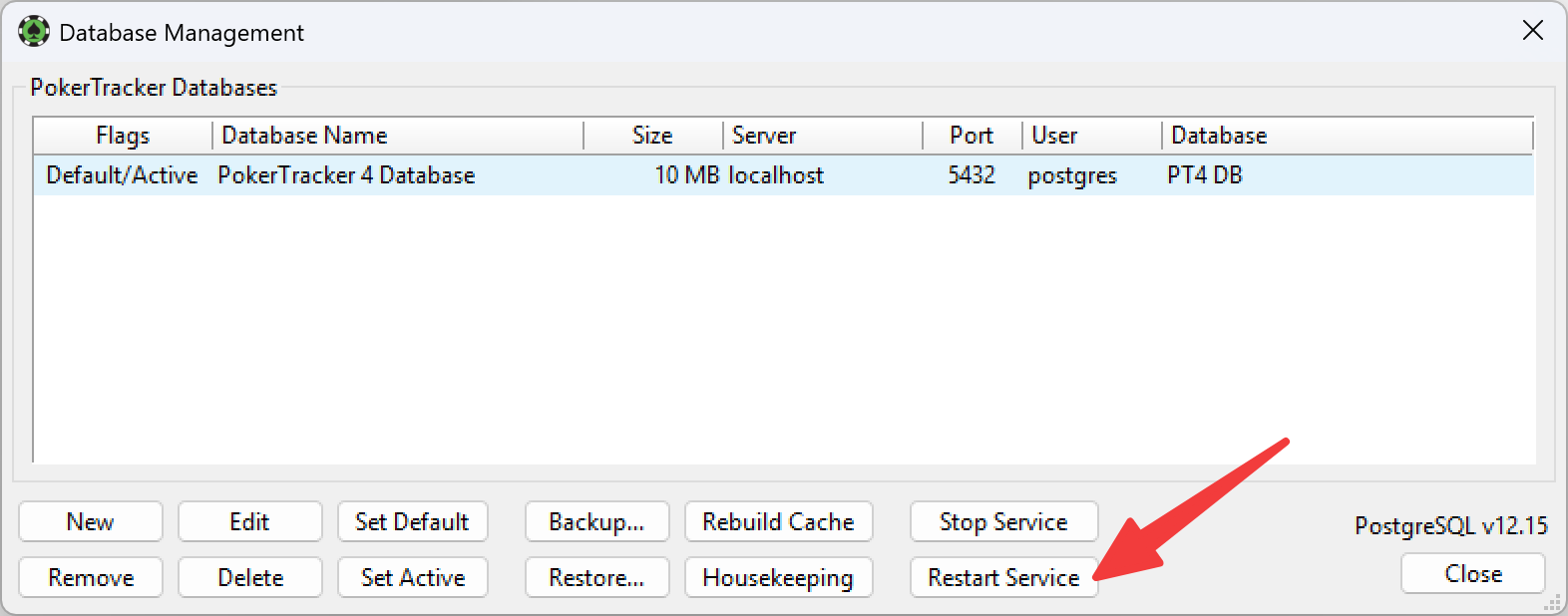
On PostgreSQL 9.6+ you can restart the server directly from PokerTracker 4 on both Windows and macOS, as long as PokerTracker 4 is open.
- Open Database > Database Management.
- Click Restart Server.
Restart Your Computer
The PostgreSQL service is an "invisible" application that runs in the background using a dedicated service account, so the simplest way to restart it without any technical know-how is to restart your computer. The trade-off is the extra time and the need to close all applications and files first.
Manual Restart
- Windows
- macOS
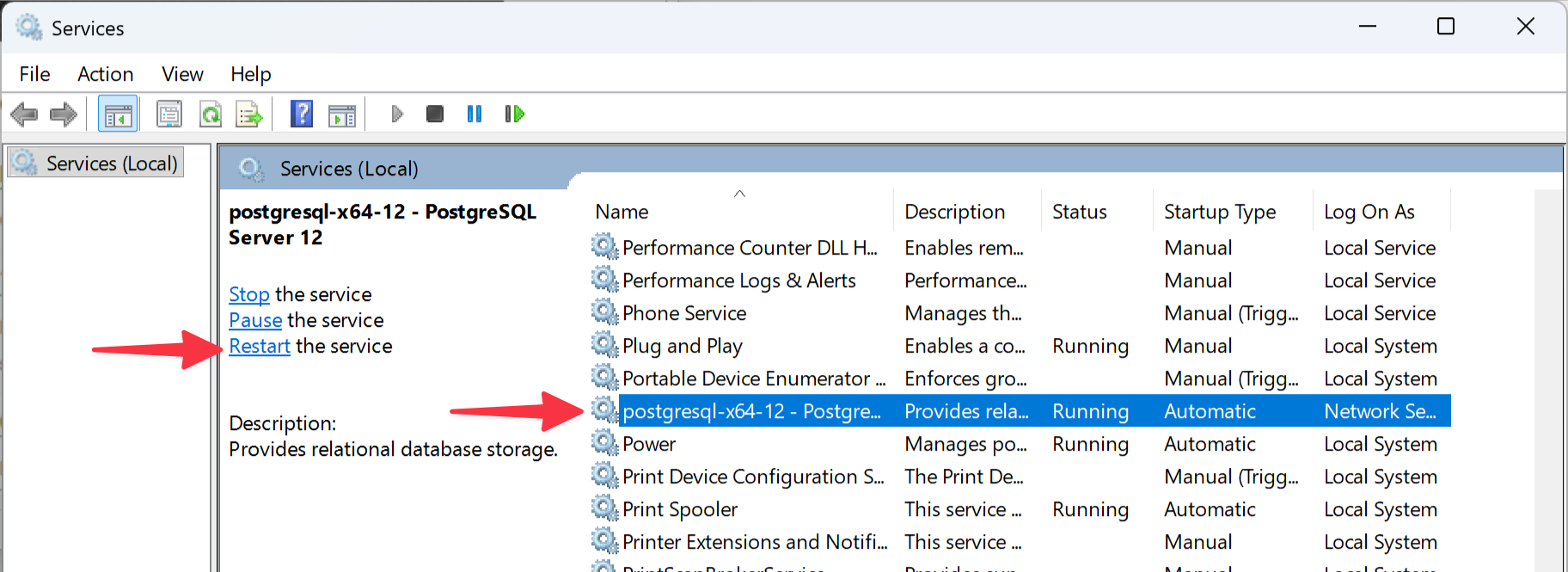
There are multiple ways to manually restart a service in Windows, we feel this is the simplest method to describe how to restart the PostgreSQL Service:
-
Click Windows Start button
-
Type services.msc and press Enter.
This will open the Services Control Panel.
-
Click the Name heading to sort all of the services by name
-
Find the service whose name starts with
postgresqland select it. -
Click the Restart the service link in the left pane.
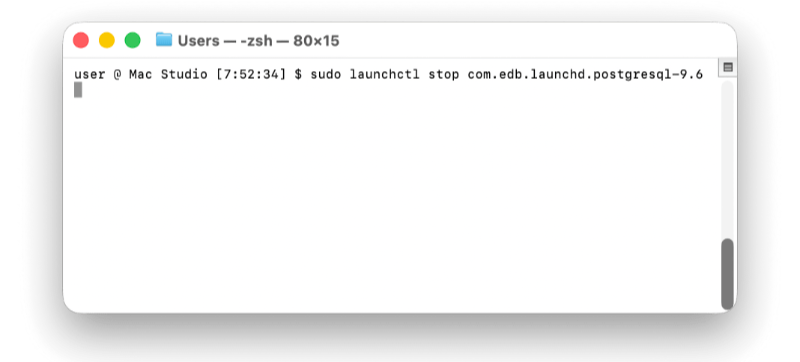
You can restart PostgreSQL manually on macOS from the command line in the Terminal application. These steps apply to PostgreSQL 9.6+ installed with the EnterpriseDB installer (the version bundled with PokerTracker 4). The commands below use 9.6 as an example — replace it with the version you have installed.
-
Open the Terminal application.
The Terminal application is usually found at /Applications/Utilities/Terminal
-
Stop the server.
Type
sudo launchctl stop com.edb.launchd.postgresql-9.6and press Return. Enter your administrator password when prompted. This stops the PostgreSQL server. -
Start the server.
Once the prompt is available again, type
sudo launchctl start com.edb.launchd.postgresql-9.6and press Return. This starts the PostgreSQL server.
You can also restart the server with a single command using the EnterpriseDB control utility, where 9.6 is your installed version:
sudo -u postgres pg_ctl -D /Library/PostgreSQL/9.6/data restart