Backup and Restore
Overview
PokerTracker 4 backs up and restores all of your data: hands, HUD profiles, site configurations, and more. Back up your data regularly, and always before making major changes to your database or system.
Backups made on macOS or Windows can be restored to either operating system. The one exception is the PokerTracker.cfg file, which cannot transfer between operating systems because their folder structures differ.
Backing Up a PokerTracker 4 Database
Open the backup tool one of two ways:
- File > Backup
- Database > Database Management, then click Backup...
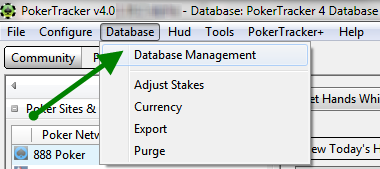
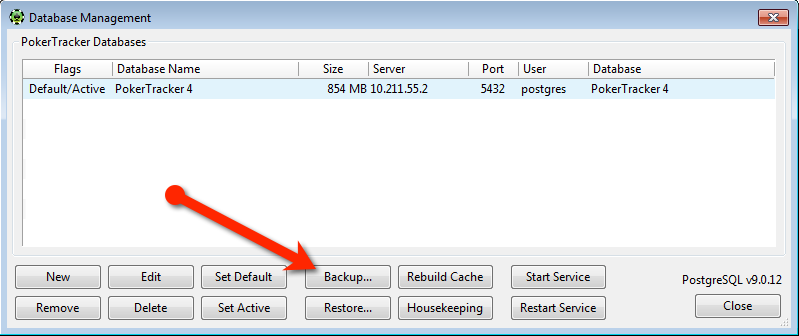
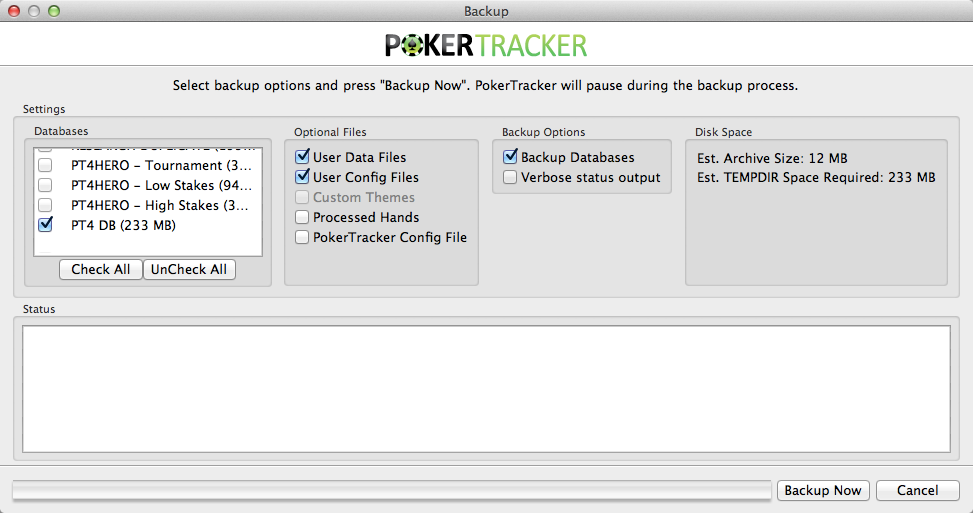
Select the database(s) you want to back up. Backup Databases is on by default, but you can turn it off to back up only your configuration or processed files.
You can also include these PT4 files:
- User Data Files and User Config Files — custom stats, quick filters, HUD profiles, poker site configurations, etc.
- Custom Themes — any custom themes you have installed (see Configure > Themes).
- Processed Hands — the hand history and tournament summary files PT4 has imported and archived to the Processed folder (see Configure > Sites & Import Options). These add a large number of files and increase backup/restore time, but we recommend keeping them in case you ever need to re-import. You can also back them up separately, or copy the Processed folder manually.
- PokerTracker Config File — folder paths and other settings specific to this computer. Useful when restoring to the same computer to get things back exactly as they were, but it may cause complications on a different computer. You can include it in the backup and still choose not to restore it.
The PokerTracker Config File will not transfer between Windows and Mac, and will not be restored on a different operating system than the one the backup was made on.
Use the options along the right to adjust backup settings and view the estimated backup size.
When your selections are ready:
- Click Backup Now.
- Choose a location to save the
.zipfile. - Click OK.
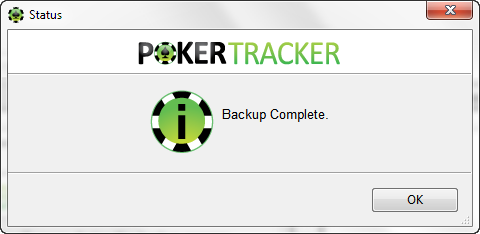
Larger backups can take a significant amount of time. Let PokerTracker 4 fully finish for best results.
Restoring a PokerTracker 4 Database
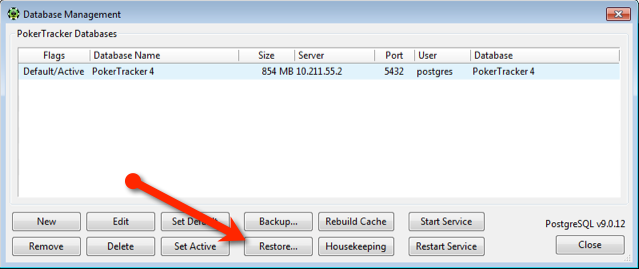
If you have a PokerTracker 4 backup on your computer, you can restore it. Open the restore tool one of two ways:
- File > Restore
- Database > Database Management, then click Restore...
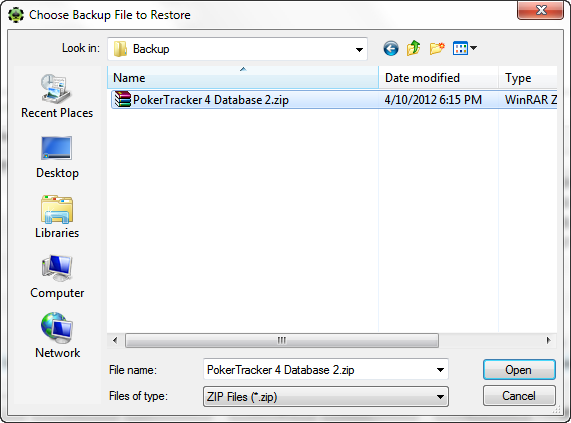
Navigate to the backup .zip file, select it, and click Open.
In the next window, choose which optional files to restore. Use the Restore Options along the right to control whether existing databases are overwritten and to set PostgreSQL ports/passwords. When ready, click Restore Now.
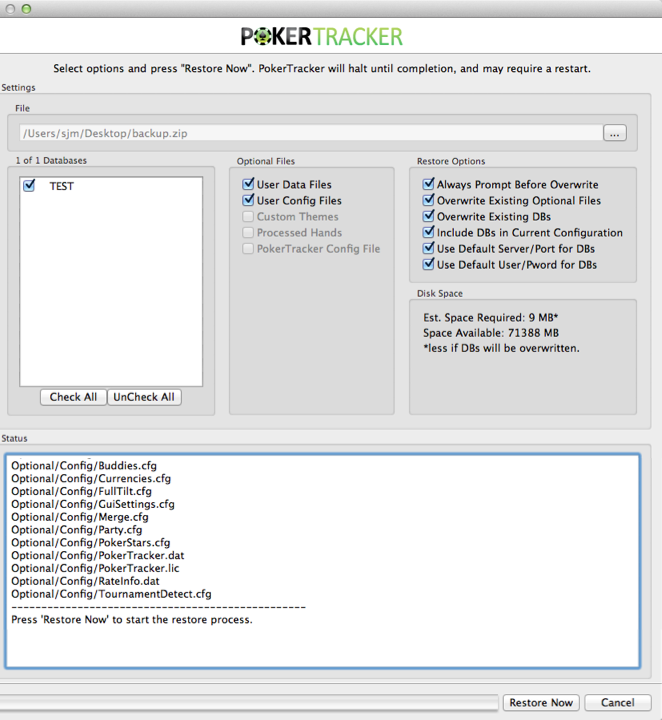
Some windows may pop up during restoration to confirm overwriting files or to get final permission for certain options. Set your preferences and let PokerTracker 4 continue. Larger databases can take a significant amount of time — let it fully finish for best results.
