Currency Guide
Overview
PokerTracker 4 tracks your online poker play in any currency. This guide explains how PokerTracker handles sessions played in different currencies, how to convert them to a global currency of your choice, and how to view your winnings in your own (or another) currency.
PokerTracker parses hand histories in whatever currency they were played and displays results under two labels:
- Game Currency — the actual currency played in-game, as reported by the hand history. No adjustment is applied.
- My Currency ("My C") — a global currency you set as a preference. PokerTracker uses this label for the pot size, blinds, winnings, and any other currency-related figure.
The game stake is a text field, so it is not affected by your My Currency preference. The stake is populated from the original Game Currency unless you change it with the Adjust Stakes feature.
Introduction to PokerTracker 4's Currency Feature
PokerTracker 4 records sessions in any currency and labels the limit description with the matching currency symbol. A no-limit Hold'em session at .50/1 dollar blinds is labeled “$1 NL”; the same session at .50/1 euro blinds is labeled “€1 NL”.
Difference Between "Game Currency" & "My Currency" Statistics
PokerTracker 4 provides two sets of currency statistics:
- Game Currency — results in the currency you played in. If you played a €1/€2 table, all Game Currency stats (winnings, rake taken, per 100, etc.) are calculated in €.
- My Currency — results in the currency you select. Using historical daily bank rates, PokerTracker converts the native currency into your chosen one. If you played a $1/$2 table and set My Currency to Euros, all My Currency stats are calculated in € using the bank rate from the date you played.

In the example above, 41 hands were played at a $1/$2 PL table. (The stake is a text field, so changing your My Currency does not affect the listed stake.) Game Currency Won ("Won") shows table winnings of $37.60. With My Currency set to Euro, My Currency Won ("My C Won") shows €29.76 — converted from USD using the bank rate from the exact day the session was played.
Configuration
Set your My Currency preference, then choose how each session's conversion rate is calculated.
Configuring "My Currency"
The first step is to set your My Currency preference:
- Open Database > Currency to open the Currency window.
- With the active player selected, choose your default currency from the drop-down list at the top left.
- Click Save.
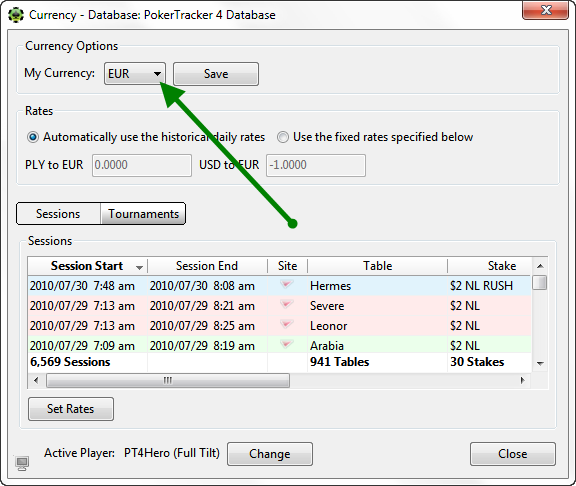
The My Currency Won statistic (and other My Currency stats) now displays winnings converted at the current exchange rate for future sessions. If your poker account uses the same currency you play in, this indicates the real monetary value of each session were you to withdraw it into your own currency — barring any conversion the poker room's cashier may apply, which PokerTracker cannot account for.
This change only affects sessions you play in the future. To convert previously played sessions and hands, see the sections below.
Setting the Automatic Conversion Rate
To get an accurate valuation of each session, set its conversion rate. You can apply historical rates automatically, or enter rates manually using figures provided by your poker room's cashier.

Use Automatically use the historical daily rates unless you have exact conversion data available. Select multiple sessions and apply a rate change to all of them at once:
SHIFT-Click(Win & Mac) — select a rangeCTRL-Click(Win) /CMD-Click(Mac) — select individual rows
Example — to apply historical rates from the day each session was played:
- Select the active player at the bottom if it isn't already selected.
- Click the first session, scroll down, and SHIFT-Click the final session.
- Select Automatically use the historical daily rates and click Set Rates.
PokerTracker reads the historical rate from each day you played and applies it to each session automatically.
Setting a Single Rate for Multiple Sessions
If you know the exchange rate for certain sessions — for example, when you cash out a period's winnings at a known rate — you can apply that rate manually.
To apply a single fixed rate to the selected sessions:
- Select the active player if it isn't already correct.
- Select the session or range of sessions to alter using CTRL-Click (Win), CMD-Click (Mac), or SHIFT-Click (Win & Mac).
- Select Use the fixed rates specified below and enter the conversion rate for each currency.
- Click Set Rates. The rate stays manually set for those sessions until you change it later.

Graphs
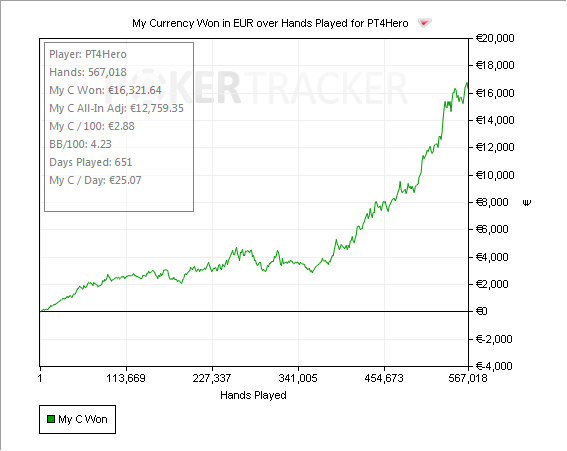
Graph lines can be plotted in either BB or My Currency, including Amount Won, All-in Equity, and Showdown / Non-SD Winnings. Toggle them on the left side of the Graphs page.

When Show Information Box or Show Stats is checked, the graph boxes display separate results for each currency you have played, provided the My Currency Won stat is included (it is by default). To change which stats appear, click the blue Configure link and customize them.
Common Multi-Currency Examples
These examples cover the most common ways to value sessions across currencies.
1 - Using the Current Exchange Rate
When you first use PokerTracker 4, set your My Currency to your own currency. As you play and import hands, the My Currency stats show the current value of your wins in your own currency, using the most recent exchange rates.
2 - Using Historical Exchange Rates
For an accurate valuation of your wins, select all sessions in the Currency window, choose Automatically use the historical daily rates, and click Set Rates. This applies historic rates to each session from the day it was played.
Automatic Rates are derived from daily published international bank exchange guidelines and may differ from the rate your poker room's cashier uses. Contact your poker room's support to confirm how their rates are calculated and whether Automatic Rates will work for you without manual adjustment.
For larger databases this can take considerable time. Let PokerTracker 4 fully finish the currency changes before continuing.
3 - Manually Adjusting Conversion Rates
To replace a session's rate with the one reported by your poker room's cashier, select the session(s) in the Currency window and choose Use the fixed rates specified below. Enter your corrected value for the appropriate currency and click Set Rates to save.
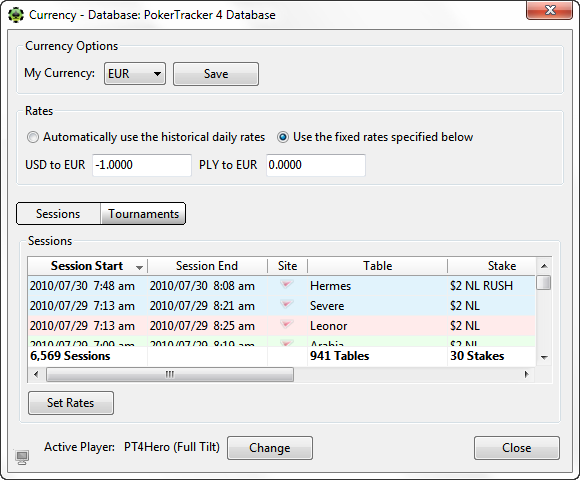
This can take a while, especially for larger sessions. Let PokerTracker 4 complete the conversion before continuing.
4 - Using Currency Statistics in Reports
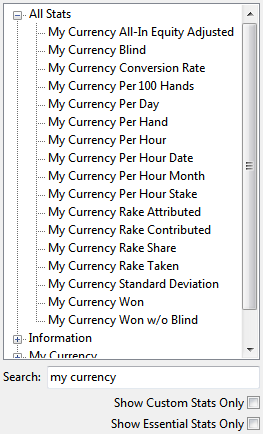
You can add currency stats to any report. Right-click any report area and choose Configure Report.

Search for Game Currency or My Currency statistics, double-click any stat to add it, order them, click OK to save, and refresh the report. The available stats are:
 |  |
How to Fix Incorrect Conversion Rates
On rare occasions PokerTracker 4 cannot download current bank rates from the internet. Sessions imported during that time are converted at a rate of "-1", which makes winning hands and sessions appear as losses, and losing ones appear as wins.
To check the rate used for each session, open the Currency Exchange Rate report at View Stats > Results > Currency Exchange Rate. A session showing a rate of -1 confirms PokerTracker could not download that day's bank rate.
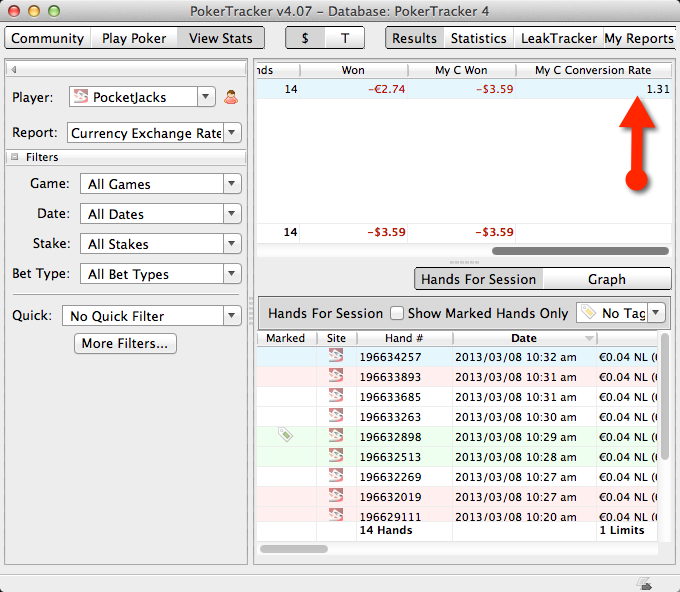
To fix this:
- Use the Currency Exchange Rate report to find the affected sessions.
- Open the Currency window and select those sessions in the list below. Use
SHIFT-Clickto select a range, orCTRL-Click(Win) /CMD-Click(Mac) to adjust the selection. - Confirm Automatically use the historical daily rates is selected, then click Set Rates. The correct rate downloads and your My Currency winnings adjust automatically.