Database Management Guide
Overview
The central component of PokerTracker is the database. The PokerTracker development team spent an extraordinary amount of time analyzing, testing, and comparing several different database solutions. In the end, PostgreSQL was the clear winner. To ensure that PokerTracker 4 is running efficiently, it is extremely important that you regularly maintain your database(s).
PokerTracker 4 Databases
PokerTracker 4 stores all of your hands and statistics in a PostgreSQL database. This guide covers how to manage those databases — setting which one is active, adding and removing databases, converting databases from other software, and keeping them maintained.
Database Management
The PokerTracker 4 database was designed to handle millions of hands, so there is no need to create separate databases for individual sites, limits, etc. One large database is all that is required. The only time a second database is needed is if you store observed hand histories in one database and played hands in another, discussed in the Played vs. Observed Hands section below.
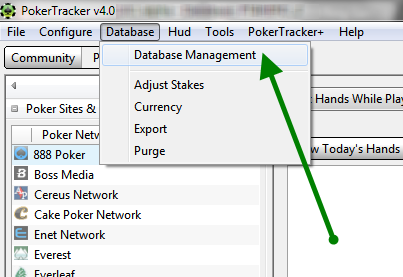
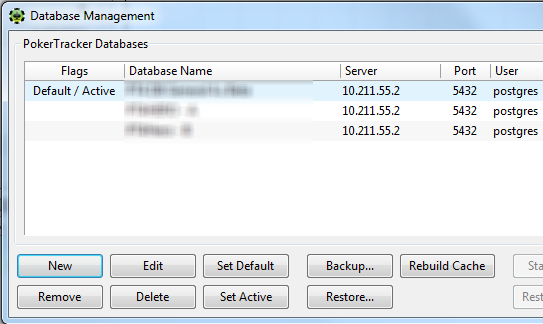
To manage your databases, select Database > Database Management from the main menu. A new window titled "Database Management" will appear.
Setting the Active Database
The Active database is the database that hands are imported into (unless otherwise specified) and the database that stats are retrieved from for viewing. To set the active database, select the database you wish to use in the "Database Management" window and click the Set Active button.
Setting the Default Database
The Default database is the database that begins every time that you start PokerTracker. To set the default database, select the database you wish to use in the "Database Management" window and click the Set Default button.
Adding a Database
See the Creating a New Database guide for step-by-step instructions.
Removing a Database
When you remove a database, it is only unlinked from PokerTracker — the database itself still exists, and you can re-add it at any time by following the steps in Linking to an Existing Database. To remove a database, open the "Database Management" window, select the database you wish to remove, and click the Remove button. When prompted to confirm, click Yes and the database will be removed from the PokerTracker list.
Deleting a Database
When you delete a database, the physical contents of the database are permanently deleted. Once deleted, there is no way to recover or restore the database. In the "Database Management" window, select the database you wish to delete and click the Delete button. When prompted to confirm, click Yes and the database will be permanently deleted.
Deleting a database is permanent and cannot be undone. Use Remove instead if you only want to unlink the database from PokerTracker.
Converting a PokerTracker 3 Database
To convert a PokerTracker 3 database, select Tools > Setup Assistant from the main menu, then click Convert PokerTracker 3 Database.
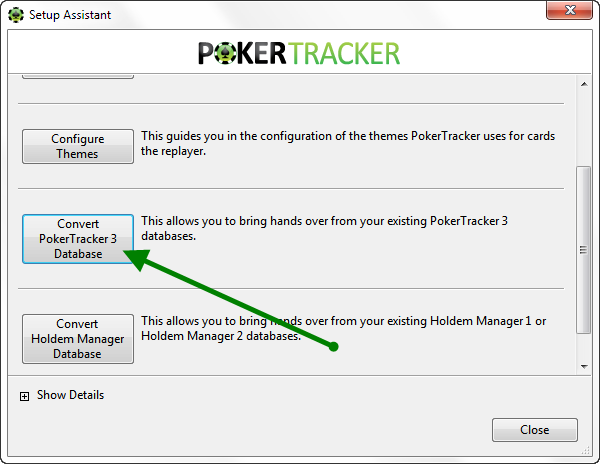
In the "Convert PokerTracker 3 Database" window, select the PT3 database you wish to convert from the list. Below it, select the PokerTracker 4 database you wish to convert it into. (To convert a PT3 database into a brand new PT4 database, first create a new PT4 database, then follow the steps above.) It is recommended you keep the PostgreSQL settings the same, then click OK.
Converting a Holdem Manager Database
To convert a Holdem Manager database, select Tools > Setup Assistant from the main menu, then click Convert Holdem Manager Database.
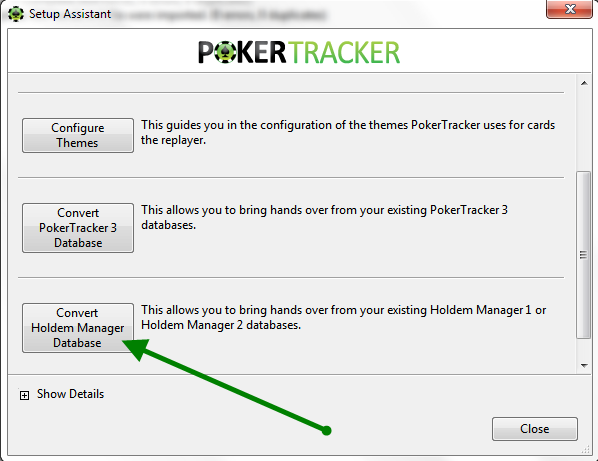
In the "Convert Holdem Manager Database" window, select the Holdem Manager database you wish to convert from the list. Below it, select the PokerTracker 4 database you wish to convert it into. (To convert a Holdem Manager database into a brand new PT4 database, first create a new PT4 database, then follow the steps above.) It is recommended you keep the PostgreSQL settings the same, then click OK.
PokerTracker 4 first extracts the Holdem Manager database and then processes it. This can be lengthy for larger databases — let it finish for optimal results.
Database Maintenance
PokerTracker 4 performs database maintenance automatically, both while you play and during hand imports. (In prior versions this maintenance had to be performed manually.) This keeps your database running quickly and efficiently and ensures the database cache stays accessible for fast generation of HUD and report stats. To make PokerTracker 4 run even faster, follow the steps in PostgreSQL Performance Tuning.
Multiple Databases
The PokerTracker 4 database was designed to efficiently handle millions of hands, so you should not create separate databases for different sites, limits, etc. The only common scenarios where two separate databases are useful are storing observed hands in one database and played hands in another, or keeping a dedicated database for testing or tracking play money hands.
Played vs. Observed Hands
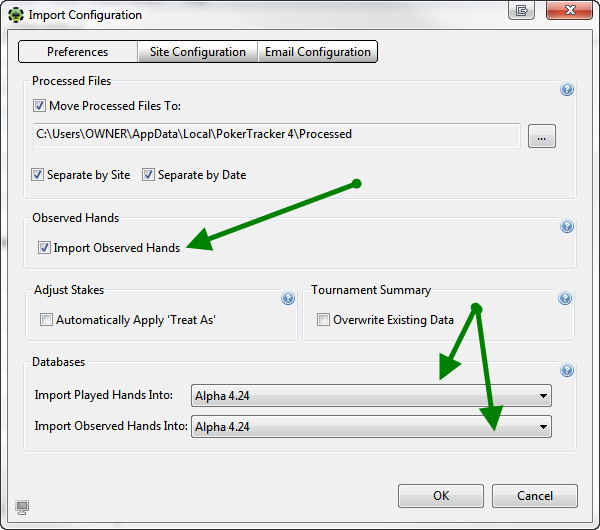
Many networks no longer allow observed hands, but if the network you play on does, you may benefit from creating multiple databases. This lets you easily delete old observed hands while keeping your played hands intact. Start by creating a new PokerTracker 4 database for your observed hands. Then select Configure > Site And Import Options from the main toolbar, go to the Preferences tab, and make sure Import Observed Hands is ticked. Set which database PokerTracker 4 should put your observed hands into, then click OK.
Special Scenario
Another situation where you may want multiple databases is upgrading PostgreSQL to a newer version. When running more than one PostgreSQL instance, they may share the same IP address, but each instance requires a separate port. Note which port each instance uses, and use the correct port number when managing your databases in PokerTracker 4.