NoteTracker
Overview
NoteTracker is a built-in PokerTracker 4 application that lets you create and edit note definitions, then automatically displays those notes alongside any manual notes you've taken about an opponent. This tutorial covers how to create and edit Auto Notes, test them, and use them while playing.
Creating & Editing Note Definitions
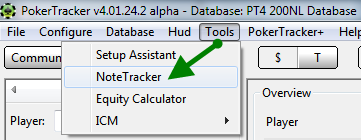
To open NoteTracker, go to Tools > NoteTracker.
This brings up the NoteTracker editing window, where you can create, edit, and test Auto Note definitions, and enable or disable Auto Note rules. First, choose whether to edit cash game or tournament Auto Notes — each offers Auto Notes specific to that variant. Let's start with the Edit page.
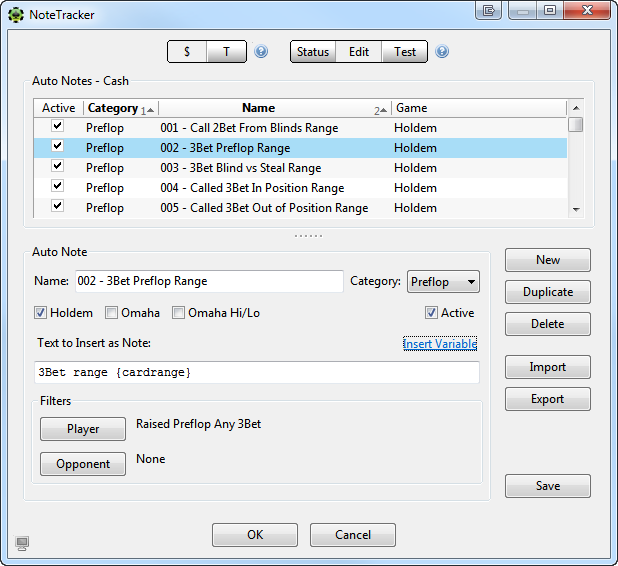
The top window lists all of your Auto Note definitions. NoteTracker ships with many built-in definitions to help you get started. Select any definition and the fields below populate with its information. In this example we've selected "002 - 3Bet Preflop Range", which is a Holdem-specific definition in the Preflop category, along with its filters and note text. Let's review each aspect of a note definition:
Name: The name of the Auto Note you are creating or editing. The built-in definitions start with a 3-digit number to help with organization, but you can use any naming scheme you wish.
Category: Assigns a category such as Preflop, Flop, Turn, River, or Overall. Categories are used for organization only — they help you find notes quickly while playing. The category is arbitrary: you could assign a preflop note to the River category if you wanted, though that isn't recommended.
Game: Sets whether the definition applies to Holdem, Omaha, Omaha Hi/Lo, or a combination of game types.
Active: Check this box to have the definition automatically processed while playing in real time. If it's unchecked, the note won't be taken automatically.
Text to Insert as Note: The text shown when you view the note in real time.
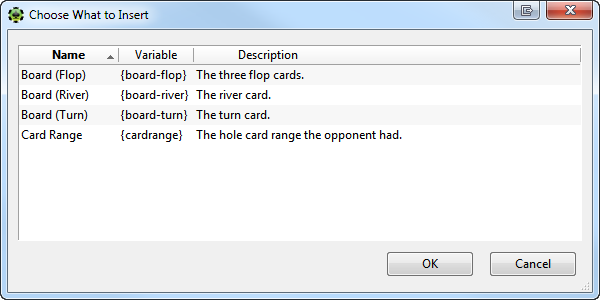
Insert Variable: Inserts a variable into the Text to Insert as Note box. You can add variables such as {cardrange} or specific board cards to add relevance to your Auto Notes. This is the primary difference between a stat and an Auto Note: NoteTracker can track the hands and board textures present when a situation takes place.
Along the right, you can create a new definition, duplicate an existing one, or delete the selected one. You can also import notes from the PokerTracker Download Warehouse and export notes to share with others. When you're finished making changes, click Save.
Filters
To create or edit a note, use the Filters section below. From here you can filter on both the player and the opponent. NoteTracker uses the terms Player and Opponent differently than you may be used to — it's easiest to understand if you think of the Auto Note from the perspective of the opponent you are recording the note for.
Player: Describes an action performed by the player you are recording the Auto Note for. While NoteTracker records Auto Notes, it temporarily treats each player as the active player — hence the term Player for this filter.
Opponent: Describes the actions that anyone else at the table performed while facing the Player, from the Player's perspective.
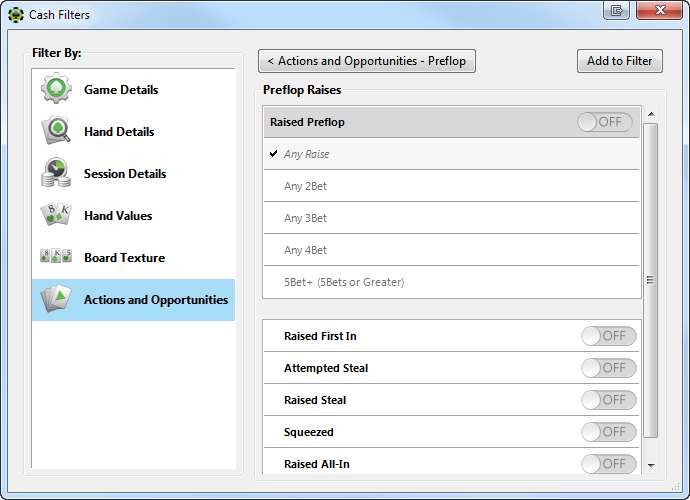
Notice that the "002 - 3Bet Preflop Range" definition has only a Player filter (Raised Preflop Any 3Bet) and no Opponent filter — none is needed in this case. But to create an Auto Note for hands a player 4bet after an opponent limped then 3Bet, you'd add a "Limp Preflop" filter for the Opponent. A commonly used Opponent filter is effective stack size.
To add or modify a filter, click either Player or Opponent. The standard filter window opens and lets you change the filter in any way — by position, action, bet/raise size, and so on. For help with filters, see our Creating Filters Guide.
Testing Notes
Once you've created or edited your note definitions, go to the Test page to see which hands would be assigned a note.
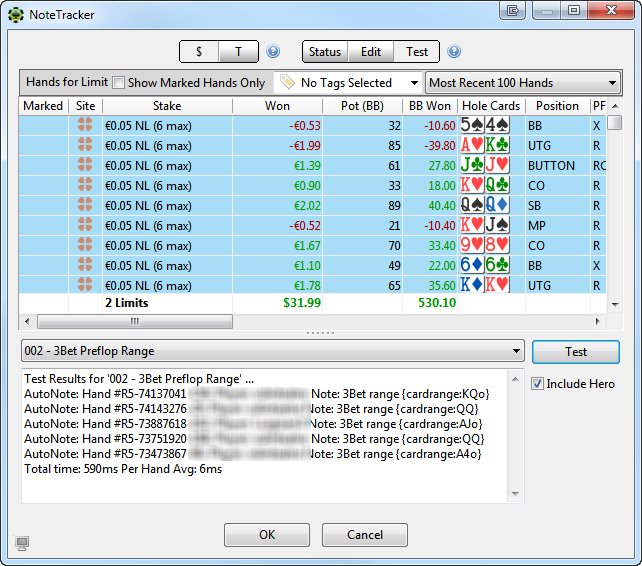
- Select the Auto Note to test from the drop-down menu to the left of the Test button. Every available definition is listed here, or choose All Active Note Definitions to test them all at once.
- Select the hands to test against in the report above. You can organize the report by marked hands, specific tags, or the number of hands shown. To select all visible hands, press CTRL+A on Windows or CMD+A on macOS.
- Click Test to analyze the selected hands.
When testing a specific definition, the results and processing time are displayed for each hand the note triggers on, according to its Player and Opponent filters. When testing All Active Note Definitions, the text box below populates with each hand that would be assigned a note and exactly what the note would say — for example, a {cardrange} variable populates with the card range used in that hand.
You can also Include Hero in the test, so that any hand where hero 3bet preflop triggers a note as well. By default, NoteTracker excludes hero from note calculations for the best database performance.
The Test page is a great way to confirm your definitions work correctly — that they aren't missing hands or assigning notes to the wrong ones. If a definition isn't triggering correctly, return to the Edit page and keep adjusting until it's right.
Notes Status
Once you've created, edited, and tested your notes, go to the Status page to process them and assign them to your opponents.
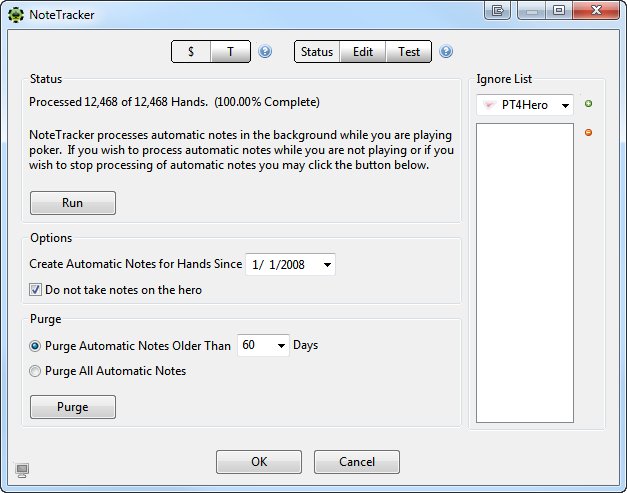
Status: Shows how many hands are in your database and what percentage have been processed. Click Run to begin assigning new and modified notes to your opponents — commonly called "scrubbing the database". This runs in the background while PokerTracker 4 is open and can take some time for larger databases.
Options: Sets a date range on the notes assigned. For example, to take notes only on players from the last 6 months, change this date accordingly. You can also choose to ignore hero when assigning notes. Since hero's holecards are always known, taking notes on hero creates a lot of unnecessary data and hurts performance, so we recommend always excluding hero from note processing — though the choice is yours.
Purge: Removes old notes. You can purge all notes, or only those older than a set number of days. Make your selection, then click Purge. If you add a new note definition and want to apply it to historical hands, purge the notes first, then click Run to reprocess.
Ignore List: Prevents certain players from being assigned automatic notes. Use the drop-down menu to select a player, or use the <Choose New Player> option, then click the green + button to add them. Use the red - button to remove a player from the list.
Using Notes While Playing & Reviewing
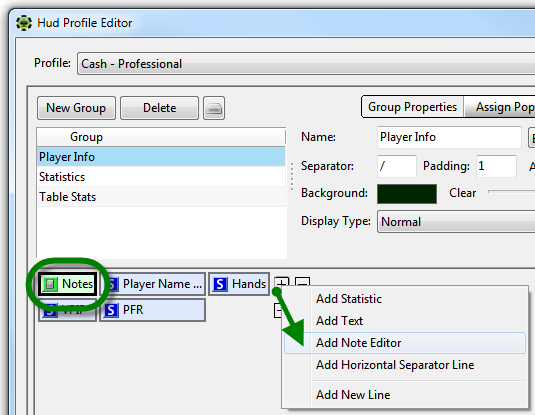
To use NoteTracker notes while playing (or in the replayer), make sure your HUD uses the Note Editor. If it doesn't, add it in the HUD Profile Editor. Only On Table HUD Groups can display the Note Editor — it cannot be added to a Popup.
To open a player's notes while playing, click the notepad button. The button has a yellow box around it if the player has notes, and the box matches any color assigned to that player. Below is an example note box: manual notes go in the top half of the window, while the bottom half is exclusively for NoteTracker's Auto Notes. Auto Notes can't be edited manually — they can only be purged by date.
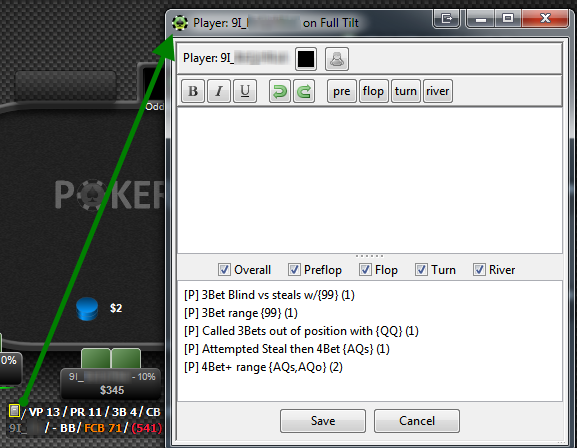
You can quickly organize notes while playing by checking or unchecking streets. For example, to show only Preflop notes, uncheck Overall, Flop, Turn, and River. The counter at the end of each note shows how many times the player was observed taking that action. In this case, the player was observed with a 3bet range once (with 99) and a 4Bet+ range twice (once with AQs, once with AQo). This is the player's observed range, which differs from their actual range — PokerTracker can only see cards shown at showdown (unless the note was taken for hero).
This is an important concept: NoteTracker's Auto Notes only include hands where the hole cards were observed. The example above doesn't mean the player's 4Bet+ range is only AQs/AQo!