Replayer
Overview
The replayer in PokerTracker 4 offers extensive customization and replay options for your post-session analysis. This guide covers using, customizing, and controlling the replayer.
Using the Replayer
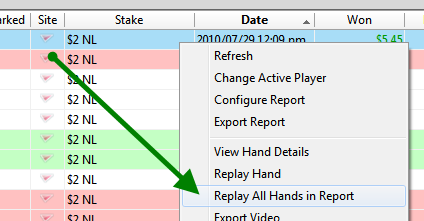
To open the replayer at any time, right-click any hand(s) from a report and go to Replay Hand(s) or Replay All Hands in Report.
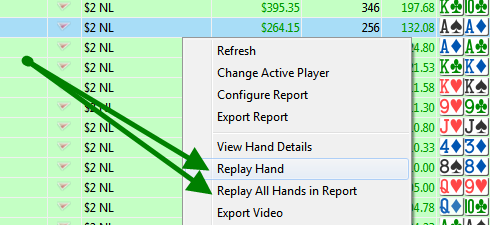
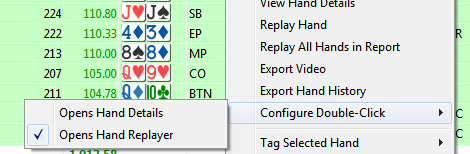
If you have it configured, you can double click any hand to instantly bring up the replayer. To configure this, right-click a report and go to Configure Double-Click > Opens Hand Replayer.
Once the replayer is open, you can control the playback speed, automatically play the hand, toggle the HUD, and more.
Replayer Basics
Let's review the basic layout of the PokerTracker 4 replayer.
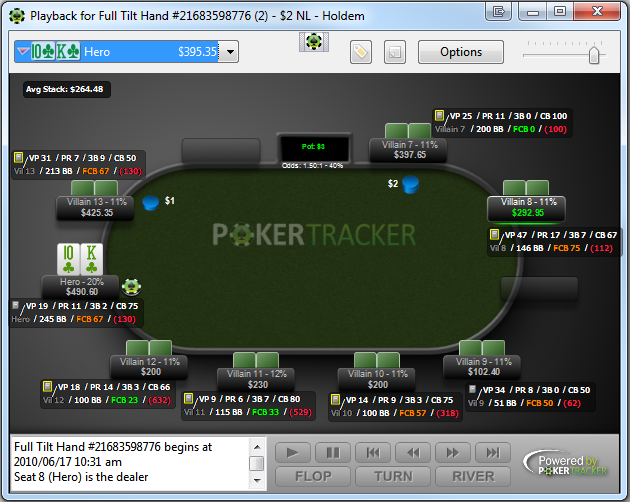
In the upper left corner you see the hand you are currently replaying. If you are replaying a group of hands, you will have the option to change the current hand.
The two buttons to the left of Options let you update the tag and notes of the current hand.
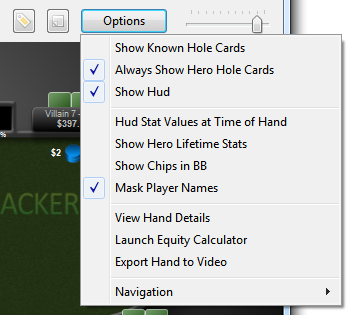
The Options menu lets you change a number of replayer properties, such as showing known hole cards, showing the HUD, showing stack sizes in big blinds, launching the Equity Calculator with prepopulated information, and masking player names.
To the right of Options you can change the replayer speed.
The bottom left box shows dealer and chat information for the current hand.
The bottom right lets you control the replayer. From here you can play the hand, go to a specific street, move one action forward/backward, and move one hand forward/backward (when replaying multiple hands).
Replayer Key Shortcuts
With the replayer open you can navigate within a hand, or between hands, using these keyboard shortcuts. You can also find the full list under the Options > Navigation menu in the replayer.
| Action | Windows | macOS |
|---|---|---|
| Previous Hand | CTRL+LEFT | CMD+LEFT |
| Next Hand | CTRL+RIGHT | CMD+RIGHT |
| Previous Hand Played | SHIFT+LEFT | SHIFT+LEFT |
| Next Hand Played | SHIFT+RIGHT | SHIFT+RIGHT |
| First Hand | CTRL+HOME | CMD+UP |
| Last Hand | CTRL+END | CMD+DOWN |
| Rewind / Backward | LEFT | LEFT |
| Forward | RIGHT | RIGHT |
| Beginning of Hand | UP | UP |
| End of Hand | DOWN | DOWN |
Replaying a Session, SNG, or Tournament
To replay a session or tournament, first find it. In cash games, go to View Stats > $ > Results > By Session. If you played multiple tables during a session and only want to review a single table, drill down into that specific session.

To find a tournament, go to View Stats > T > Results > By Tournament.

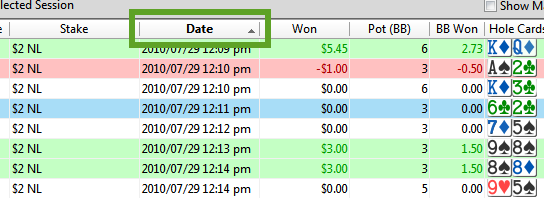
Then organize all hands by date, with the earliest date at the top so that the session is played in order. If all of your hands aren't showing up make sure that you don't have any filters or tags selected and consider turning "Most Recent X Hands" to "All Hands".
Now right click the report and go to Replay All Hands in Report.
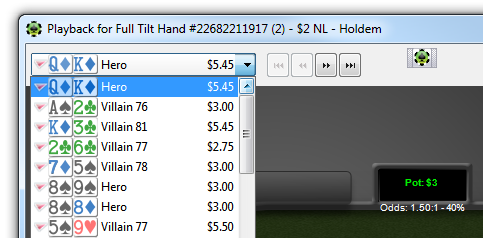
This brings up the replayer with every hand from your session or tournament loaded. You can also click the drop-down menu in the upper-left to show your hole cards and the final pot size for each hand.
Customizing the Replayer
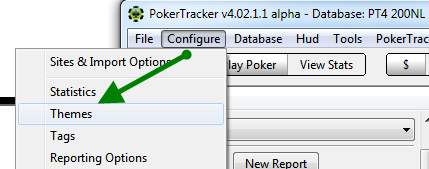
The PokerTracker 4 replayer ships with several built-in themes, and you can also customize your own. To do this, go to Configure > Themes.
From the Configure Themes window, go to the Replayer page. Your available themes are listed on the left. Select one to see a preview on the right.
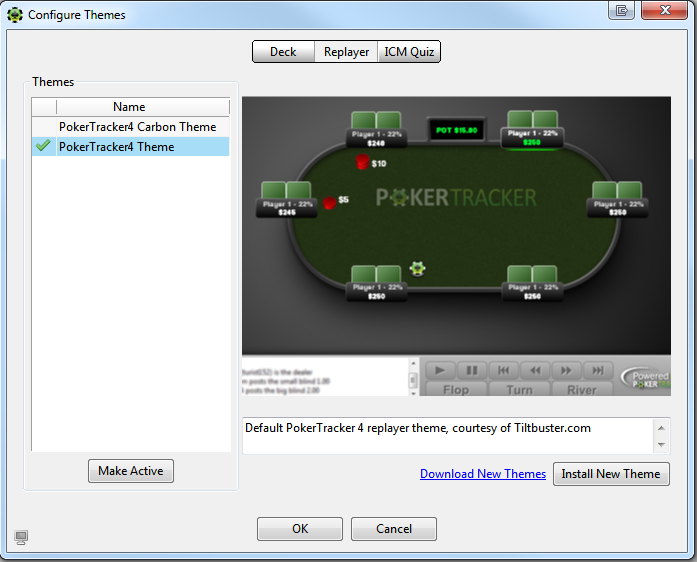
Once you've chosen a theme, select it and click Make Active. You can also explore more themes by clicking the blue Download New Themes link. To install a theme from the download warehouse, download it to your computer and then click Install New Theme. When you're done, click OK to save your choices.
If you are interested in creating your own replayer theme, see our theme customization guide.
Replayer Videos
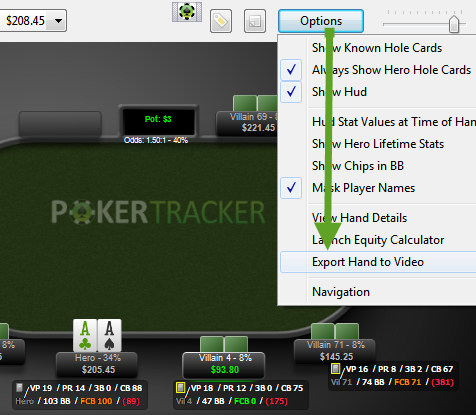
You can also export hands or sessions from the replayer to video. When replaying a hand, go to Options > Export Hand To Video. When replaying multiple hands, choose Export Current Hand to Video or Export All Hands to Video.
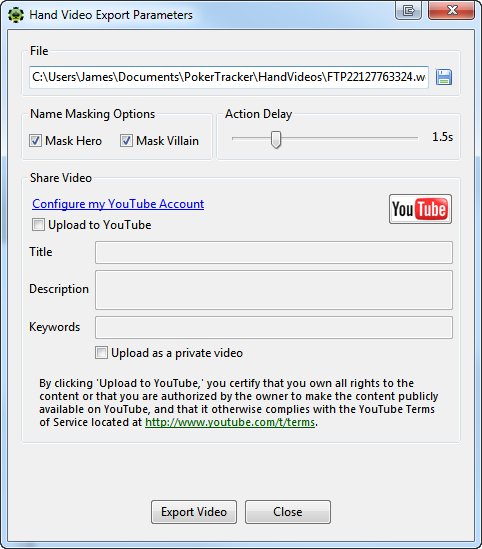
From this window you can change basic options such as masking the hero's and villains' usernames. Since the video automatically plays the hand, you can also set how long each action is delayed, in seconds. Along the top, click the disk icon to set the video name and where it's saved on your computer.
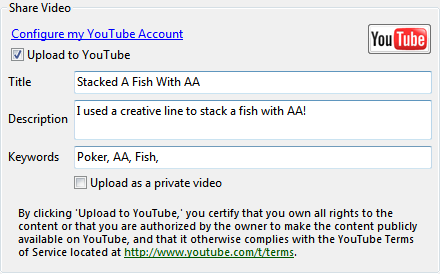
You can also share the video directly to YouTube. Click the blue Configure my YouTube Account link and enter your credentials. Then check Upload to YouTube and enter the title, description, and any keywords for the video.
Playing WebM Videos
PokerTracker 4 saves these videos in WebM format, an open-source project managed by Google (read about it here). There are three ways to play WebM videos on your local computer:
-
WebM videos play natively in all web browsers -- just open the file in your browser.
-
Windows users can play WebM files in Windows Media Player after installing the free WebM/VP8 DirectShow Filters, the codec that adds WebM support.
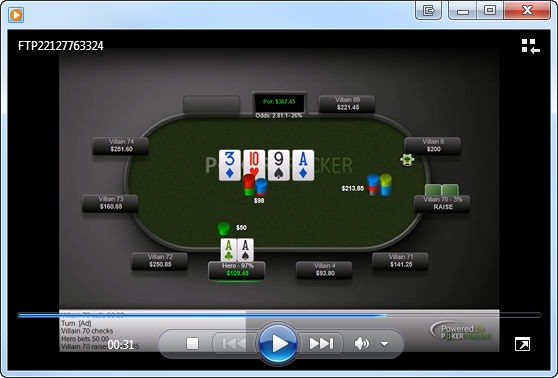
WebM videos uploaded to YouTube are viewable on all currently known mobile platforms.