Tagging Hands
Overview
PokerTracker 4 lets you tag hands in your database and on the tables, pull up tagged hands, and customize your own tags. Tagging makes it easy to retrieve certain hand types for later review and analysis.
Tagging Hands
You can tag hands two ways: directly from the HUD while playing, or from your database afterward.
From the HUD
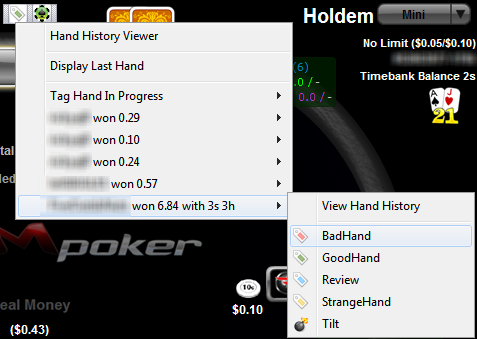
To tag hands from your HUD, left-click the tag icon and scroll down to the hand you want to tag. You can also tag the current hand by choosing Tag Hand In Progress. Tagging during play lets you revisit a hand after the session and add notes at that time, minimizing in-game distractions. Once tagged, these hands can be retrieved in your database by sorting for the selected tag.
From the Database
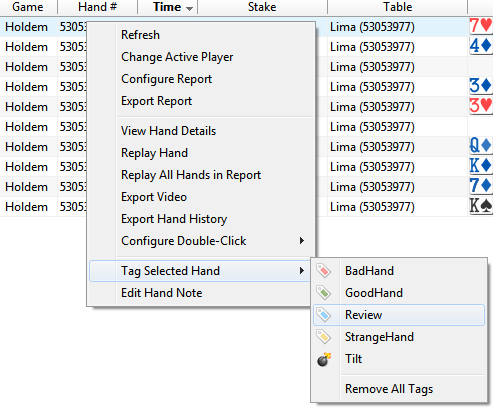
To tag a hand in your database, right-click the hand, scroll down to Tag Selected Hand, and make your selection. To tag multiple hands at once, shift-click or control-click the hands, then scroll down to Tag Selected Hands and make your selection.
Sorting Tagged Hands
There are two easy ways to review tagged hands in PokerTracker 4:
- Check Show Marked Hands Only to show only hands that have a tag or note.
- Select a specific tag (or tags) from the drop-down menu to sort by it.
When you're done, deselect the tag(s) from the drop-down menu and Refresh the report.

Customizing Tags
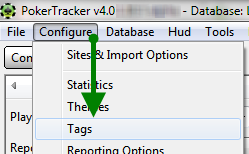
To create and customize your own tags, click Configure from the main menu, then Tags.
The Tag Edit window lets you add, delete, and edit tags. To add a new tag, click Add, select a tag icon from the drop-down menu, and add a short description. When you're finished, click OK to save.
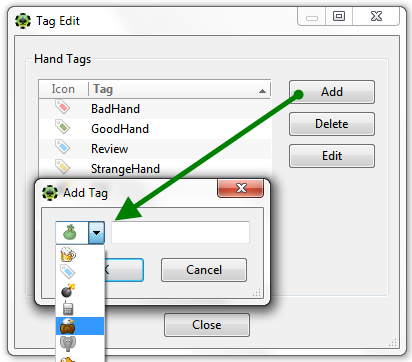
To delete a tag, select it and click Delete. Editing a tag lets you change its icon and description. When you've made all your changes, click Close — your customized tags are then available in the HUD, in your database, and for sorting through hand histories.