Video Tutorials
Overview
PokerTracker 4 offers two types of videos: in-client videos that explain various features and also replayer videos that you can share/review later.
In-Client Videos
While using PokerTracker 4 you may notice the video icon on various features.
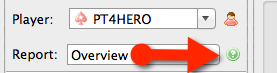
When you click the video icon a 1-5 minute long video will appear giving you more information about the feature. The video replayer allows you to play, pause, go full-screen, and change the volume.
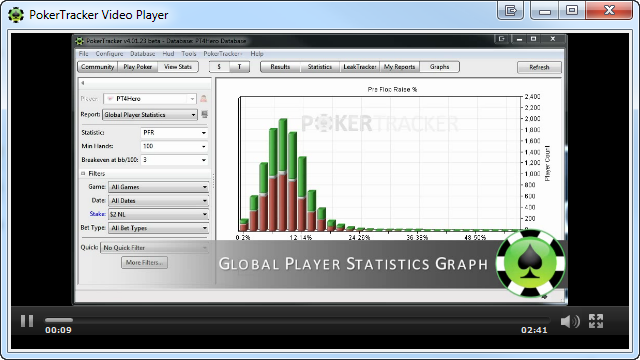
There are over 20 in-client videos that will help you understand and utilize the features in PT4. If you don't fully understand how to use an aspect of PT4, look for the video icon!
Replayer Videos
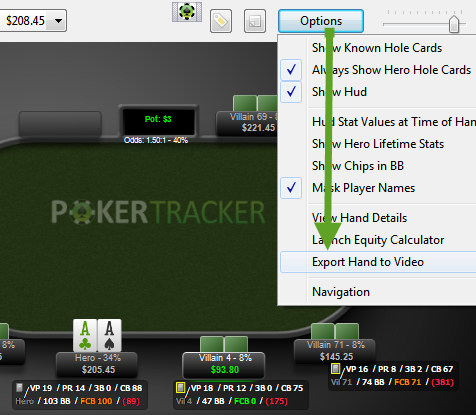
You can also export hands and sessions from the replayer to video. When replaying a single hand, go to Options > Export Hand To Video. When replaying multiple hands, choose Export Current Hand to Video or Export All Hands to Video.
From this window you can mask hero's and villains' usernames, and since the video plays the hand automatically, you can set how long the action is delayed in seconds. Along the top, set the video name and choose where to save it on your computer by clicking the disk icon.
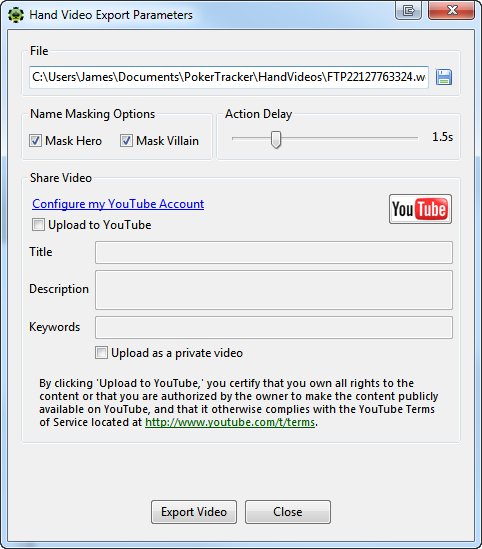
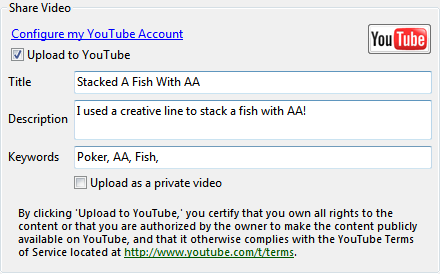
You can also share the video directly to YouTube. Click the blue Configure my YouTube Account link and enter your credentials, then check Upload to YouTube and enter the title, description, and any keywords for the video.
Playing WebM Videos
PokerTracker 4 saves these videos in WebM format, an open-source format managed by Google (read more here). All modern web browsers can play WebM video — just open the saved video file in your browser.
WebM videos uploaded to YouTube are visible on all current mobile platforms.