Automated Hand History Importing
Introduction
Auto importing imports hands automatically while you play. To import existing hands manually, see the Manual Import tutorial.
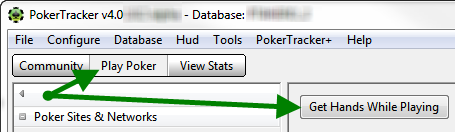
This guide covers the general auto import options. To configure individual sites, see the site-specific guides in the Documentation. To begin, click Play Poker > Get Hands While Playing.
Starting and Stopping Auto Import
With your tables open, click Get Hands While Playing. Hands you play on correctly configured sites are imported automatically and begin to populate below. If no hands appear, reconfigure the import settings for the site(s) you are playing on.
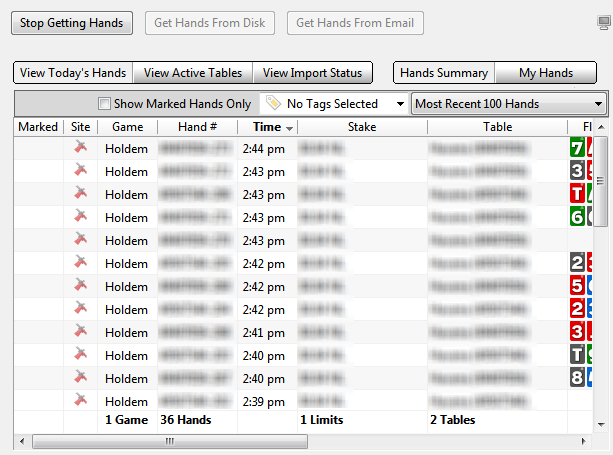
To finish, click Stop Getting Hands.

Import Statistics

- Hands — the number of hands imported during the current import.
- Errors — how many hands failed to import due to errors in the hand history. To see which hands failed, scroll through the View > Import Status tab.
- Duplicates — hands being read that were already imported into the database. Duplicates are rejected, not imported again.
- Tournament Summaries — the number of tournament summaries imported during the current import.

You should not see any duplicates during normal use of Auto Import. If you do, it is probably because old hand history files remain in your hand history folders. To avoid this, enable the Move Processed Files To option (see Processed Files below).
Auto Import Preferences
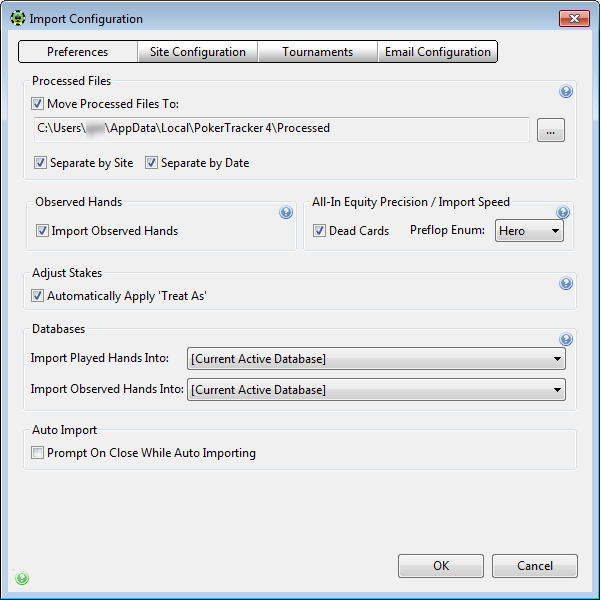
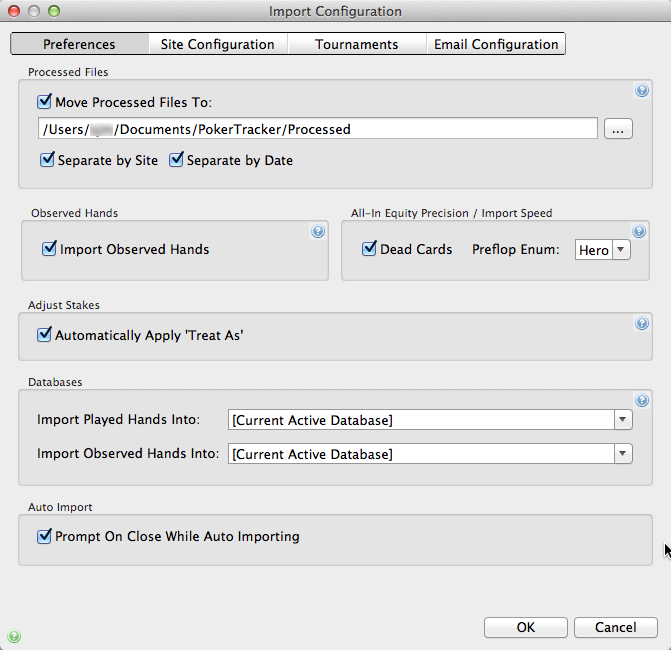
Configure the auto import settings from the main menu: Configure > Site & Import Options, then click the Preferences tab.
Windows Import Configuration
macOS Import Configuration
Processed Files
Windows Processed Files

macOS Processed Files
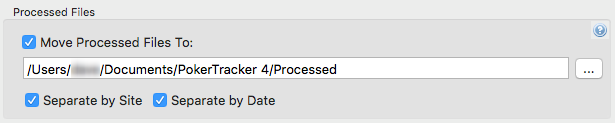
Once PokerTracker 4 imports the hands from a hand history file, the data is stored in a PT4 database and the file is no longer needed (except as a backup for re-importing). Files left in the original hand history folder are re-read every time Auto Import starts, which gets slower as old files build up.
To prevent this slow-down:
- Enable Move Processed Files To and specify a folder completely separate from anywhere you import from. Click the ... button to the right to choose the location.
- Enable both Separate by Site and Separate by Date to organize the processed hands folder for easy retrieval.
- Files are only moved when Auto Import is stopped.
- If tables are still open, files can be locked and may not move.
If the Duplicates count increases when you start Auto Import, make sure this option is enabled, then let it run until all counts stop increasing. Stop it, and the processed files will be moved. See the Preventing Duplicates tutorial for more information.
Observed Hands

If your site writes hand histories for observed hands, PokerTracker 4 can import them. To prevent this, disable the Import Observed Hands option.
Adjust Stakes

Certain poker sites don't indicate whether a table is heads up, 6-max, or full ring. This causes issues when you play a full ring table with 5 players, a 6-max table with 2 players, and so on. Enable Automatically Apply 'Treat As' so PokerTracker 4 can estimate the table type from the number of players seated. For more information, see the Adjusting Stakes tutorial.
Tournament Summary

When enabled, Overwrite Existing Data tells PokerTracker 4 to overwrite existing tournament summary data on import. Only enable this option when necessary.
Databases

This section defines which database hands are imported into.
With more than one database, you can import 'played' and 'observed' hands into separate databases. Click the drop-down menu and select the database, or choose [Current Active Database] to use the active database.
To use separate 'played' and 'observed' databases, see Managing Multiple Databases for one approach.
Troubleshooting
Common auto import problems and their fixes.
Hands Will Not Auto Import
- Make sure your poker software is installed in English (not just writing hand histories in English) and is configured to write hand histories to file.
- Check that hand history files are being written as you play, and that the site's configuration points to the correct folder — select your site and click the Configuration button.
- On Windows, run both PokerTracker 4 and your poker site as Administrator. This is different from being logged in as an Administrator.
See the Quick Start Guide and the Documentation for site-specific setup guides.
My Imports Start Slowly
This is usually caused by PokerTracker 4 having to re-read an existing set of hand history files.
Enabling the Move Processed Files To option in Import Configuration > Preferences should prevent this. If problems continue, see Moving Processed Files: Unable To Get Hands While Playing.
Short-Handed Tables Are Not Labelled Correctly
Not all sites report table size in the hand history, so a 6-seat table at one of these sites is imported as full ring rather than labelled (6 max).
To counter this, enable the Automatically Apply 'Treat As' setting. Any hands imported (Auto or Manual) with fewer than 6 players are counted as 6-max, and hands with 2 players are counted as heads up. This is not foolproof, but it works in many scenarios on most poker networks.
Can I Import Observed Hands?
This depends on the site. PokerTracker imports observed hands if the poker room saves them, which commonly happens when you are seated at a table but sitting out. Not all sites write hand histories for observed tables — you normally need to be dealt into a hand for the history to be written.
PokerStars has a unique policy allowing tracking software to import 30 hands per session to aid with table selection. To use it:
- Enable Import Observed Hands in the Import Configuration window.
- Enable the PokerStars Memory Grabber.
The Memory Grabber does not work with Zoom tables, and is not available on macOS due to operating system security restrictions.