HUD Options & Profiles
Overview
The HUD has many options and preferences. This guide covers those options, further customization, and how to set HUD profiles for your games.
HUD Options
To configure your HUD options, go to HUD > Edit HUD Options.
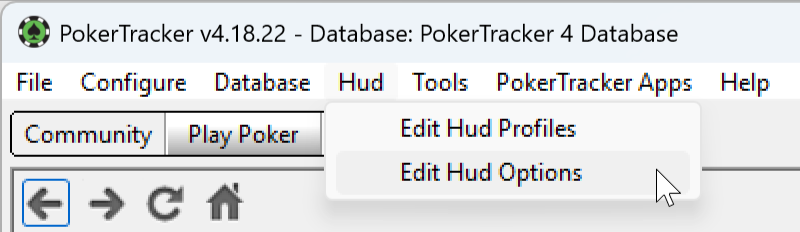
This opens the HUD Options Configuration window.
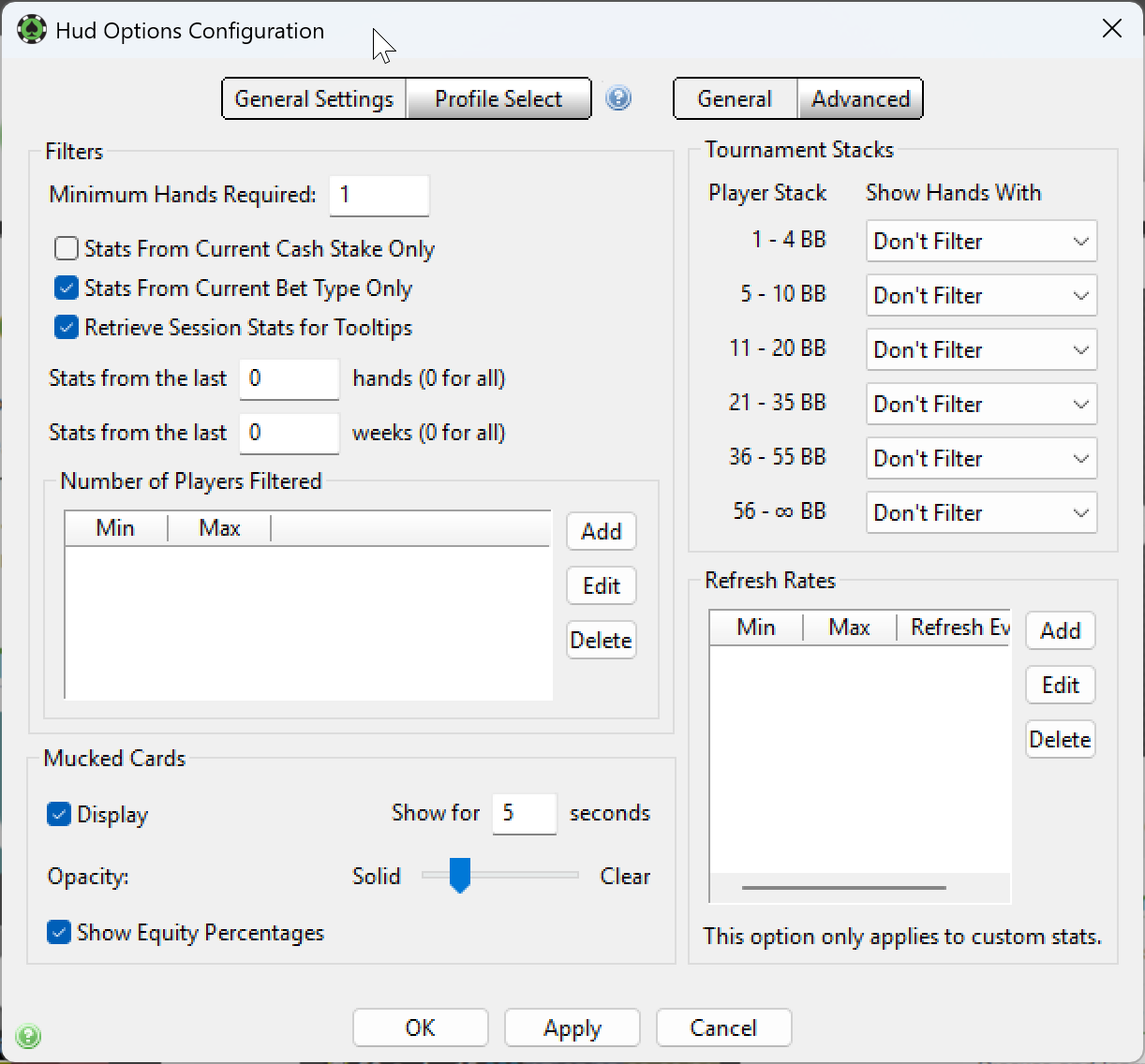
The General Settings > General page lets you add HUD data filters, change the mucked cards settings, add tournament HUD filters, and change custom stat refresh rates.
Filters
Set the minimum number of hands before the HUD appears for a player. Use 1 to show statistics immediately, or 10 to wait until you have 10 hands on a player.
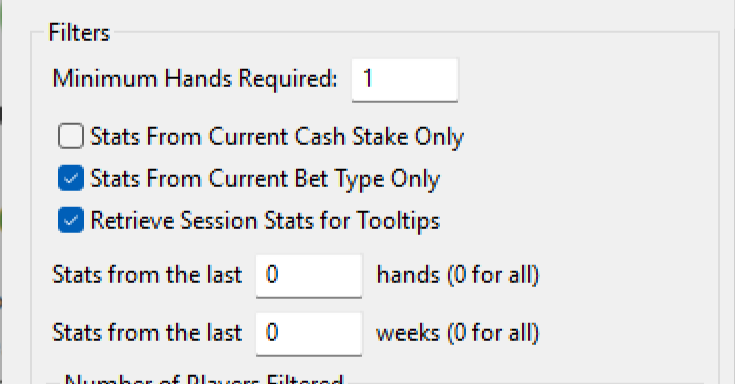
You can also filter HUD data by cash stake and bet type.
- Stats From Current Cash Stake Only — when checked, the HUD shows only data from the current stake. For example, if you play a player at both $1/$2 NL and $2/$4 NL, you'll see only $1/$2 data at $1/$2 tables and only $2/$4 data at $2/$4 tables. Leave unchecked to show data from all limits.
- Stats From Current Bet Type Only — when checked, the HUD shows only data from the current bet type (NL, PL, or Limit). Leave unchecked to show data across all bet types.
- Retrieve Session Stats for Tooltips — enabled by default. Hover over any HUD stat to see the current table session results in a tooltip, useful for comparing how an opponent is playing at the table versus their long-term results.
- Last X Weeks — show only stats from hands played in the last X weeks while still using cached data for performance. Set to 4 to limit the HUD to the last 4 weeks, or to 0 to show all HUD data.
- Last X Hands — show only stats from a player's last X hands. Set to 1,000 to limit the HUD to the last 1,000 hands, or to 0 to show all HUD data. This option bypasses cached stat values and can slow HUD updates, so it isn't recommended outside of cases like analysing a recent set of hands in the Replayer.
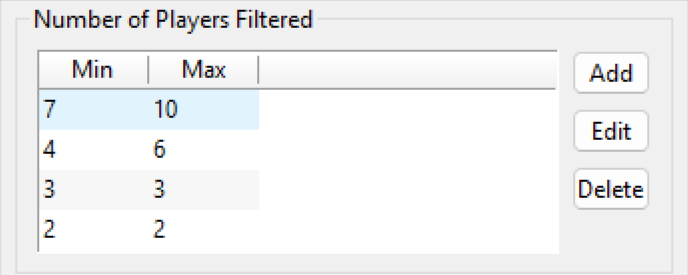
The Number of Players Filtered section adds filters based on table size. With a filter of 7-10, when 7-10 players are dealt into the current hand the HUD shows each active player's data only from hands where 7-10 players were dealt in.
Ranges are applied in order. Defining 6-10, 3-7, and 2-2 keeps hands with 6+ players separate from short-handed hands, and heads-up separate as well.
Mucked Cards
Change how mucked cards are displayed at a table.
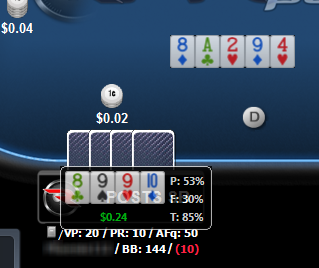
Use the Display option to control whether mucked cards are shown, then set how many seconds they appear and how opaque they are.
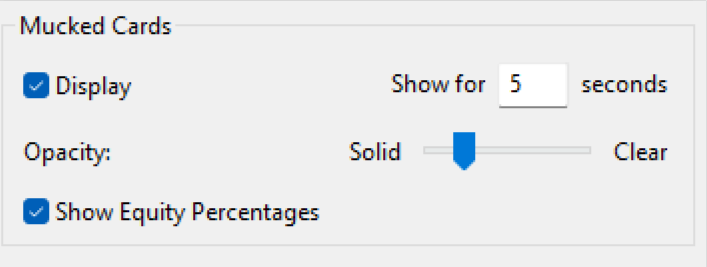
The Show Equity Percentages option toggles whether each player's equity is shown alongside their mucked cards.
Tournament Stack Filters
Filter HUD data by tournament stack size.
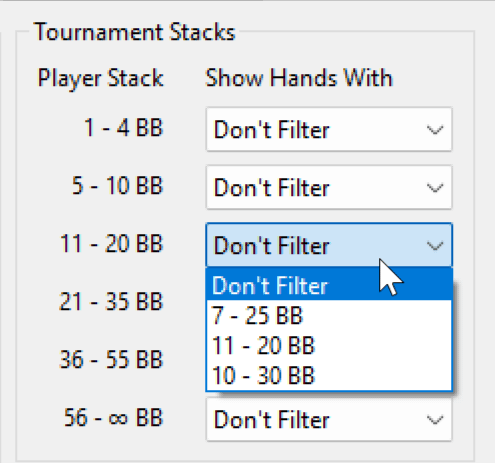
Filtering is based on your opponent's starting stack size. In the example above, when an opponent has 11-20 big blinds, the HUD shows only data from hands where they started with 7-25 big blinds. To disable filtering, select Don't Filter for each stack size.
Refresh Rates (for Custom Stats)
If you use uncached custom statistics, you can set a refresh rate to control how often they update and improve HUD performance.
This option was added before custom stats were cached in the database and is no longer needed in most cases. With many uncached custom stats and a large database, lowering the refresh rate may still improve performance.
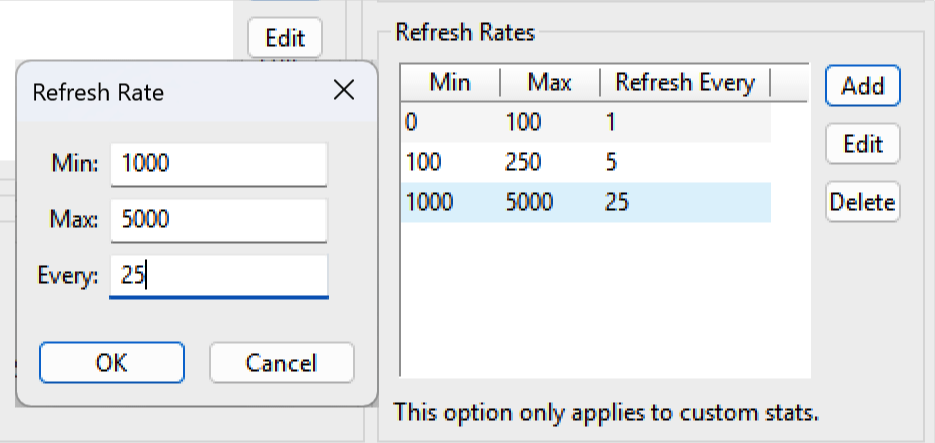
Click Add to create a filter, then set the minimum hands, maximum hands, and how often to refresh the statistic. In the example above, the stat refreshes every 25 hands when a player has between 1,000 and 5,000 hands.
Ranges must start at 0 and cannot have gaps. If you define 0/100 and then 150/500, the HUD stops refreshing uncached custom stats at 101 hands and won't resume until 150 hands.
This applies only to custom statistics and does not affect built-in statistics.
Advanced HUD Options
The Advanced page offers additional options.
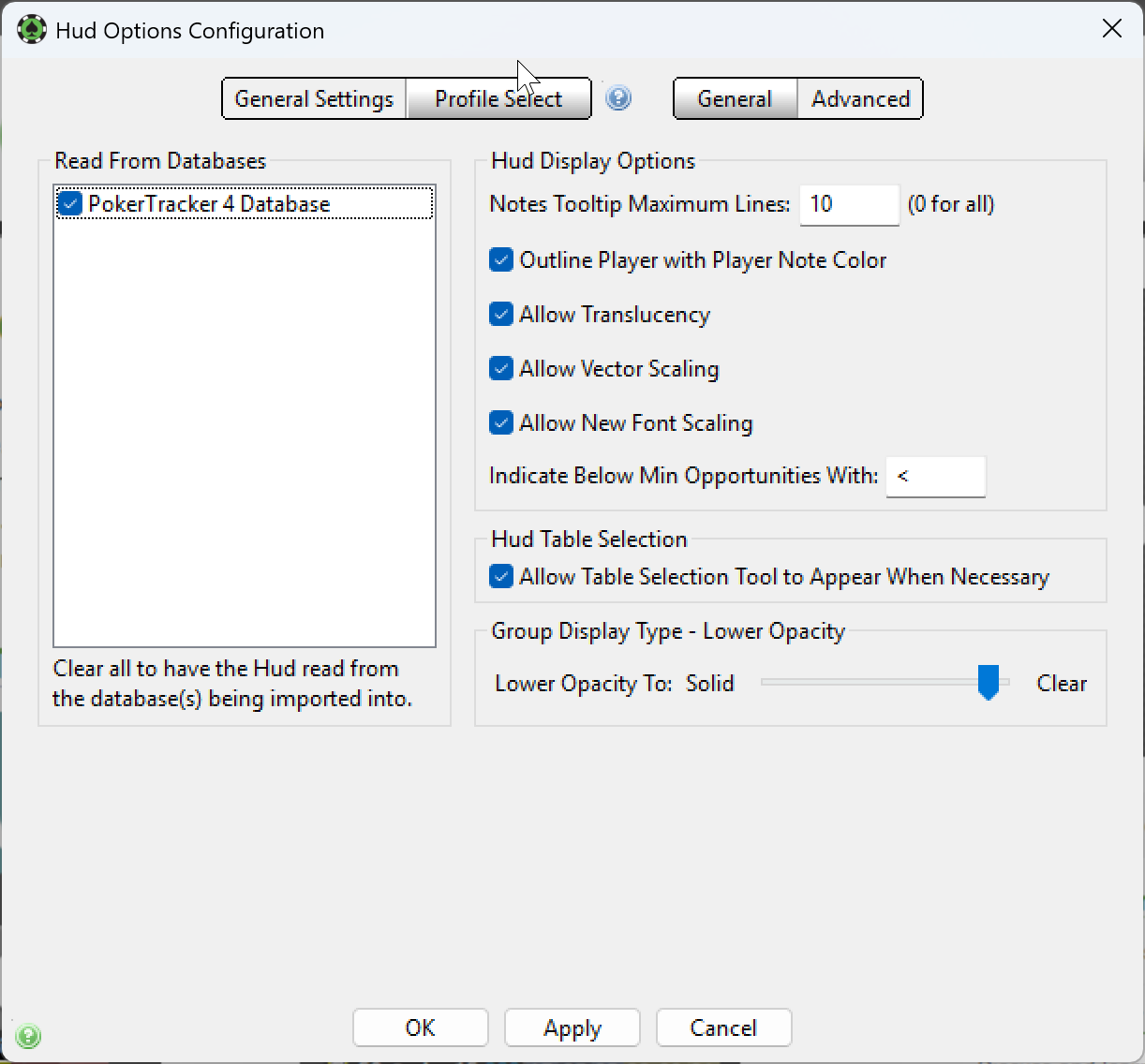
On the left, choose which databases the HUD reads from. The Active database is selected by default — add others if you have multiple databases.
On the right are advanced HUD Display Options:
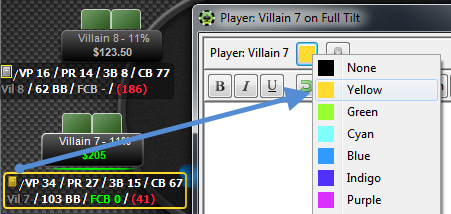
- Outline Groups with Player Color — outlines HUD groups with the player color you've assigned in the note editor.
- Allow Translucency — lets HUD elements use opacity levels. Enable to ensure elements such as mucked cards, HUD groups, and popups display correctly.
- Allow Vector Scaling — scales HUD groups appropriately when you change the table size.
- Indicate Below Min Opportunities With — if the minimum opportunities have not been reached display this text/character.
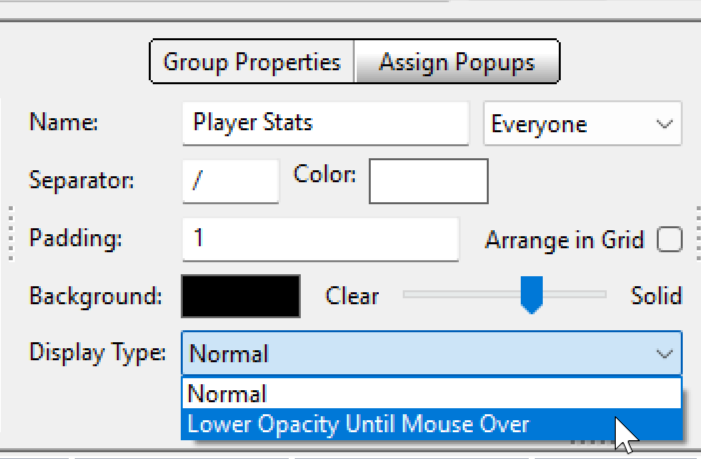
You can also set the Lower Opacity Group Display Type, which is selectable when editing a HUD profile and choosing the Display Type for a HUD group. Use it to control the opacity level when the HUD group isn't being moused over.
Profile Select
The Profile Select page sets Active HUD Profile Definitions, which determine which HUD profile is used and when.
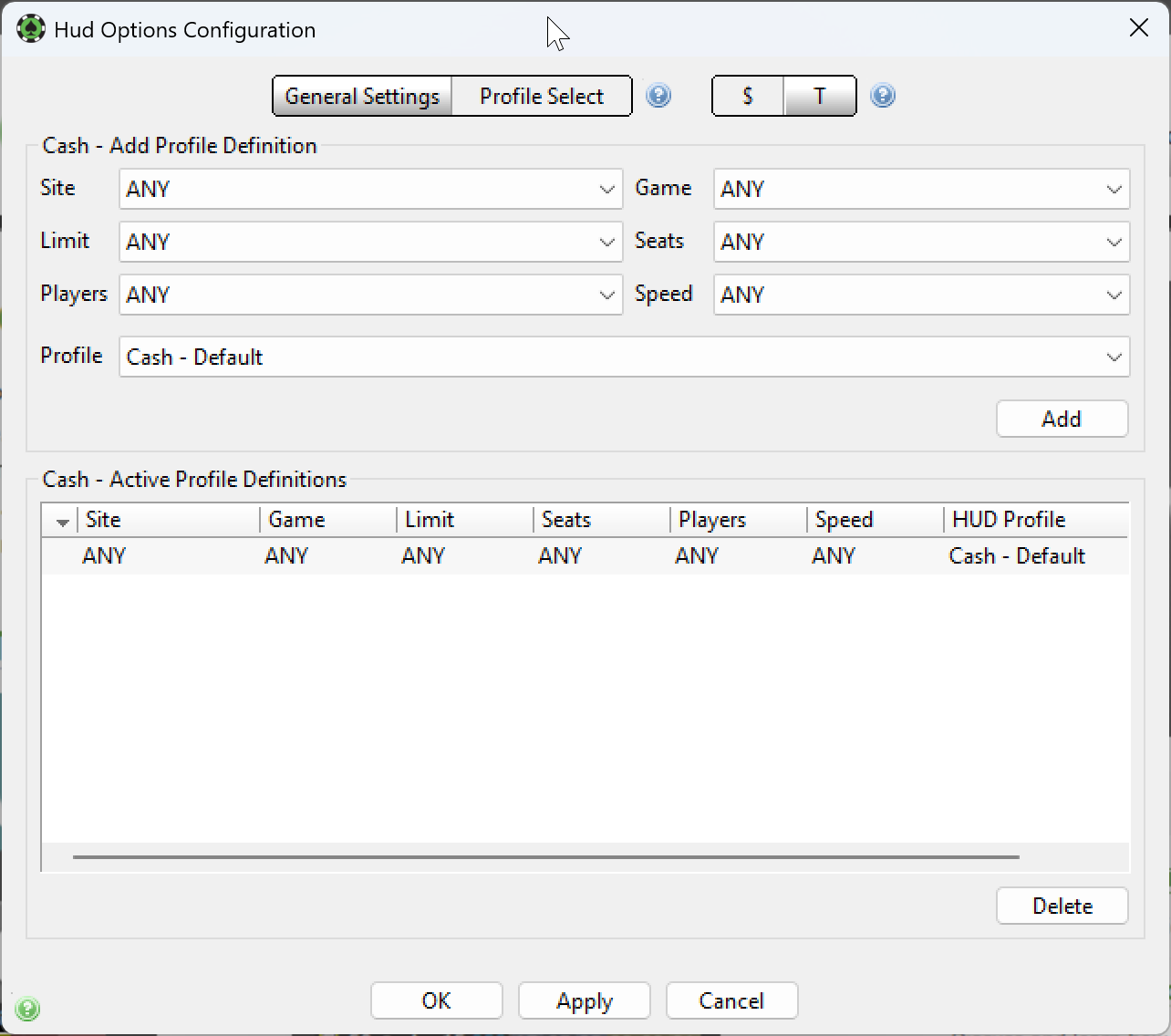
Choose $ for cash games or T for tournaments, then set which parameters must be true for a profile to be used.
For example, you could use the Cash - Default HUD for short-handed NL cash games on PokerStars, the Cash - Professional HUD when replaying hands in the PokerTracker Replayer, and the Cash - Omaha HUD for PL Omaha cash games on any site.

Use the drop-down menus to make your selections, choose the HUD profile to use for those definitions, then click Add.
To configure a profile for the Replayer, select PokerTracker Hand Replayer from the Site dropdown. Seats is the number of seats at the table (which doesn't change during a session), and Players is the number of players currently at the table (which can change). The Players option (added in v4.15.7) lets the profile change automatically — for example, when moving from 3-handed to 2-handed in a lottery tournament, or when a full-ring cash table becomes short-handed.
Your active profile definitions are listed below. To delete one, select it and click Delete — this removes the definition only, not the actual HUD profile. Click OK to save your changes.