HUD Profile Management
Overview
PokerTracker 4 lets you create, customize, and manage multiple HUD (Heads Up Display) profiles. This guide covers each part of HUD profile management.
HUD Profiles
To manage your HUD profiles, click HUD > Edit HUD Profiles from the main menu.
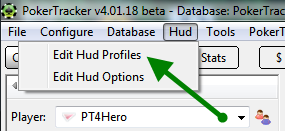
This opens the HUD Profile Editor, where you can edit existing profiles, create new ones, and access a variety of other options.
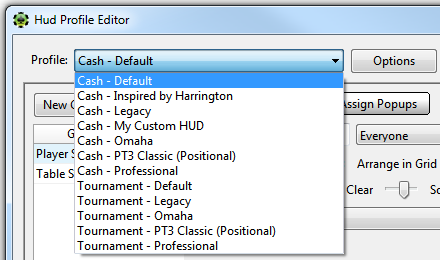
By default, PokerTracker 4 uses Cash - Default for cash games and Tournament - Default for tournaments. You can edit any profile at any time by selecting it from the Profile drop-down menu and making your changes.
Profile Options
Clicking the Options button brings up the list of actions described below.
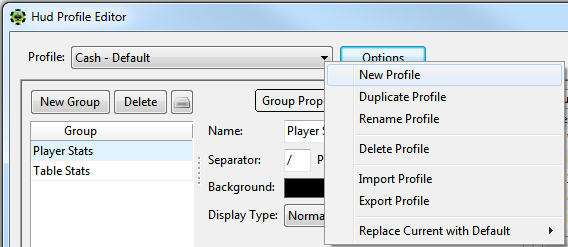
New Profile
Creates a new, blank HUD profile. Choose whether the profile is for cash or tournament tables and give it a name.
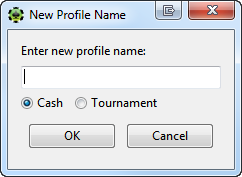
All profiles begin with either Cash - or Tournament -. You do not need to type this — it is added automatically.
Duplicate Profile
Creates a new profile as a copy of the currently selected profile. Choose whether the profile is for cash or tournament tables and give it a name.
If you duplicate a cash profile into a tournament profile (or vice versa), the exact configuration is copied to the new profile, including all statistic names — but the statistics themselves are not created if they do not already exist. If you have a custom stat you use in your cash HUD, you will need to manually recreate it as a tournament stat (using the same name) to see it in the new profile. The name will be included in the new profile as a placeholder.
Rename Profile
Renames the selected HUD profile. You do not need to add Cash - or Tournament - to the title — it is added automatically.
Delete Profile
Deletes the currently selected profile. This action cannot be undone, so you will be asked to confirm.
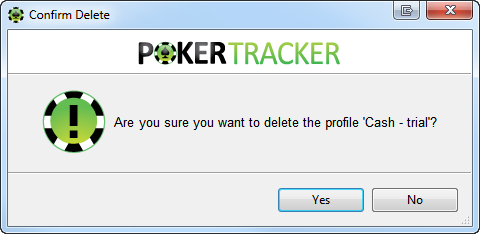
Import Profile
Imports a profile from a .pt4hud or .pt3hud file. These files are generated by Export Profile — you can import one you previously exported or one shared with you by another PokerTracker 4 user.
Browse to the file and click Open to import it.
If you are downloading a profile from the internet, save it to your hard drive first and note the location.
Export Profile
Exports a profile to a .pt4hud file to share with other PokerTracker 4 users or to keep as a backup. Select a folder and click Save. Backups are useful if you reinstall PT4, migrate to a new computer, or want to send a profile to another user.
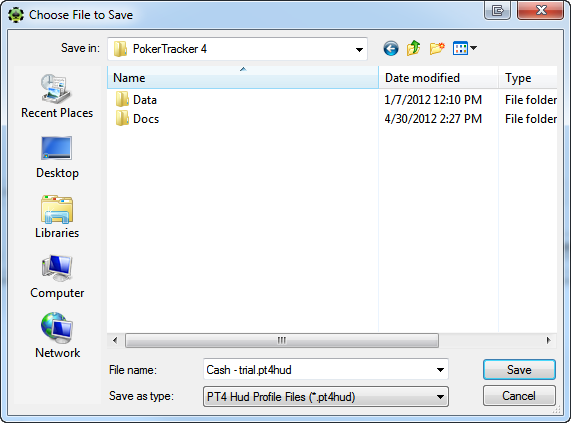
Exported profiles include all custom statistic information used in the layout, so this single file is all you need to share a layout.
Replace Current with Default
Overwrites the currently selected HUD profile with a built-in default profile of your choice. This removes any changes you have made to the current profile, so use it only if you want to revert to the default settings.
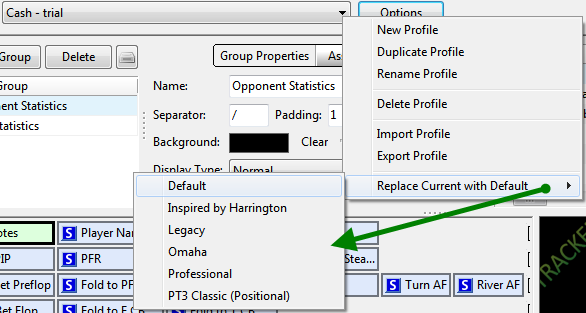
Selecting HUD Profiles
There are two ways to change your active HUD profile.
While playing or in the replayer
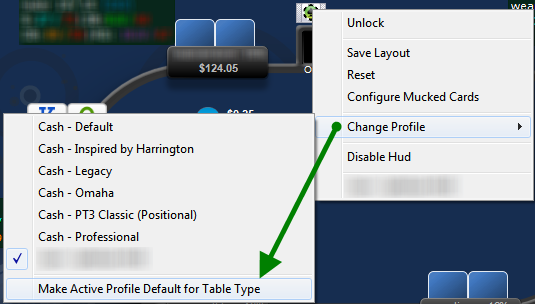
Click the PT-icon chip, go to Change Profile, and select the HUD profile you want to use.
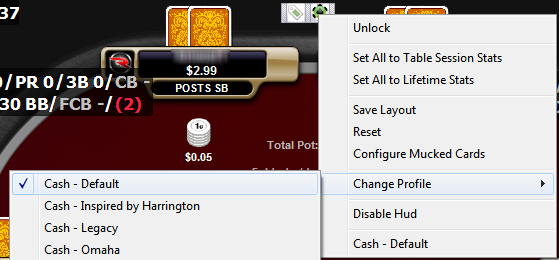
You can also select Make Active Profile Default for Table Type to use the current HUD profile for the table type you are on. For example, if you are playing a $1/$2 6-max cash game, select the Cash - Legacy profile, then click Make Active Profile Default for Table Type, the Cash - Legacy profile will be used for future $1/$2 6-max cash tables.
From HUD Options
Click HUD > Edit HUD Options from the main menu to open the HUD Options Configuration window, where you can define which profile to use under specific conditions. For example, you can use Cash - Default for 6-max games, Cash - Legacy on PokerStars, and so on.
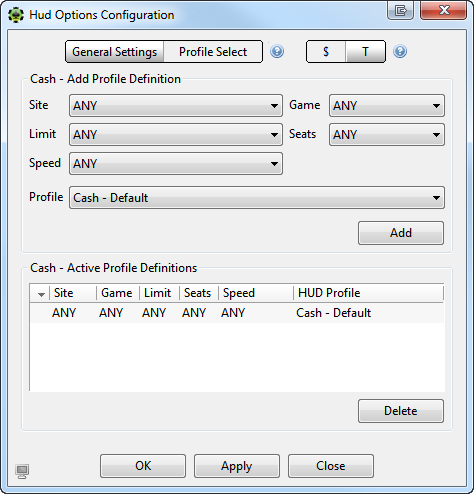
Use the drop-down menus to create a definition and click Add. To remove a definition, select it from the list below and click Delete. Click OK to save your changes.