Preferred Seating
Overview
Some poker sites let you specify which seat you want to sit in and always rotate the players so you appear in the same position. If you use this option, you need to tell PokerTracker 4 about your preferred seat for each site and table size — HUD placement is always relative to your seat.
Preferred seating can be configured using the Setup Assistant or through manual site configuration. Consult the Site Configuration instructions for your specific site to define your preferred seat.
Preferred Seating
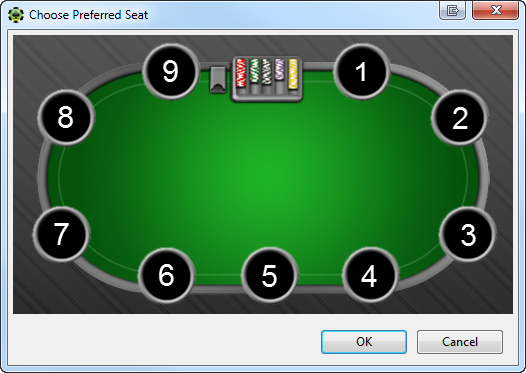
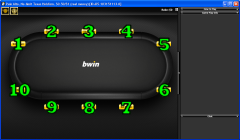
For most sites, seat 1 is in the top right corner and the numbers go clockwise around the table. Here is the numeric seating for a 9-max table:
And a 6-max table:
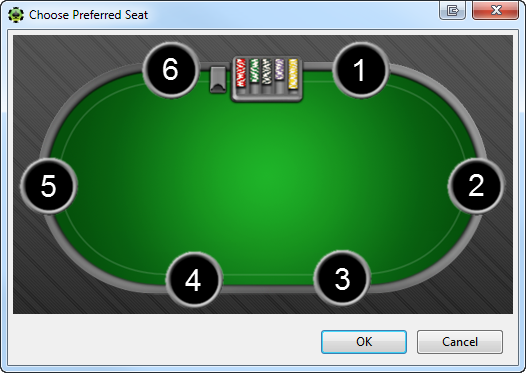
These positions apply to most sites — consult the PokerTracker Site Configuration Guide for your site to confirm. Knowing which seat you sit at lets PokerTracker 4 place your HUD correctly when you sit down at a table.
Some common sites use different seating rules:
Merge: The first seat is at the far left, in the 9 o'clock position or just above.
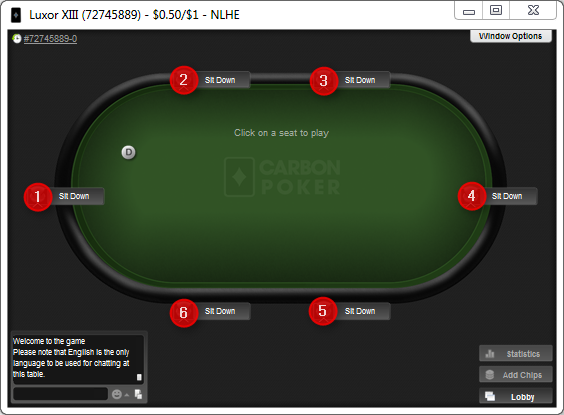
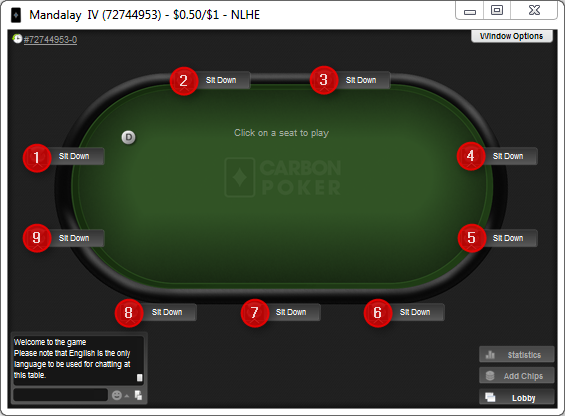
Ongame: The first seat starts just above 9 o'clock.
Troubleshooting
When preferred seating is enabled, the stats at your table may not move to the correct positions until you have played and imported at least one fully played out hand. Until then, PokerTracker 4 cannot know you are seated at the table and therefore cannot apply your preferred seat settings.
If you join a table and the view rotates to put you in your preferred seat, do not move the HUD — PokerTracker 4 will reposition it automatically after your first played hand is imported.
If you have enabled preferred seating and imported a played hand but the stats still don't line up, the most common causes are:
- PokerTracker 4 did not recognize the table size correctly. Check the Overview > Sessions report (click Refresh) to confirm the session is listed as the correct size (for example 6-max). Most sites are unaffected, but a few do not include the number of seats in the hand history. If yours is one of them, enable Automatically Apply Treat As in Configure > Site & Import Options > Preferences. PokerTracker 4 will then try to determine the table size from the number of players involved. If it cannot, you can manually set Treat As for each table from the PT4 HUD menu while playing.
- The stats still don't line up after the table size is correct. Disable preferred seating in both your poker client and PokerTracker 4, then play (or observe, if your site supports observed hands) a single table to manually position the stats for all seats in their natural positions. Unlock the layout from the PT4 HUD menu with Unlock, reposition the on-table HUD groups, then select Lock & Save Layout. Once positioning is verified, re-enable preferred seating in both your poker site and PokerTracker 4. The HUD should line up correctly the next time you play this table type.
Sit Me Here
Some poker sites offer a "Sit Me Here" option that lets you choose a separate seat at each table. Sit Me Here is not supported in PokerTracker 4 — only site-wide preferred seating is supported, because it is not possible to determine where you are at each individual table.