Tournament Auto Detection
Overview
PokerTracker 4's Tournament Auto Detection mechanism automates tournament classification and ICM calculation used to populate the Overlay Net Adjusted graph. Tournaments are analyzed both as they are imported and after they complete: the tournament type, buy-in, results, and prizes are detected automatically where possible and saved to your database.
Detection does not work for every tournament type — it generally supports commonly known Sit'n'Go formats. If your tournament is not detected, you can submit a hand history example to our support team so we can consider adding the format to the detection engine.
Once a tournament is detected, summaries are no longer required unless you need detailed result data on opponents. You have complete control over tournament types and can change them however you like.
Not all tournament types can be supported, and detection rules change as sites update their tournament structures. Results are very accurate for some sites and types, while others do not provide enough information in the hand history files for full automatic detection. Detection rules update automatically each time you start PokerTracker 4.
Please help us improve these results by reporting incorrect detection. Attach the hand history (and summary) files for any tournament that was not detected correctly, and tell us exactly what type it actually is.
Tournament Detection Overview
As tournaments are imported, Auto Detection determines the tournament type, buy-in, and your winnings. PokerTracker ships with a large set of built-in tags and descriptors, and you can add your own for any other types you play. You can filter tournaments by these tags to view any combination of types.
Table Types
The Table Type uses the format:
STT|MTT [x-Table] (x max) [Turbo|Super-Turbo] [Flags]
Where:
- STT — Single Table Tournament
- MTT — Multi-Table Tournament
- x-Table — The exact number of tables, when fixed. This normally applies to Sit'n'Gos.
- Turbo — Blinds increase about every 5 minutes
- Super-Turbo — Blinds increase about every 3 minutes or less
Flags
Flags can be any combination of the following:
- SNG — Sit and Go.
- DON — Double or Nothing (a.k.a. "Double Up"); half the players win.
- BOUNTY — (a.k.a. "Knockout") Bonuses are awarded for eliminating players.
- SHOOTOUT — A multi-table tournament played in phases of single-table events.
- REBUY — Players may rebuy upon elimination during the initial phase, typically the first hour or half-hour for turbo events.
- MATRIX — A group of single-table events played simultaneously. Bonuses are awarded for placing on multiple tables.
- RUSH — Players are instantly moved to a new table when they fold or a hand completes.
- POF — Push or Fold. Only the push and fold options are available.
- SATELLITE — Players compete for entry into another tournament.
- STEPS — Like SATELLITE, but structured as a series of satellites leading up to a grand prize.
- DEEP — Starting stacks are at least 2x normal, leading to longer, usually slower-paced games.
- Multi-Entry — Tournaments you can enter multiple times (not to be confused with a Rebuy).
- Fifty50 — SNGs where 5 of 10 players are paid their buy-in plus the equity of their chips when the tournament ends.
Examples
| Tournament | Table Type |
|---|---|
| Single-table 6-seat Turbo SNG | STT (6 max) Turbo SNG |
| Single-table Double-or-Nothing | STT SNG DON |
| Multi-table Bounty (Knockout) | MTT BOUNTY |
| 45-player SNG with 9-seat tables | MTT 5-Table SNG |
Detection of Existing Tournaments
You can run detection manually on any tournaments you choose — for example, tournaments imported before Auto Detection existed, or ones that were missed (perhaps you stopped Auto Import before detection triggered). Go to the View Stats page, select Tournaments, and click Edit Tournament Results on the Results tab.

This opens the Tournament Results window:
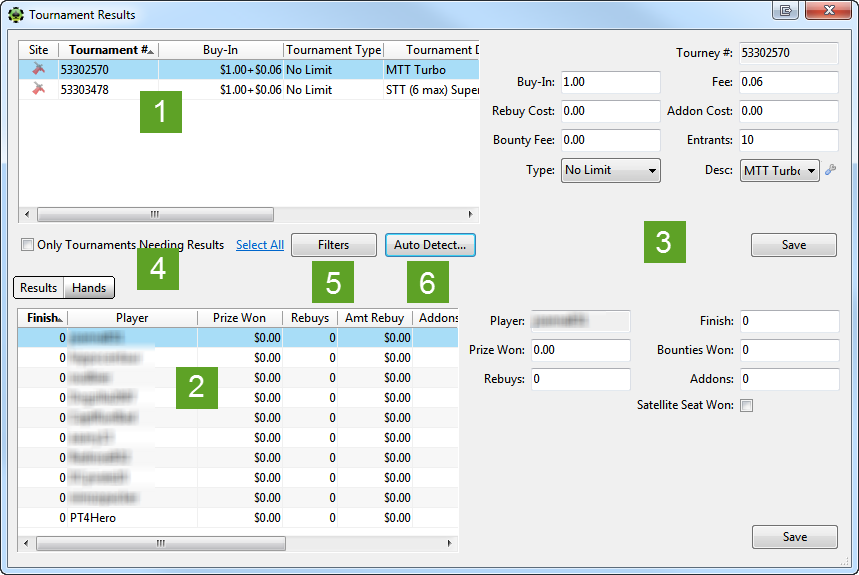
- Lists all tournaments in your database for you to select and inspect.
- Shows the summary information for the selected tournament.
- Lets you view and edit information about the selected tournament.
- Tick Only Tournaments Needing Results to show tournaments that need more information.
- Filter the list for various tournament types.
- Auto Detect updates existing tournaments for more complete results and data.
Use the Filters button and/or Only Tournaments Needing Results option to narrow the list, then select the tournament(s) to detect. Select multiple tournaments by shift-clicking or control-clicking, or use the Select All link. With your tournaments selected, click Auto Detect.
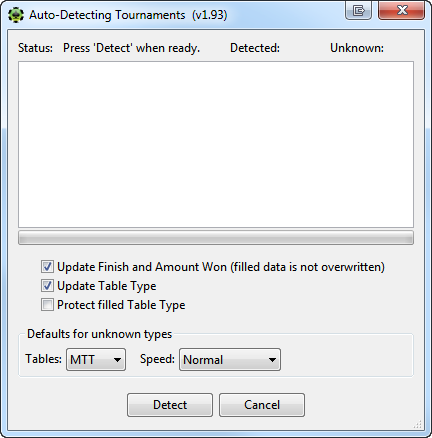
The Auto-Detecting Tournaments window has three options that control what is updated and what existing data (already filled manually, or from hand histories or summaries) is protected:
- Update Finish and Amount Won — When detection succeeds, the player's place and prize are assigned automatically. This never overwrites non-zero values or place/prize information you have already changed.
- Update Table Type — Stores the detected table type in the database. Disable it to see what type PT4 detects without saving it. If Protect filled Table Type is also enabled, only tournaments currently set to "N/A" are overwritten.
- Protect filled Table Type — Never overwrites a Table Type other than "N/A". Tick this if you have already set Table Types and only want to detect results information.
The default "safe" setting is to tick all three options: nothing already set is changed, and any newly detected information is saved to your database.
Updating Tournament Information Manually
Not all information can be auto detected for every tournament type — sometimes the hand history files simply don't contain enough information. For those tournaments, or any detected incorrectly, update the information manually in the Tournament Results window.
To open it, either right-click the selected tournament(s) and choose Edit Tournament, or click Edit Tournament Results in the sidebar on the Results page.
Use the Filters button and/or Only Tournaments Needing Results option to narrow the list, then select the tournament(s) to change. Select multiple tournaments by shift-clicking or control-clicking, or use the Select All link. Make your changes and click Save.

You can change the Buy-In and Rake/Fee amounts, the number of entrants (often missing from MTT hand histories), the Tournament Type (Limit, Pot Limit, or No Limit — nearly always set correctly from the hand histories), and the Tournament Description. Only the fields you change are updated across the selected tournaments; unchanged values are left alone (though you can optionally apply all settings to all tournaments).
Adding New Table Descriptions
If the correct description isn't in the list, you can add your own with any label and tags you like. Click the wrench icon next to the table description to start.
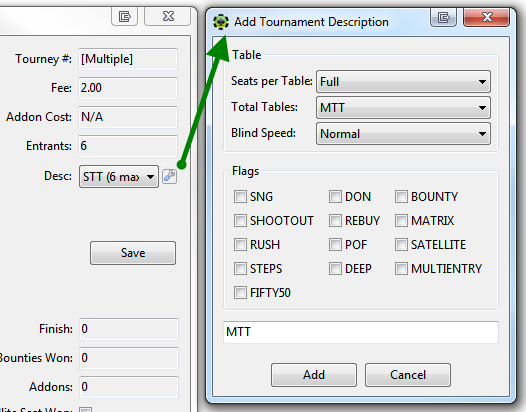
In the Add Tournament Description window, build the label from these options:
- Seats per Table — The number of seats at each table. Specify 2 to 8 explicitly, or Full for 9- or 10-seat tables. Anything other than Full adds a
(x max)tag. - Total Tables — The number of tables. Use
1for single-table tournaments (starts the label with "STT"); all others are "MTT". Use0for scheduled multi-table tournaments with no fixed number of tables. For SNGs with a fixed number of tables/entrants, specify the number of tables — not required, but it lets you identify and filter these tournaments. Any value other than0or1adds anx-Tabletag. - Blind Speed — Select Normal, Turbo, or Super-Turbo. Anything other than Normal adds a tag.
- Flags — Tick the appropriate flags to add their tags.
To create a label that isn't possible with these options, type it directly into the text field at the bottom. When the new type is defined, click Add to close the window.
Your new description is now available in the tournament description drop-down list.
Updating Player Results
The Tournament Results window also lets you enter or update individual players' results when they weren't imported or detected. For single-table tournaments, PokerTracker 4 should auto detect all finishing positions and prizes (when the entry fee and payout structure are known). For most multi-table tournaments, finishing positions and prizes can't be determined unless they're imported from hand histories or summaries.
If you play MTTs at a site that doesn't provide this information, enter any results you know in the lower section of the Tournament Results window. Select each player in turn, enter their results on the right, and click Save for each player you change.
